

How to Create Your Google Play Developer Account for your Learndash App
Introduction
To publish your Android app on the Google Play Store, you need a Google Play Developer account. This guide walks you through selecting your account type, entering developer and site details, specifying your app intentions, and completing the one-time US$25 registration fee.
Navigating to the Play Console Signup
- Go to https://play.google.com/console/signup.
- Choose your account type:
- Yourself (Personal): Uses your personal information; ideal if you don’t have a registered business.
- Organization (Business): Requires official business details and allows you to add other users.
- Yourself (Personal): Uses your personal information; ideal if you don’t have a registered business.
- Click Next.

Note: You can start with a Personal account and upgrade later. New Personal accounts must satisfy Google’s recent testing requirements.
Providing Developer and Site Details
- In the About You section, describe your developer experience or note this is your first app.

- Under Other Google Accounts, indicate if you’ve used another account for Play Console.
- Enter the domain where your LearnDash App is installed.
- Click Next.
Completing Your Developer Profile
- Fill in all required fields on the Developer Account page:
- Name
- Email
- Phone
- Address
- Name
- Click Next.
Specifying Your App Plans
- Under Number of Apps, enter how many apps you plan to publish (estimate is fine).
- Select No if your app is free.
- Choose the App Category that best fits your app (e.g., Education, Lifestyle).
- Click Next.
Accepting Terms and Completing Payment
- Review the Terms of Service and check I agree.
- Click Create Account and Pay.
- Click the + icon to add your credit or debit card.
- Enter payment details and complete the US$25 one-time fee.
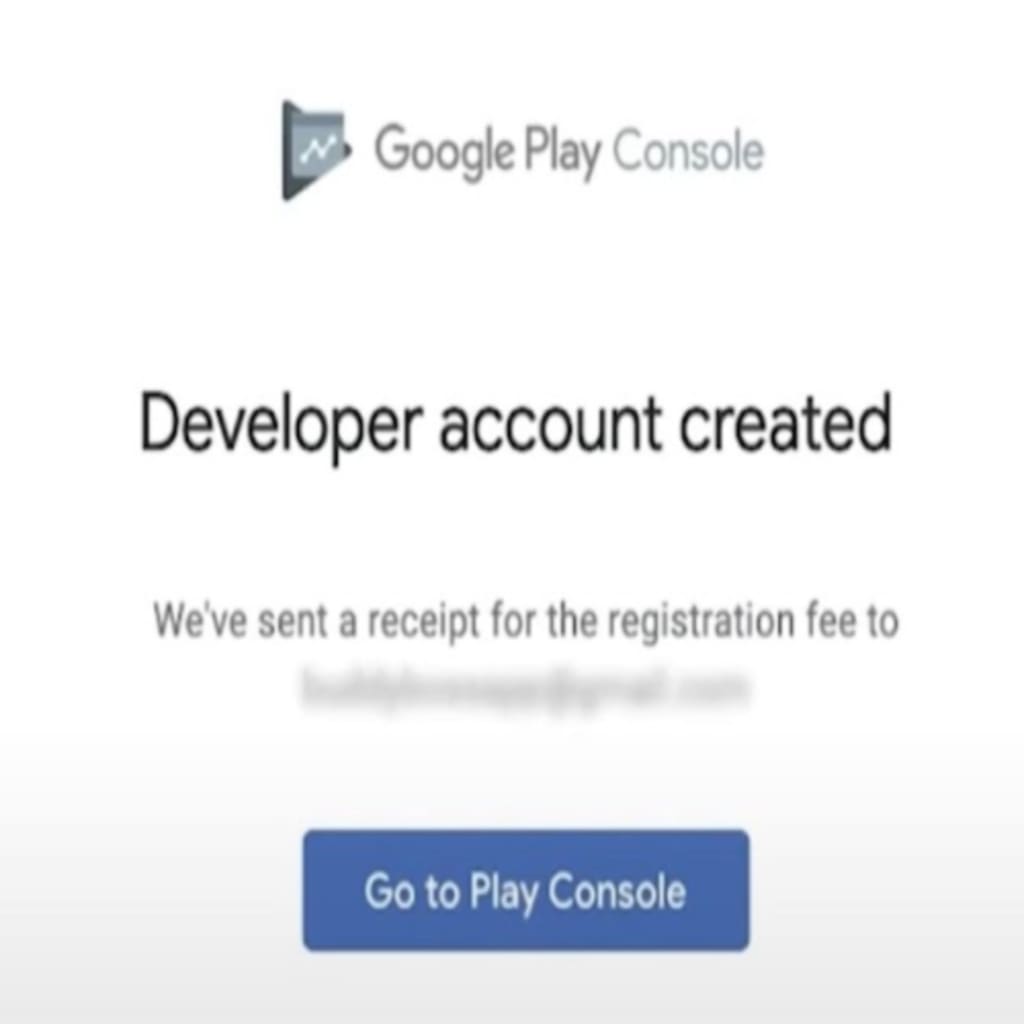
- Look for the confirmation: “Your Google Developer Account is now created!”
Troubleshooting and FAQs
Q: I can’t access the signup page, what should I do?
A: Make sure you’re signed into the correct Google account and go directly to https://play.google.com/console/signup.
Q: Which account type should I choose?
A: Use Yourself if you’re an individual without a registered business; choose Organization if you have a legal entity and need multi-user access.
Q: My payment failed, how can I retry?
A: Verify your card supports international transactions, re-enter your details, and retry the payment step.
Q: Can I switch from Personal to Organization later?
A: Yes, after registration, update your account type in the Play Console settings or contact Google support for assistance.