

How to Configure your Learndash Android App Links
Introduction
Android App Links enable deep integration between your Learndash App and your website, allowing members to open specific URLs directly in the app rather than a browser. By configuring App Links, you’ll create a seamless mobile experience, improve engagement, and ensure links to your community content always open in the correct context.
Obtaining Your SHA-256 Certificate Fingerprint
- Log in to the Google Play Console with the account used for your Google Developer enrollment.
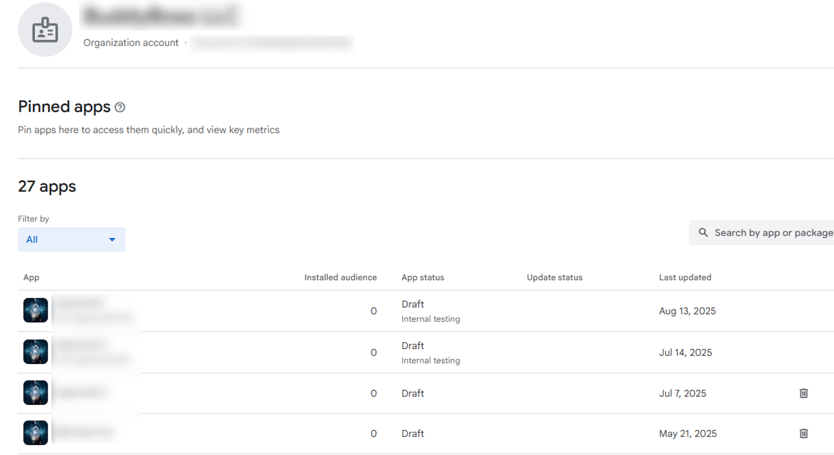
- Under All apps, select your App ID.
- In the Release tab, go to Setup > App Integrity > App signing.
- Copy the SHA-256 certificate fingerprint for your App Signing Key. You’ll use this in the Leardash App settings.
Enabling Android App Links
- In WordPress, navigate to Learndash App > Configure > Android Settings > Android App Links.
- Tick Enable Android App Links.
- Under Links to Open, choose All or Specific links to open in the app.
Note: Android does not support excluding individual URLs.

- If you use Google Play App Signing, paste your SHA-256 certificate fingerprint into Google Play Signing Certificate.

- Click Save Changes.
- Request a new Android build in Learndash App > Build to apply your App Links configuration.

Verifying Your Asset Links JSON
To verify if a valid JSON is served after enabling the Android App Links option, go to the following URL in your browser:
{{your site url}}/.well-known/assetlinks.json/
Confirm the JSON includes an entry with your SHA-256 certificate fingerprint and package name.
Note: The file should list all App Signing keys you’ve added.
Troubleshooting and FAQs
Q: Links aren’t opening in the app, why?
A: Make sure you generated a new build and that assetlinks.json is accessible and not cached.
Q: Getting a certificate mismatch error?
A: Double-check the SHA-256 from App Signing, not the upload key. It must match in both Android settings and assetlinks.json.
Q: assetlinks.json not found (404)?
A: Ensure the file exists at /.well-known/, and your server or CDN allows access.
Q: Can I disable App Links without a new build?
A: No. Disabling App Links requires saving the setting and creating a new build.