

Quiz Leaderboard
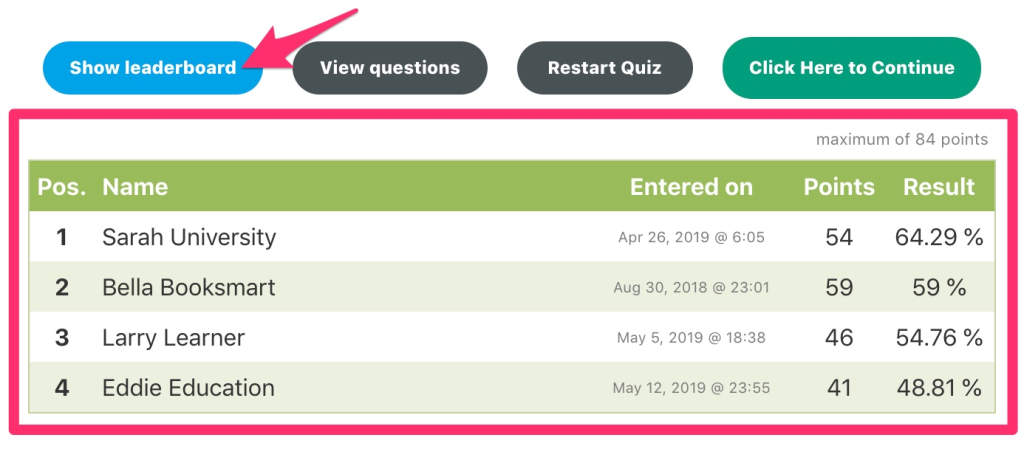
The LearnDash Quiz Leaderboard feature allows quiz scores to be displayed publicly, so students can see how they rank among others. This friendly competition can help boost engagement and motivation to improve performance.
Before You Begin
- The leaderboard is enabled individually per quiz
- To protect against spam, enabling CAPTCHA is recommended (see below)
How to Enable the Leaderboard
To activate the leaderboard for a specific quiz:
- Navigate to LearnDash LMS > Quizzes
- Click on a quiz to edit
- Select the Settings tab
- Scroll to the Administrative and Data Handling Settings section
- Toggle on the Leaderboard option
Leaderboard Settings
Once the leaderboard is enabled, several customization options become available.
Who Can Apply?
Choose which users can appear on the leaderboard:
- All Users – Anyone who completes the quiz
- Registered Users Only – Only logged-in users are included
- Anonymous Users Only – For open-access quizzes ⚠️ Anonymous users must enter a name and email to appear on the leaderboard.
Multiple Applications Per User
Allow students to submit multiple scores:
- Enable this option only if Number of Retries Allowed is greater than one
- Set a waiting period (in minutes) between leaderboard submissions
Automatic User Entry
- Enable to submit scores automatically after quiz completion
- Disable to require students to click a button to submit their score
Number of Displayed Entries
- Set how many leaderboard entries are visible (e.g., top 5, top 10, etc.)
Sort List By
Choose how leaderboard entries are sorted:
- Best User (Top Score)
- Newest Entry
- Oldest Entry
Display on Quiz Results Page
Choose how the leaderboard appears after the quiz is completed:
- Below the Result Text – Automatically displayed beneath the results
- In a Button – A “Show Leaderboard” button is shown; students click to reveal it
Adding the Leaderboard to a Page or Post
To show the leaderboard outside the quiz results page:
- Navigate to LearnDash LMS > Quizzes
- Locate the quiz and copy the shortcode from the Shortcode column
- Example:
[LDAdvQuiz_toplist 27]
- Example:
- Paste the shortcode into the content area of any WordPress page or post
Preventing Spam with CAPTCHA
To protect leaderboard submissions, LearnDash supports CAPTCHA verification.
How to Enable CAPTCHA
- Install the Really Simple CAPTCHA plugin (available in the WordPress plugin directory)
- Once installed, CAPTCHA will appear on the leaderboard submission form
- This ensures that only real users can submit scores
Note: CAPTCHA is especially useful when anonymous submissions are allowed.
What the Student Sees
After completing a quiz:
- Students will either see the leaderboard immediately or have the option to click a button to view it, depending on settings
- Anonymous users will be prompted to enter a name and email (if allowed)
Including Admins in the Leaderboard
By default, users with the Administrator role are excluded from quiz reporting and leaderboard rankings.
To include administrators:
- Navigate to LearnDash LMS > Settings
- On the General tab, scroll to Admin User Settings
- Toggle on the Include in Reports option

Next Steps
Ready to boost learner engagement with a competitive edge? After enabling the leaderboard:
- Review Quiz Display and Content Settings to fine-tune grading, retries, and result displays
- Explore Using Question Categories to diversify and randomize quiz content
- Want to highlight top performers elsewhere? Use the shortcode to display the leaderboard on a course homepage or sidebar
Leaderboards are a great way to gamify learning and recognize high achievers, just be sure to set the right privacy and entry rules for your audience.