

Quiz AI Builder
Similar to our Course Outline Builder, utilize the latest in AI technology to create your quiz questions and answers.
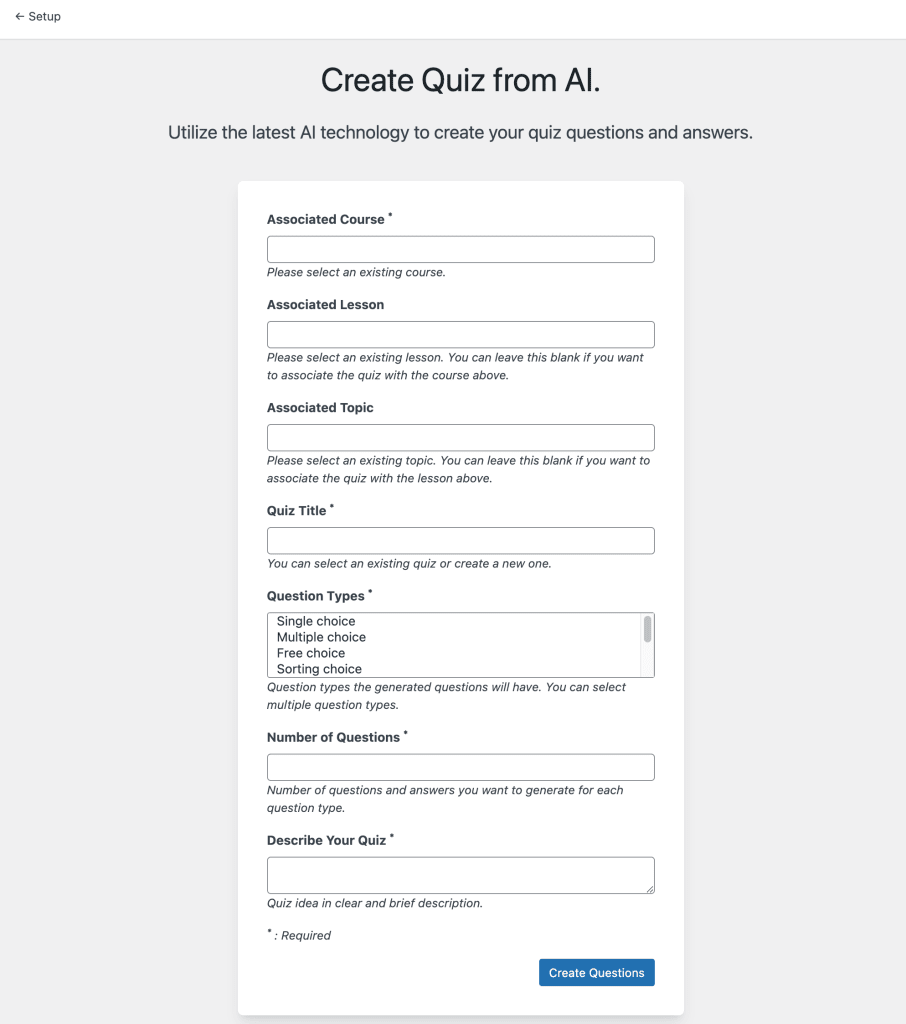
This guide will walk you through the process of creating a quiz using the new feature.
NOTE: An Open API Key is Required – You can get an API key from: https://platform.openai.com/account/api-keys. If you do not already have an account you can sign up for an account on the OpenAI website. A credit card will be required when setting up your Open AI account.
Creating a Quiz
Creating a quiz is relatively easy. Note that you’ll already need a course setup as the AI uses the course content to build the quiz questions and answers.
NOTE: The LearnDash Quiz Builder option (found at LearnDash LMS > Quizzes > Settings) must be enabled when using the Quiz Builder AI.
Follow the steps below:
- The first step is to verify that the Quiz Builder option is enabled at LearnDash LMS > Quizzes > Settings. It must be enabled for the AI Builder to appear
- Navigate to your WordPress admin dashboard
- Navigate to LearnDash LMS > Quizzes and click the Create Quiz from AI button at the top right
- Under Associated Course enter the name of the Course you want to add the quiz to
- (Optional) You can also associate the quiz with either a lesson or a topic within the above course using the Associated Lesson/Topic inputs
- Select either an existing quiz to add questions to or create a new one
- Select the question types you’d like to use in the quiz, you can select multiple question types by holding either Ctrl or Shift while selecting the different types
- Set the number of questions you’d like to generate for each question type selected in the quiz. Note that if you have 2 question types selected and set this number to 6, you will have 12 questions in total
- Write a quick description of the quiz. This helps the AI generate appropriate questions and answers. An example description could be: “How to make money selling an online course using LearnDash“
- Click the Create Questions button
At this point, the quiz will generate the questions and answers. If successful, you will see a confirmation message at the top of the page upon completion.
FAQs for the Quiz AI Builder
No. The builder uses the OpenAI platform to generate the content. You’ll need to sign up for an account at https://platform.openai.com/account/api-keys and buy credits to use. Once you have your credits, enter your OpenAI key in LearnDash LMS by navigating to Settings > Advanced > AI Integrations, if you haven’t already done this.
Yes! You can update or delete any of the AI-generated questions.
Yes! When entering the Quiz Title, you would simply select the existing Quiz.
While in theory, you can generate any number of questions/answers. The OpenAI API has limits on the number of tokens that can be returned. Tokens are what make up words in the world of OpenAI. If you run into an issue where you aren’t seeing any questions or answers being generated, try decreasing the overall number of questions you are trying to add.