

Group Cohorts
LearnDash allows course creators to run cohorts using Group Start and End Dates. This is helpful when offering the same course to different sets of users at different times, such as seasonal sessions for Spring, Summer, Fall, and Winter.
How to Enable Group Cohorts
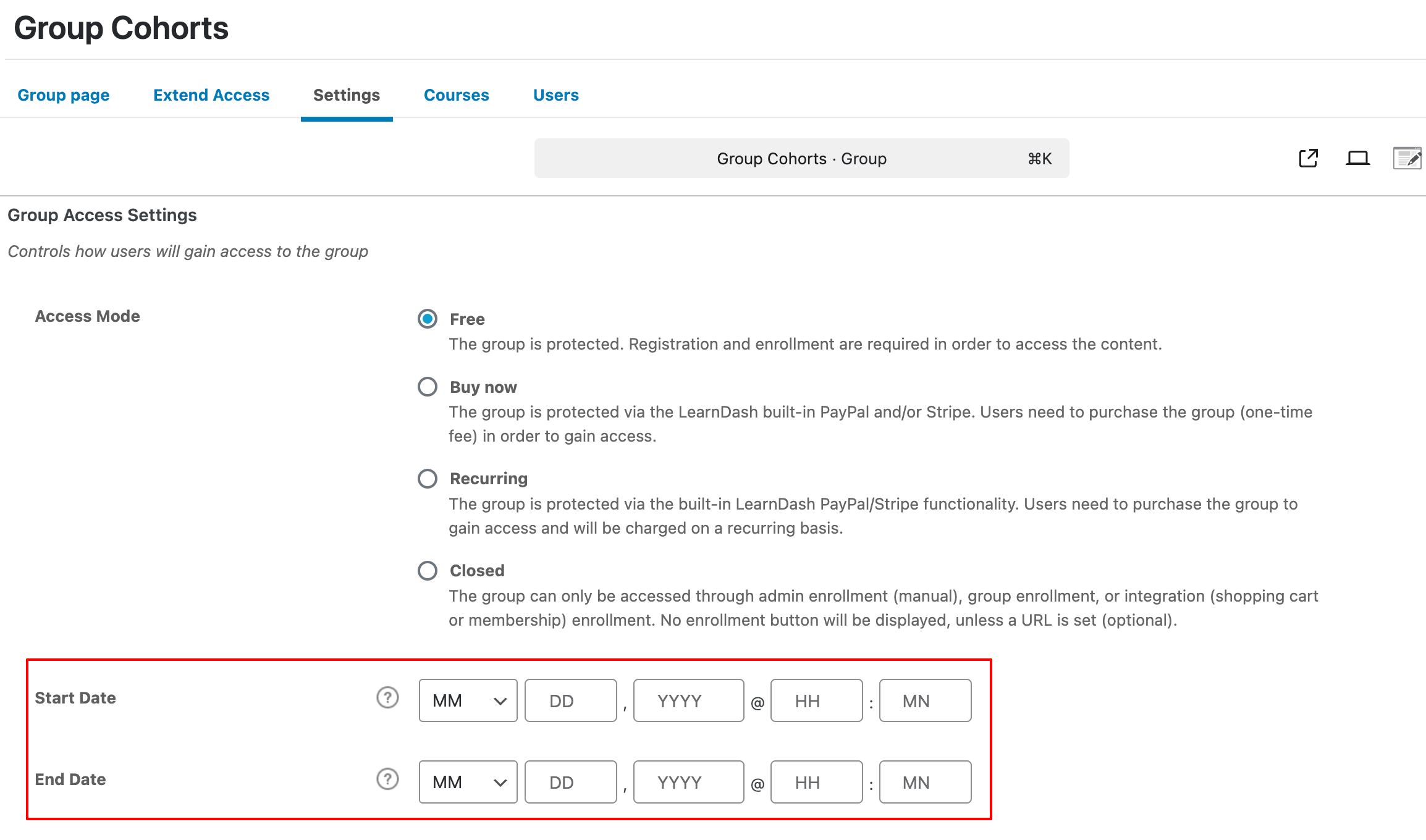
- Go to LearnDash LMS > Groups
- Edit any Group
- Select Settings tab
- Enter Start Date and End Date under Group Access Settings
FAQ
If you utilize the Start/End Date feature for a group, you cannot add the same course to multiple groups. You will see one of these two error messages:
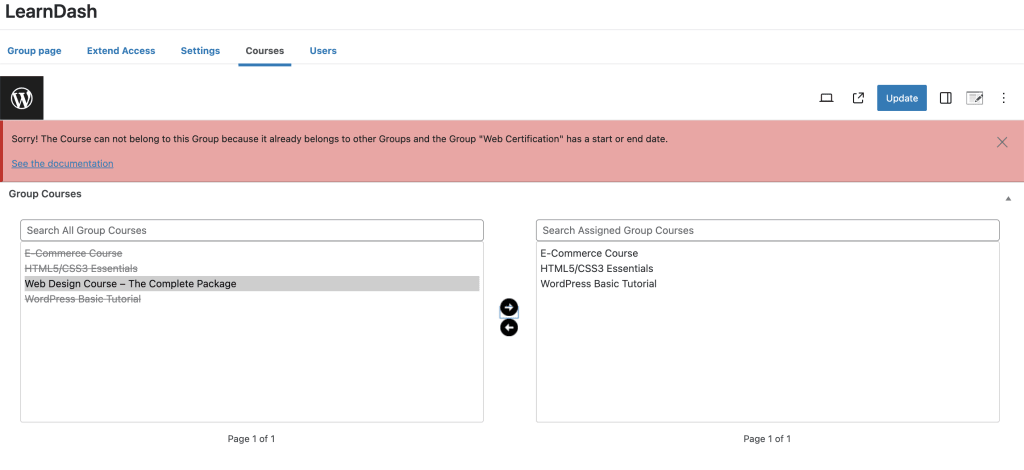
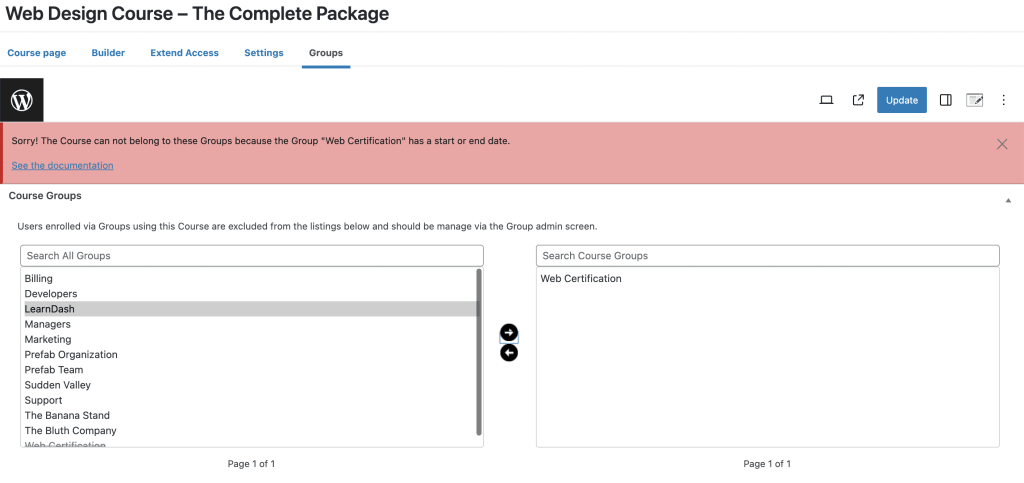
Instead, you can Clone the course and add it to the new group.
If you use a course in multiple groups, you cannot set a Start/End Date for that group.
When you go to the Group > Settings, you will see the Start and End Date are grayed out, and there will be a message stating (click the question mark):

Instead, you can Clone the course and add it to the new group. Then set the Start/End Date for the new group.
If you use a course in multiple groups, you cannot set a Start/End Date for that group.
When you go to the Group > Settings, you will see the Start and End Date are grayed out, and there will be a message stating (click the question mark):
Instead, you can Clone the course and add it to the new group. Then set the Start/End Date for the new group.
Yes, however, there are limitations.
Groups without an End Date – The extension will override the expiry date (if any), and the user can access the course normally
Groups with an End Date – The extension will override the expiry date (if any) but not the end Date. So, the user will be able to access the course only if the group is still ongoing.
Additionally:
Course with or without an End Date – The extension will override the expiry date (if any) and the end date. So, the user can access the course after expiration, even if the course has ended.