

How to Create a Custom Archive Page Template with Kadence Hooked Elements
In WordPress, archive pages display a collection of posts grouped by specific criteria such as categories, tags, authors, dates, or custom taxonomies. These pages help visitors browse content by topics or types and are automatically generated by WordPress.
Kadence Blocks allows you to fully customize these archive pages using Hooked Elements and the Advanced Query Loop block, giving you control over how your archive pages look and function.
What you’ll need:
- Kadence Theme (Free) is installed and active.
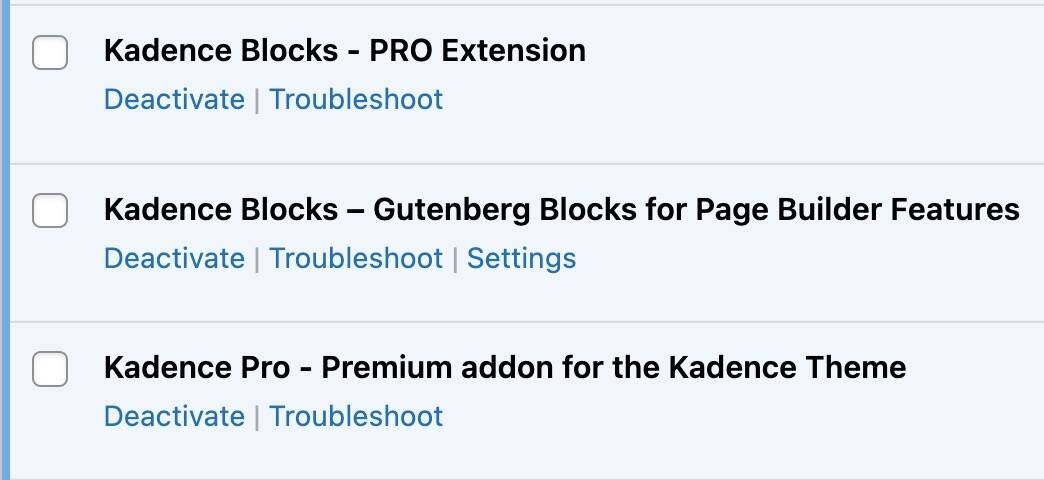
- Kadence Blocks plugins (Free and Pro) are installed and active.
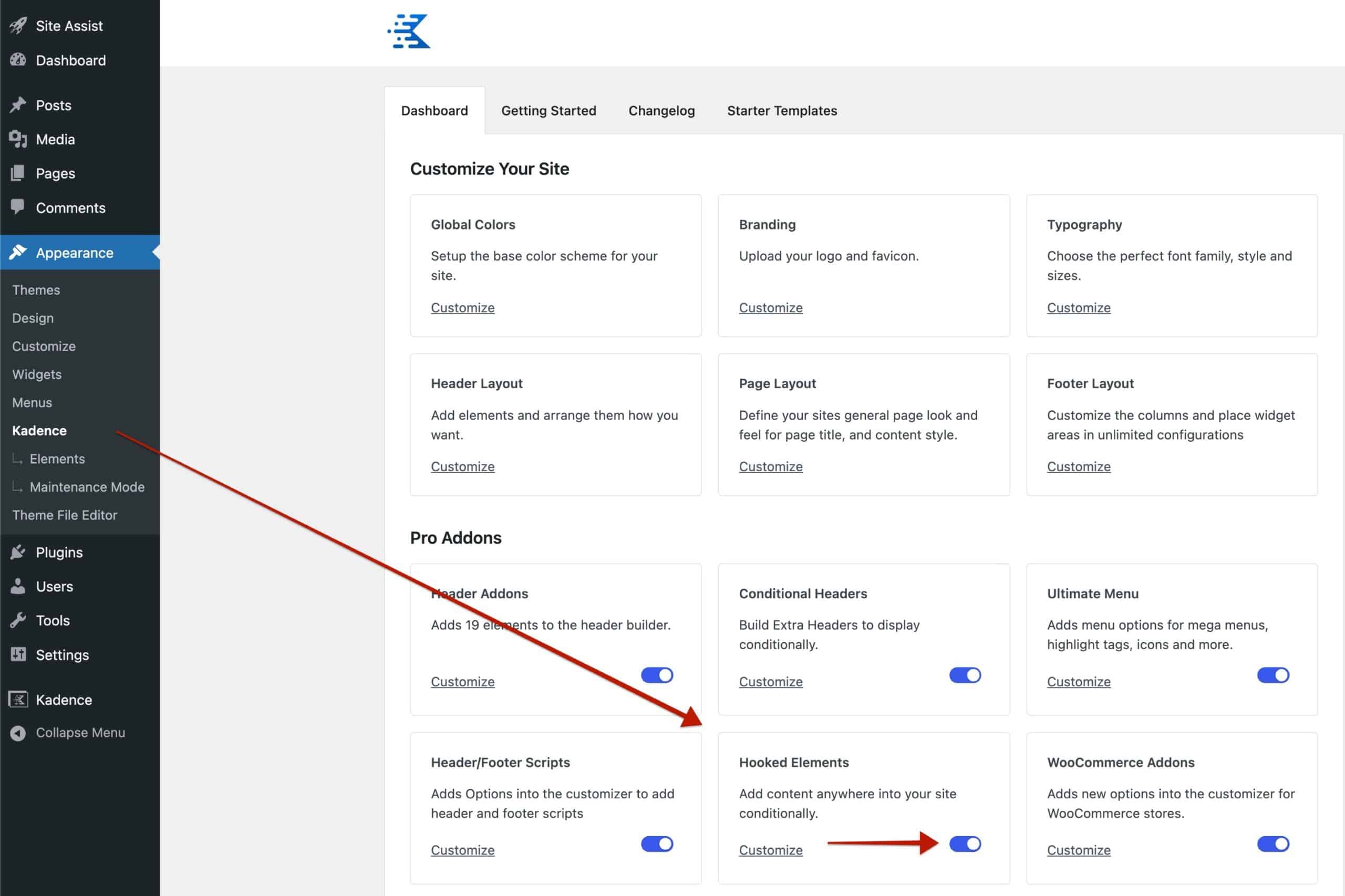
- Kadence Theme Pro with Hooked Elements enabled.
1. Create a New Hooked Element
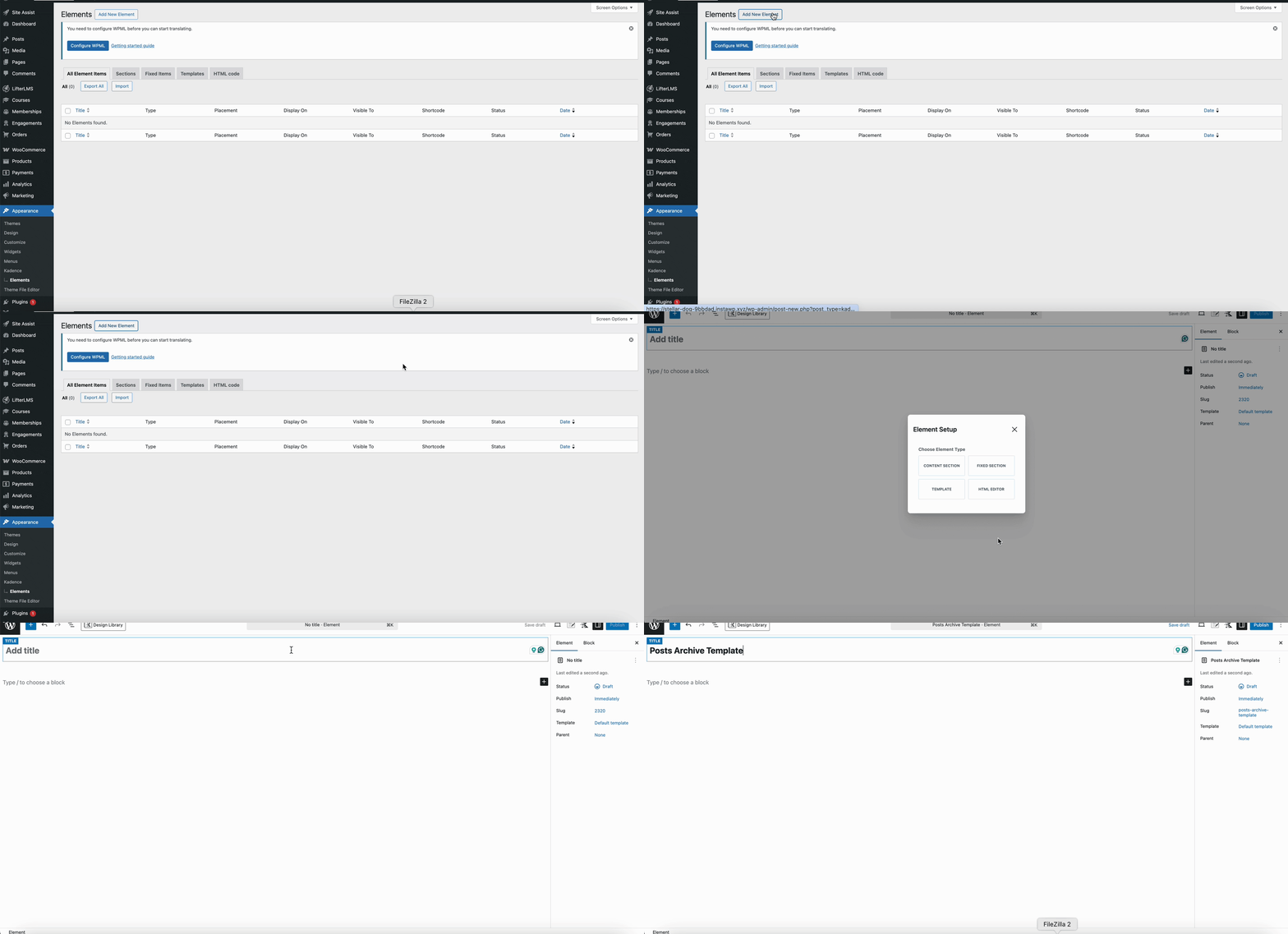
- In your WordPress dashboard, go to Appearance > Kadence > Elements.
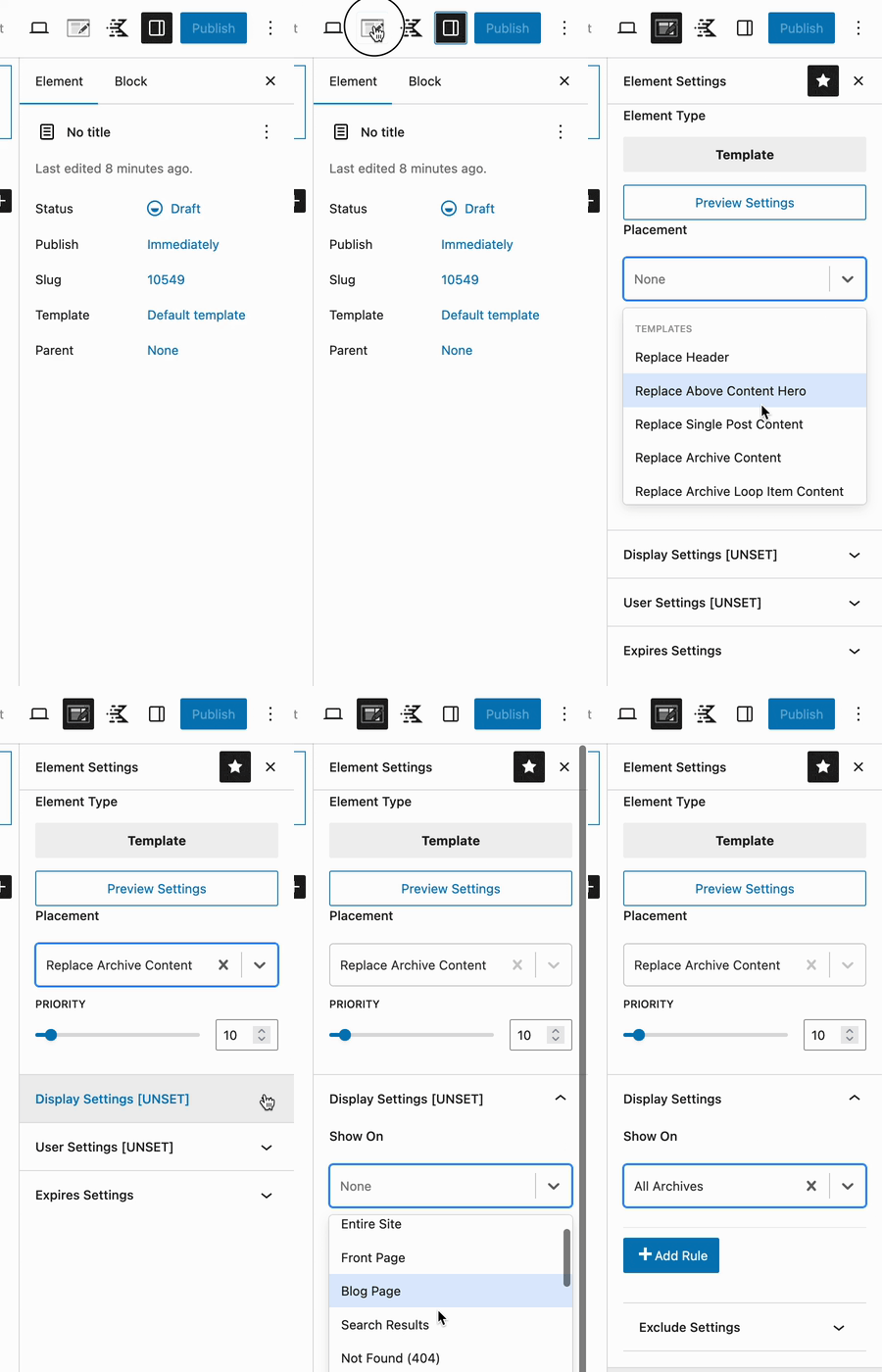
- Click “Add New” and choose “Template” from the Element Setup popup.
- Give your Element a name like “Posts Archive Template”.
2. Set Placement and Display Conditions
- Click the Element Settings icon.
- Under Placement, choose Replace Archive Page Content.
- Under Display Settings > Show On, choose:
- All Archives (or select specific categories, tags, etc., if customizing for certain ones only)
- This ensures the custom template replaces the default archive content when applicable.
3. Add Dynamic Archive Title
- Insert a Heading block or the Text(Adv) block.
- In the block settings panel, enable Dynamic Content.
- Choose Archive Title from the dynamic content options.
This ensures the heading reflects the current archive (e.g., “News” or “Author: John Doe”).
4. Show the Archive Description (if it exists)
- Insert Text(Adv) block.
- Enable Dynamic Content for the block.
- Select Archive Description.
The Kadence Dynamic Content will automatically show the archive’s description if it’s available; otherwise, nothing will appear.
5. Show The Posts
To show the posts, we’ll use the Query Loop (Adv) block. For more details about this block, please check the Query Loop (Adv) block documentation.
- Insert the Query Loop (Adv) block.
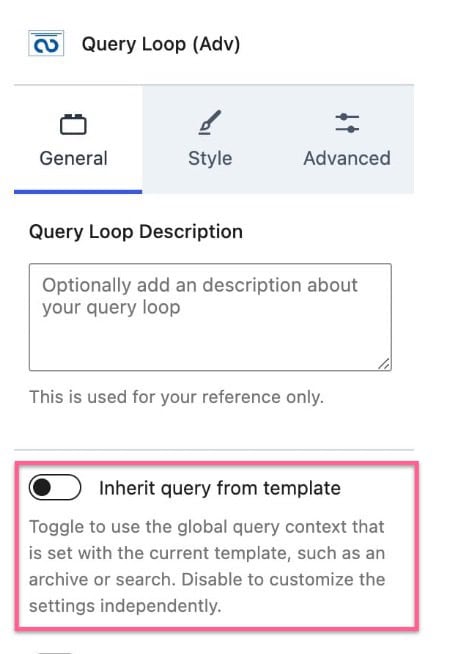
- Under the General block settings, turn on the “Inherit query from template” option. This will automatically show the posts based on the query of the current archive page. For example, if the archive page is for the News category, all posts under this category will be shown.
6. Optional: Customize the Query Card
The Query Card Block is nested inside the Query Loop (Adv) Block. This holds and styles your Loop Content. You can add or remove the blocks inside this block to set your own post loop template. Refer to our Query Loop (Adv) documentation for more details.
7. Publish and Review
- Publish the hooked element.
- View a category archive page to see how it actually looks.
Reach out to Kadence Support if you encounter any issues.