Enable and Add Global Tabs
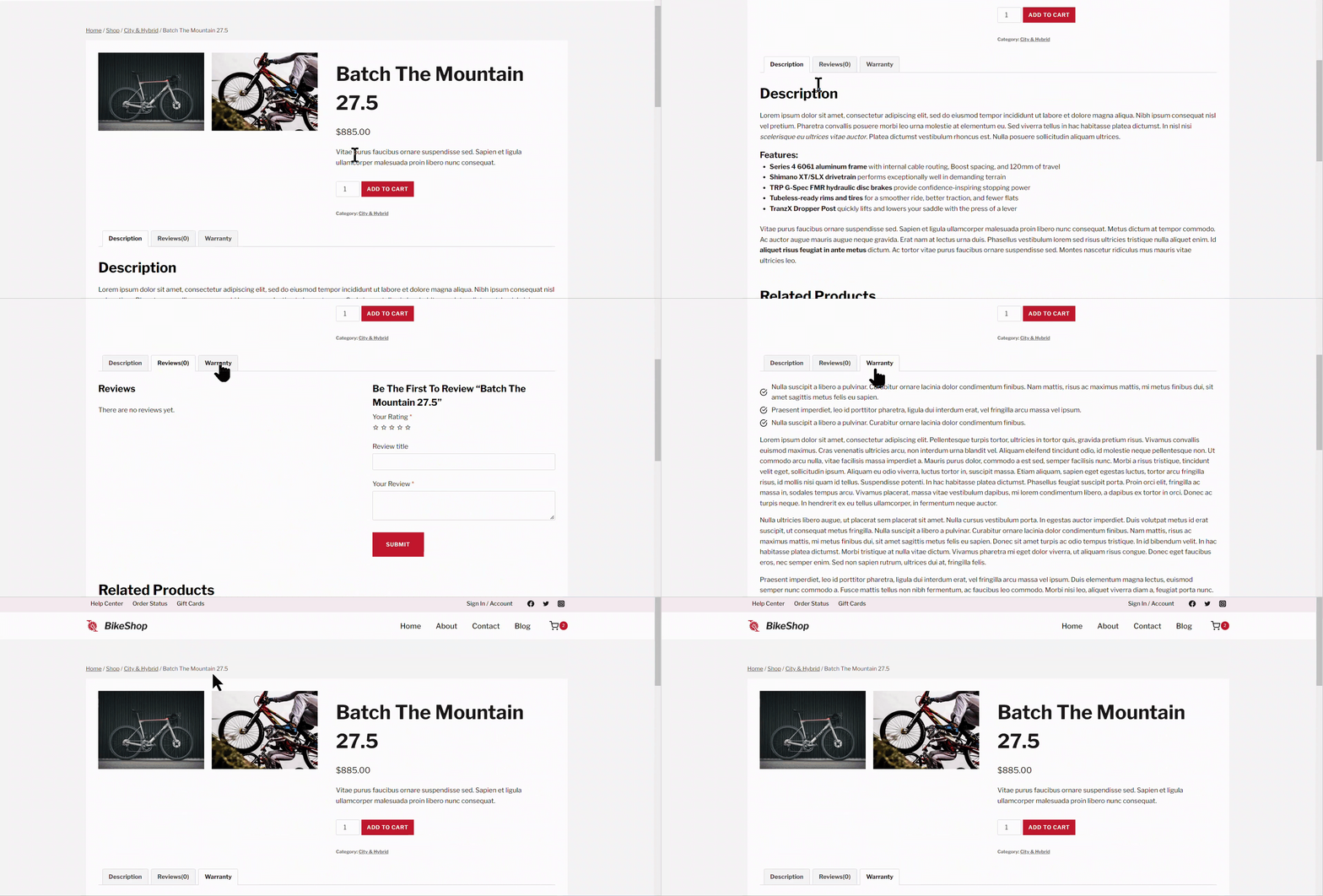
The Global Tabs feature provided by Shop Kit is a great way to show your customers more information about your products. Generally, WooCommerce offers Description, Additional Information, and a Reviews tab. These tabs display on product pages below the gallery and short descriptions.
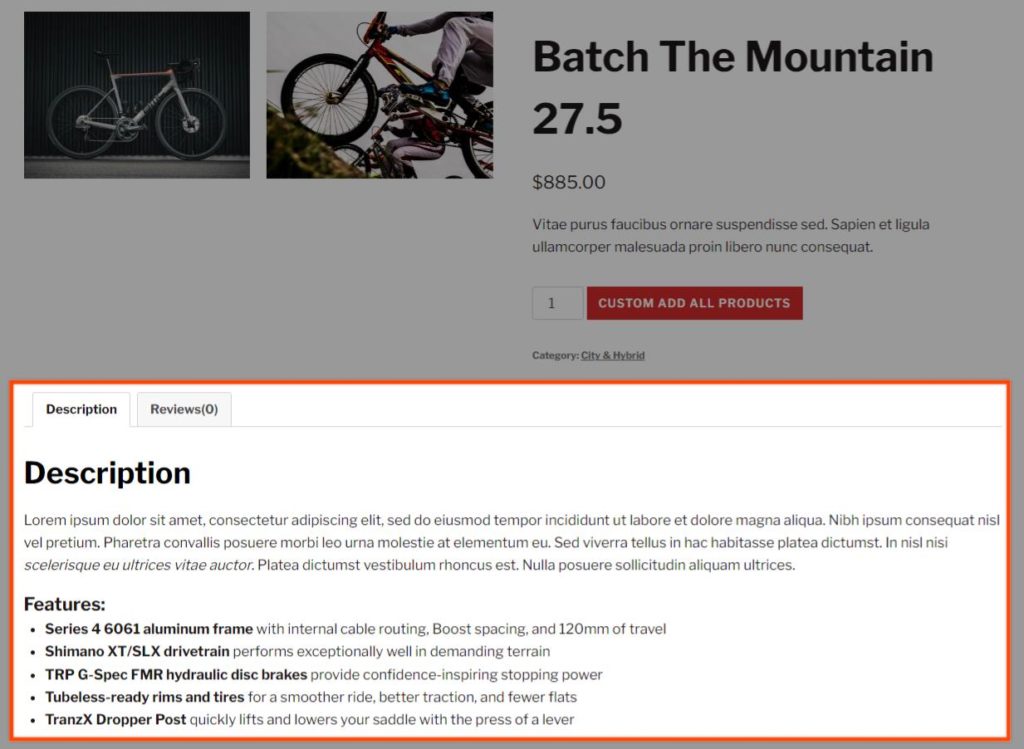
Shop Kit empowers you to add more tabs to your products. You can design your tabs using the Gutenberg editor to present informative, dynamic, and stylish content. Let your customers know what they need to know using Shop Kit’s Global Tabs feature.
Enable Global Tabs
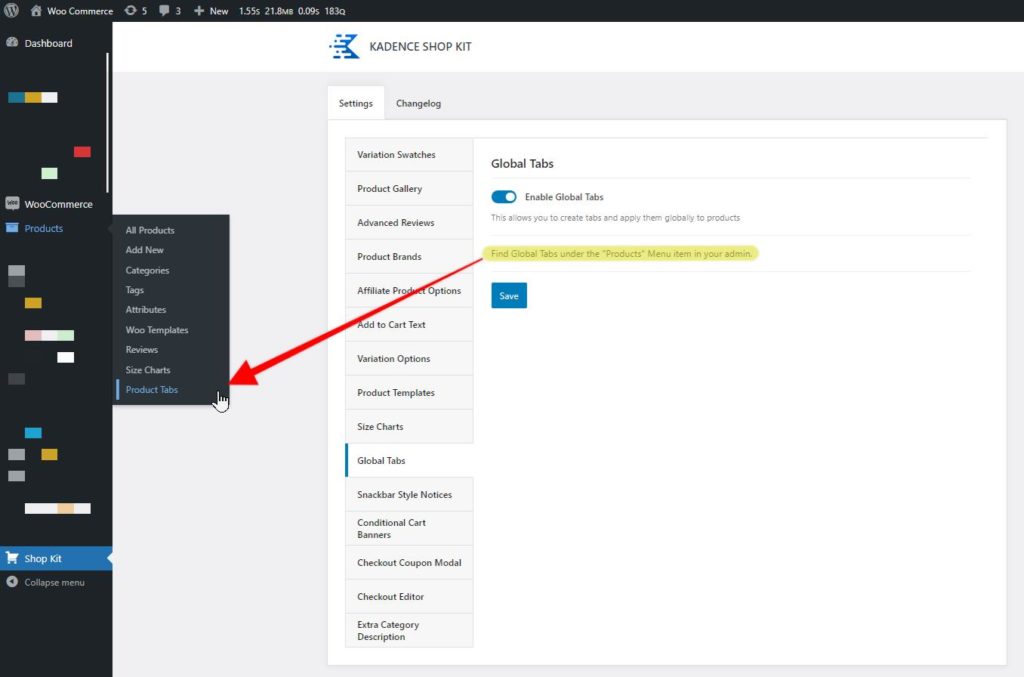
Locate Shop Kit settings in the Shop Kit tab in the admin area. Enabling this feature is as easy as flipping a switch in the Global Tabs section of Shop Kit’s settings. After enabling the feature, you find product tabs under the “Products” Menu item in your admin panel.
Creating a Product Tab
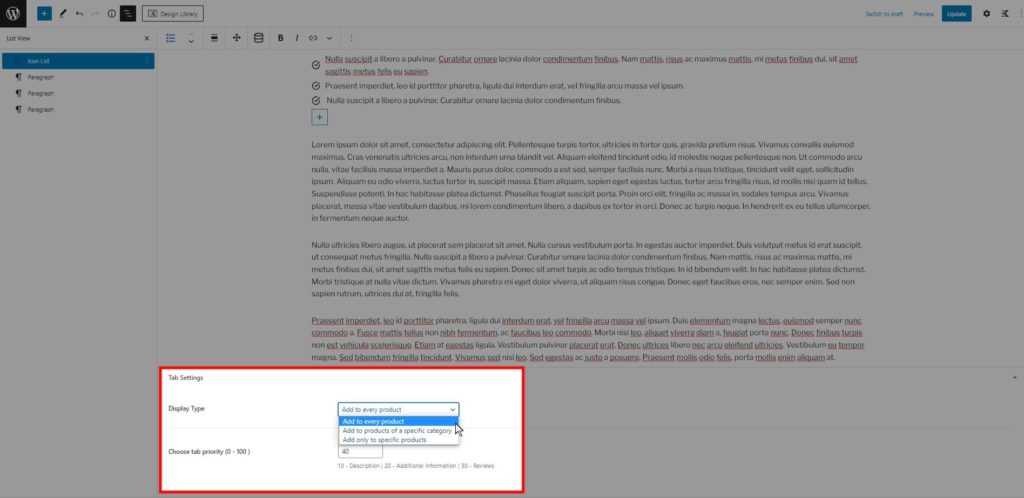
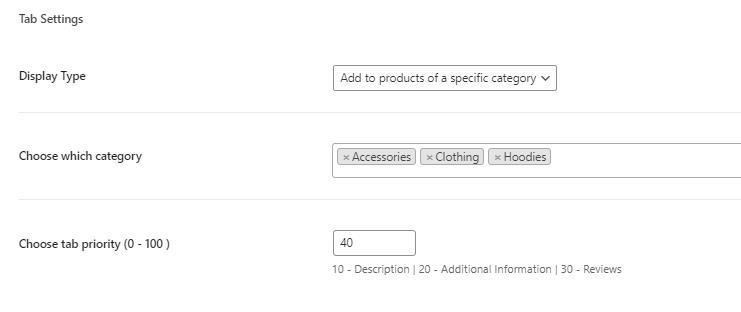
You create a new product tab like you make a new post. In the admin panel, navigate to Products > Product Tabs and press the Add New Product Tab button. When you make a new tab, WordPress presents you with the Gutenberg editor for you to design your tab’s content using Kadence Blocks and theme features. There are tab settings to set the display type and the priority of the tab.
Display Type
There are three display types to choose from. The display type setting determines the products the tab will display on.
Tab Priority
The last option for a product tab is the tab priority. Tabs display from lowest to highest priority. For example, the Description tab has a priority of 10, and the Reviews tab has a priority of 30. The priorities dictate that the Description tab displays before the Reviews tab, which you see by default in the first screenshot above. Therefore, if you want your tab to sit between the Description and Reviews tabs but after the Additional Information tab, set a priority of something like 21.