

Kadence Simple Share (Add Social Share Icons to Posts)
Kadence Simple Share is a Premium Kadence Plugin that gives you a simple and clean way to add Social Sharing Icons to posts, pages, and products. It is intentionally simple, so there are no share counts or extra APIs to load. Just simple buttons for easy sharing to popular Social Platforms.
The Kadence Simple Share Plugin is only available with the Kadence Ultimate or Lifetime Ultimate Plan. You can purchase either the Ultimate or the Lifetime Ultimate Plan by clicking here.
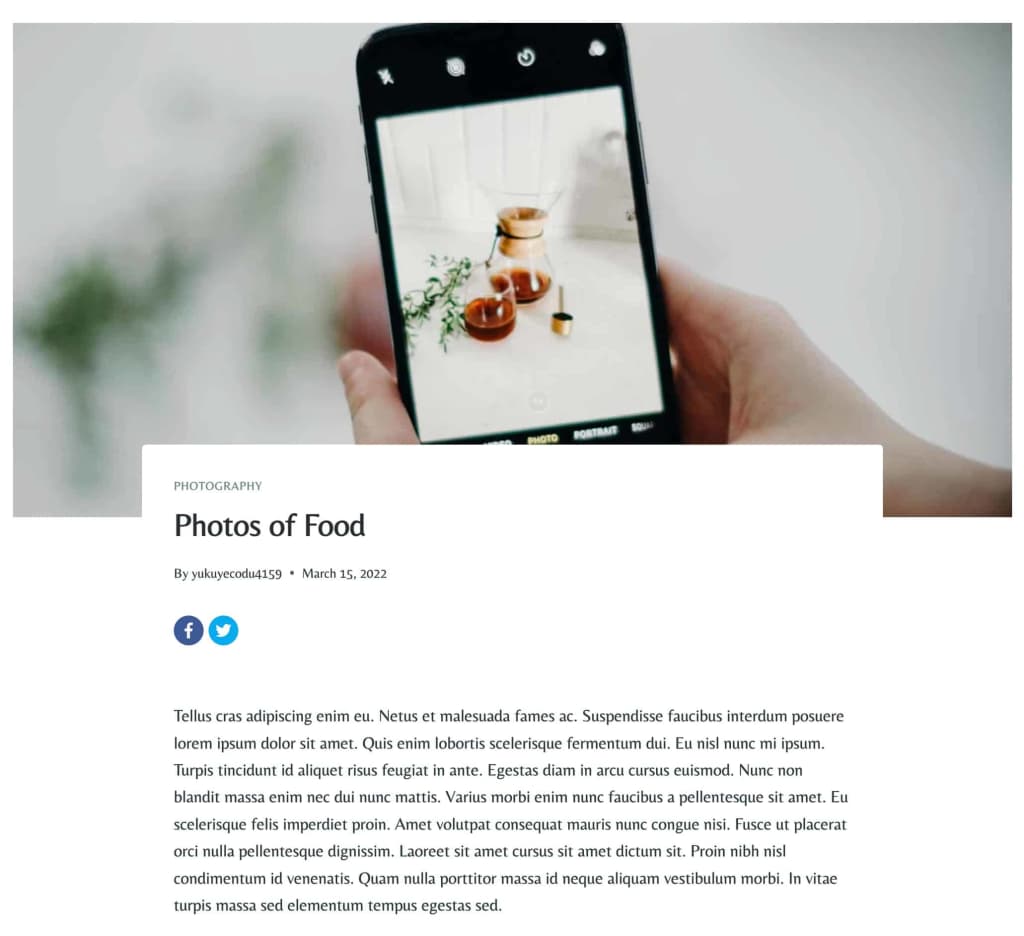
Getting/Activating Kadence Simple Share
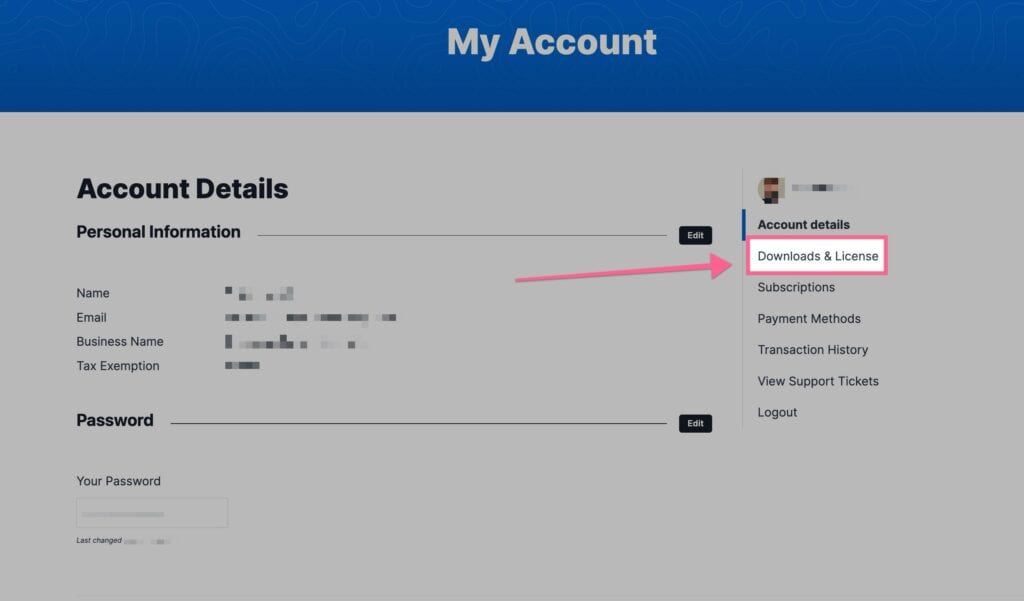
Once you have access to the Kadence Ultimate Plan or Lifetime Ultimate Plan, you can download Kadence Simple Share from your Kadence Downloads & License page.
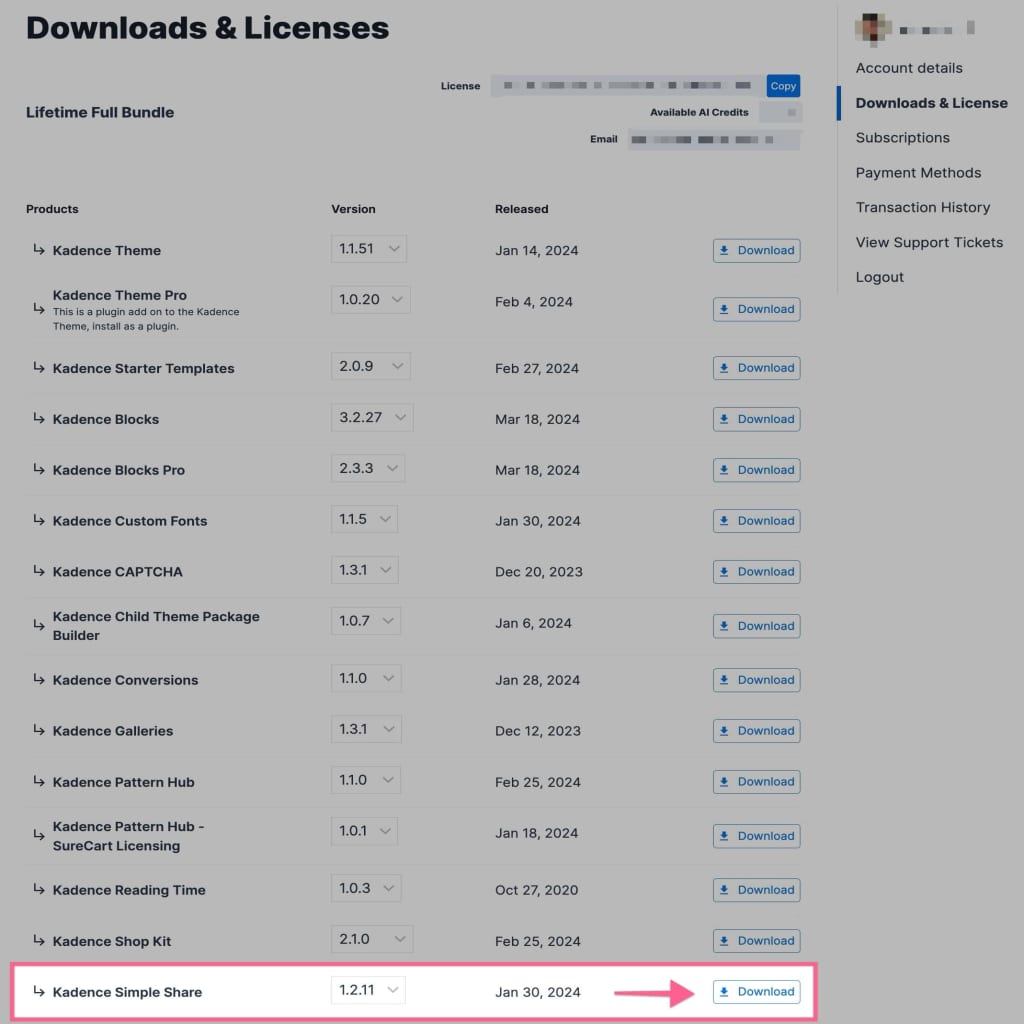
You will see the Kadence Simple share plugin in your Product List. You can download the Zip File. Be sure to leave the file compressed and don’t unzip it.
You can upload your Zip file by going to your WordPress Dashboard -> Plugins -> Add New Plugin. Then you can click on the Upload Plugin button at the top of the page. This will allow you to choose a file. Pick the Kadence Simple Share Zip File downloaded from your Kadence Account.

Once you have uploaded your plugin and activated it, you are all set to get started using Kadence Simple Share.
Simple Share Settings
You can access your Kadence Simple Share settings by going to your Dashboard -> Appearance -> Kadence -> Simple Share. Here, you can set how you would like Simple Share to work on your website.
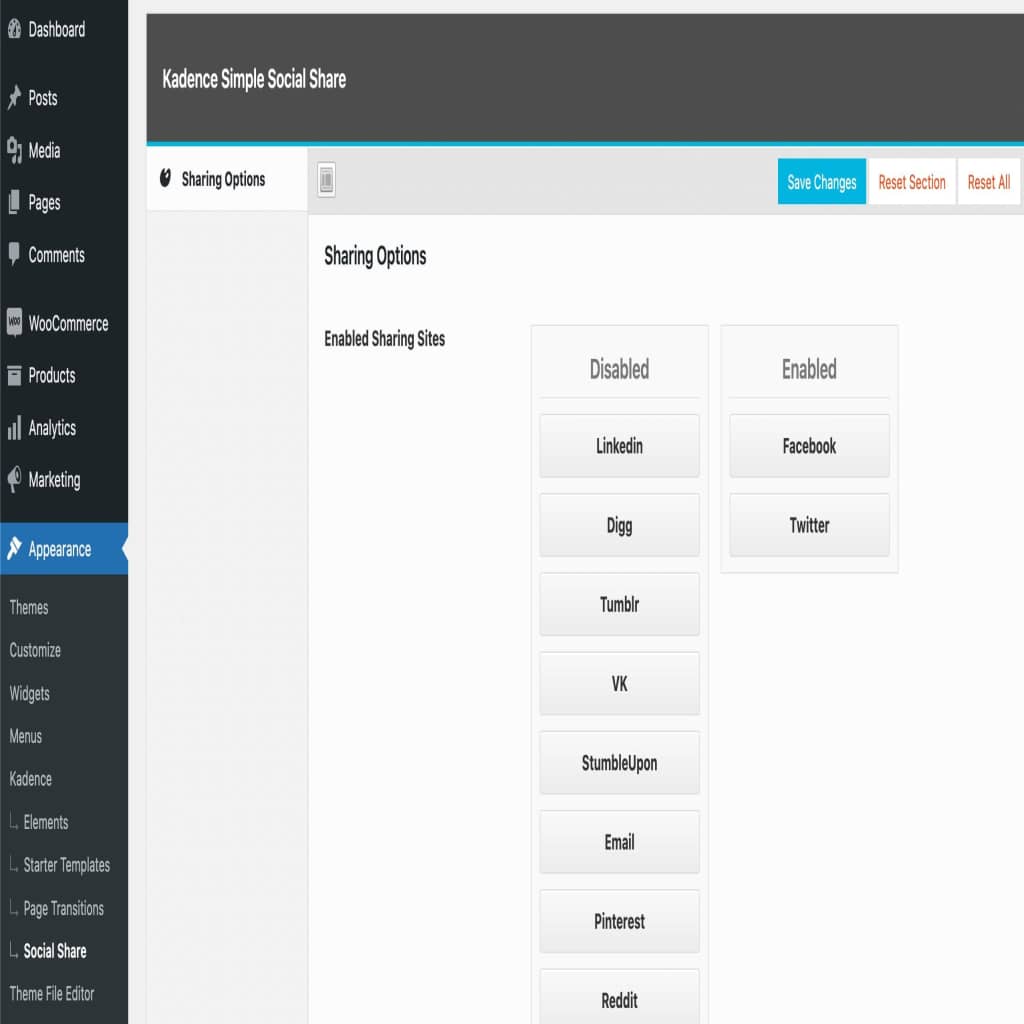
Sharing Options
You can enable different Sharing Sites. You can pick from: Facebook, Twitter, LinkedIn, Digg, Tumblr, VK, StumbleUpon, Email, Pinterest, Reddit, XING, or WhatsApp. Just drag a website button from the Disabled Column over to the Enabled Column to enable it in the Social Share Icon List.
There are five different Sharing Styles you can choose from. You can select your preferred Sharing Style based on your preferred preview.

The Sharing Size setting allows you to set a size for your Social Share Icons. This can be set to Normal or Large.
You can use the Optional Text Before Icons setting if you’d like to add text before your Social Share Icons.
The Sharing Placement setting allows you to set the placement of your Icons. You can pick between: Before content, After Content, Both Before and After Content, Fixed Left, Fixed Right, Fixed Bottom, or None.
You can also set a Sharing Placement for Mobile.
You can turn the Transparent Background on or off.
You can set your icon alignment by using the Sharing Align setting.
You can enable the Social Share Icons for different Post Types and areas. You can enable this for Blog Post, Posts Excerpts, Pages, Portfolio Posts (If applicable), and Products.
You can also enable the Popup Tooltips for Social Links.

You can use the Tooltip Align setting to align your Tooltip.
You can add a Tooltip Text before your Social Network Name.
You can also add a Tooltip Text before the Email.
You can Force Featured Image for Pinterest Share. This will make the featured image the only image to share on Pinterest.
You can also set the Load Share Link In settings. This can be set as a Small Popup Window or in a New Tab.

Kadence Simple Share Shortcode
If you have a Custom Post Type or want to share your icons somewhere other than what is available, you can use the
