

Kadence AI-Powered Starter Templates
Kadence AI-Powered Starter Templates are Kadence Starter Templates that use AI-generated content (texts) and stock-free imagery. With Kadence AI Starter Templates, you can provide AI with information about your business and website. Then it will generate website texts based on your prompts and place them throughout our premade AI Starter Template collections. Providing you with AI-generated texts and stock-free images already caters to your website needs, allowing you to create effective websites much more efficiently.
To use AI Starter Templates, you need to have the Kadence Starter Templates plugin activated on your website and must be using the free Kadence Theme. You must also connect a Kadence Account to your WordPress Website and Activate Kadence AI to use Kadence AI-Powered Starter Templates.
This document goes over AI-Powered Starter Template. To learn more about our Pre-Designed Starter Templates, Click Here.
Importing AI Starter Templates
After Activating Kadence AI on your website, you’ll be able to access the AI Design Library Pages/Patterns and Kadence AI Starter Templates. To get started with AI Starter Templates, navigate to your Dashboard, then go to your Site Assist -> Starter Templates. Finally, click on the “Kadence AI Powered Starter Templates” button.

Here, you will be able to preview and import different Starter Templates that will already be using your AI-generated Texts. The Starter Templates will also use Images from your Design Library AI Image Collection. Each template uses texts and context that are based on the information you filled out for Kadence AI.
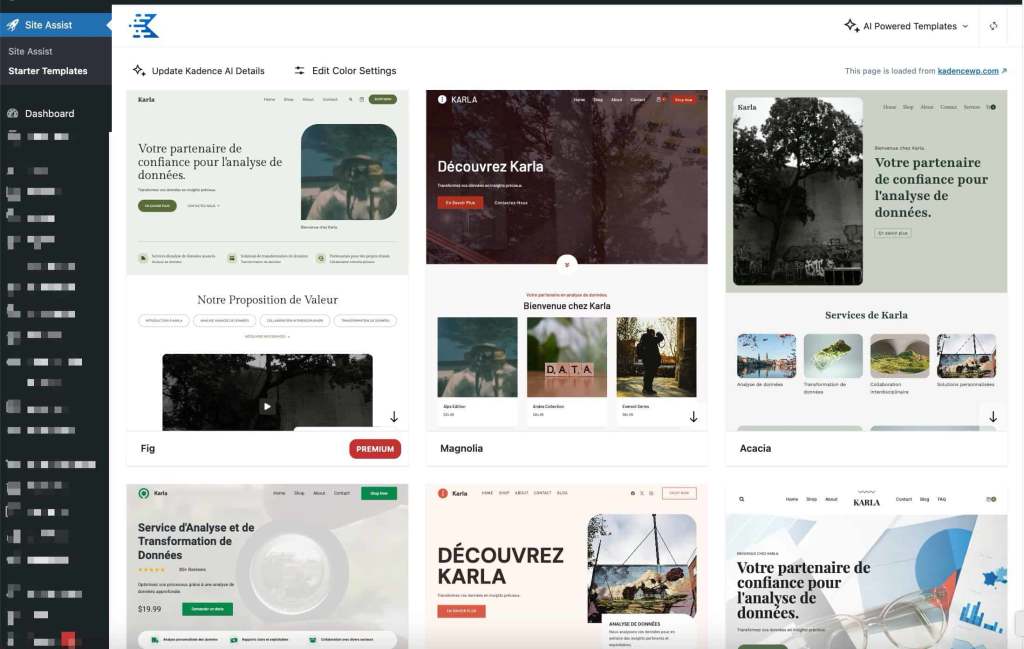
Premium Starter Templates come with a badge that indicates that they are Premium. Please note that the Premium Starter Templates can only be used when either of the two following requirements are met.
- For users using the Express Plan, use the Creative Kit plugin to access premium Starter Templates and designs.
- For users with plans greater than the Express Plan, both the Kadence Blocks Pro and Kadence Theme Kit Pro plugins must be activated to access premium Starter Templates and designs.
(View our pricing here)
Style Starter
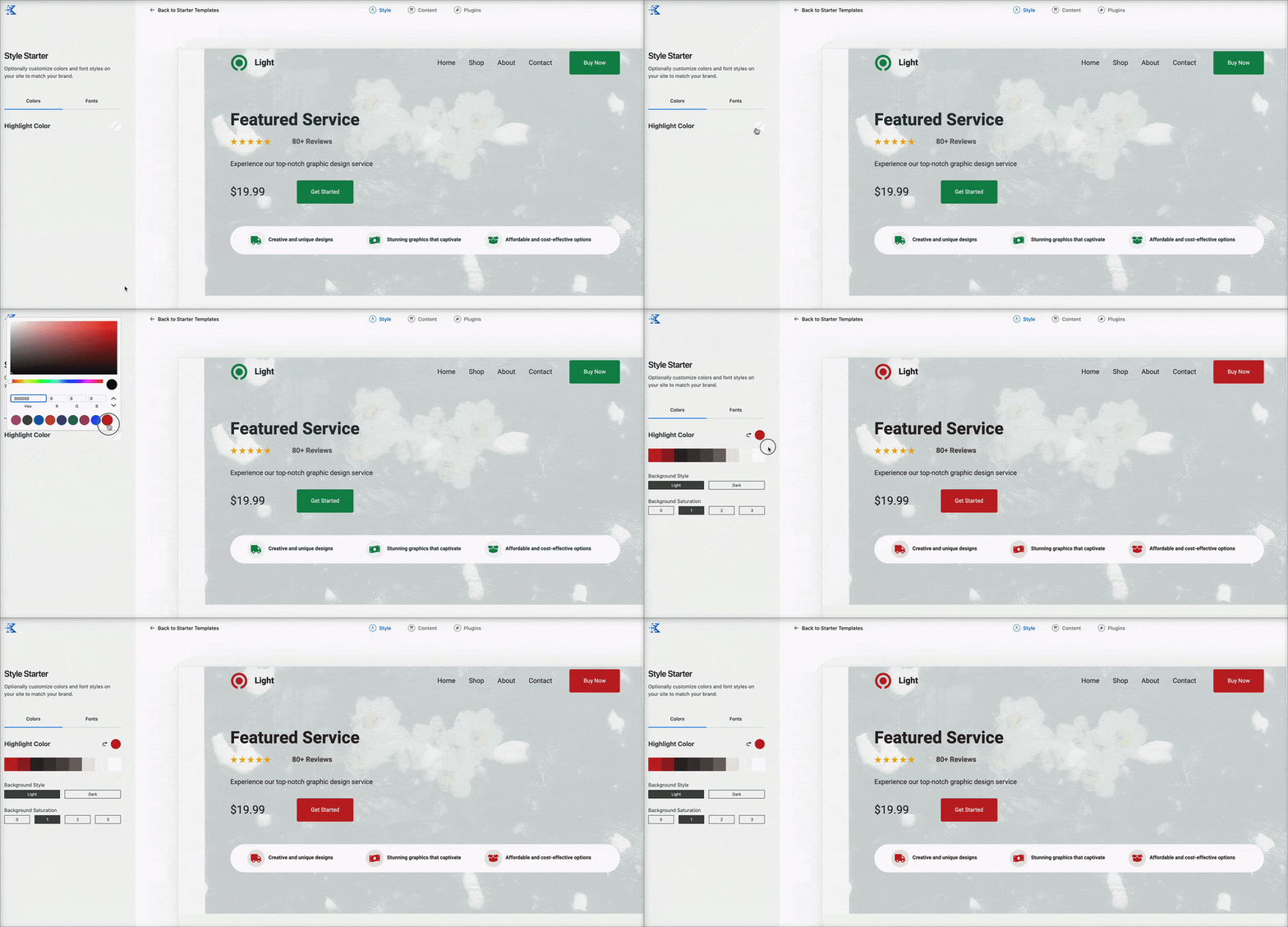
Once you select a Kadence AI Starter Template, you will be able to pick a Highlight Color. This allows you to customize the main highlight color of your website.
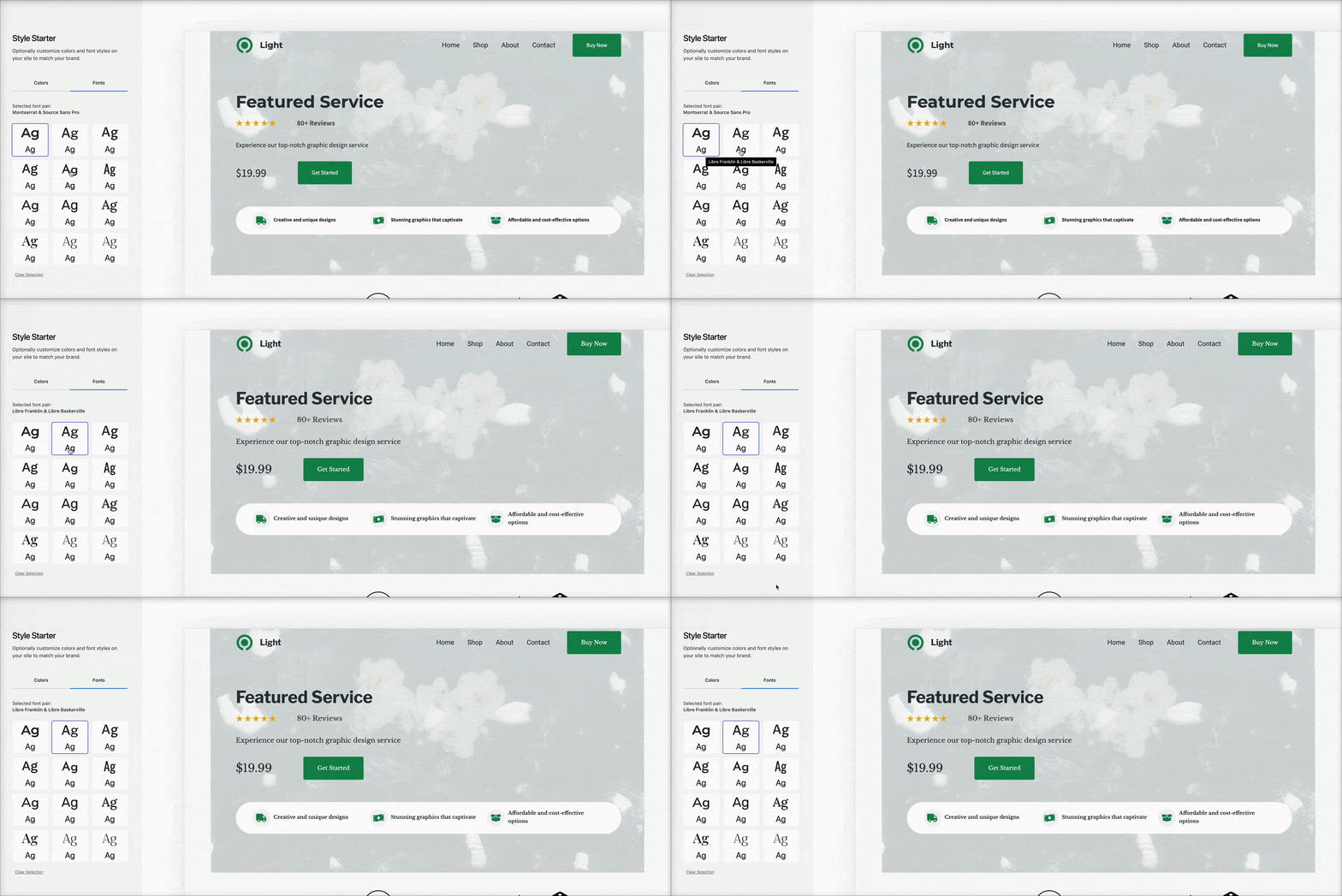
On the side of the Colors Tab, you will see the Fonts Tab. Here, you can select which Font Pair you would like to use on your Kadence AI Starter Template.
Content
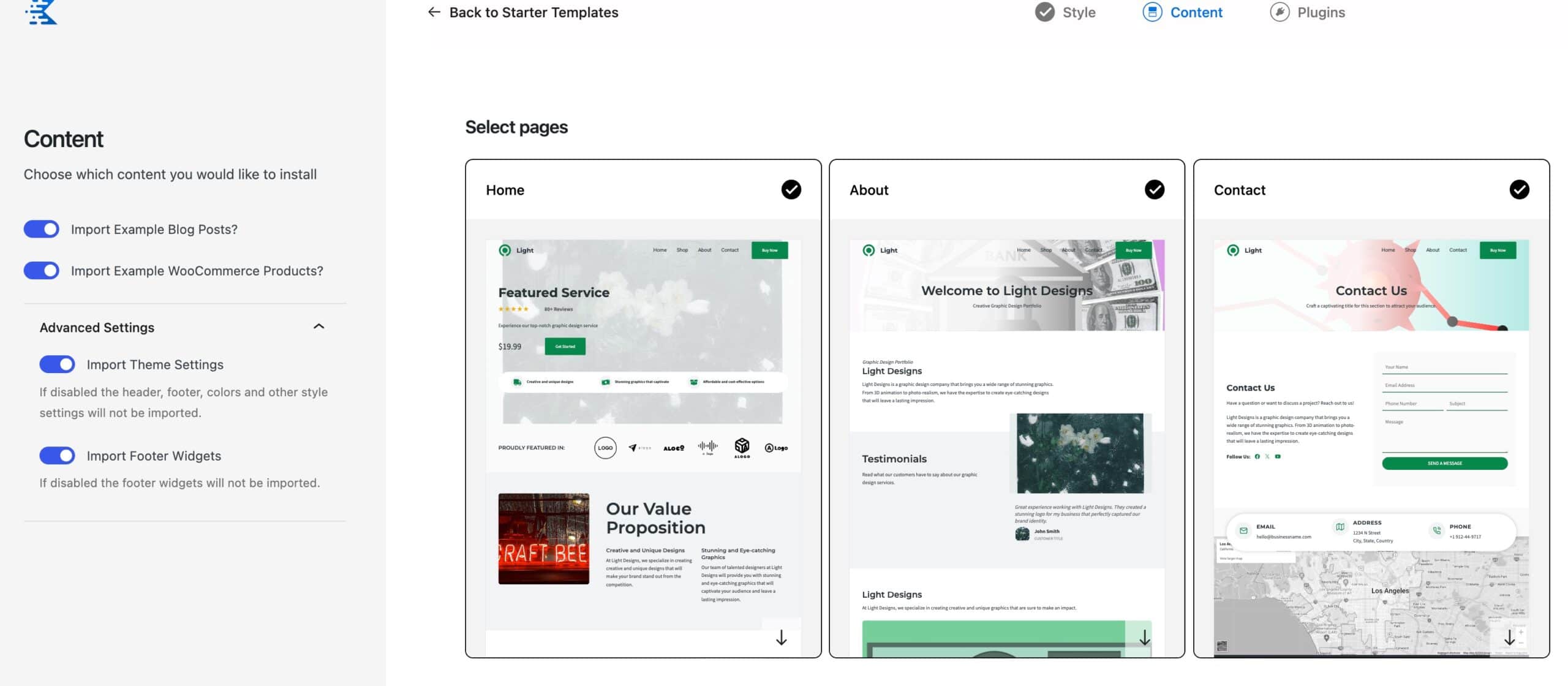
The next step is to pick which Pages and Settings you would like to Import. You have a few options that you can toggle to enable or disable.
On the right-hand side of the screen, you can select which Starter Template Pages you would like to import. By default, all of the pages will be selected. You can click a page to select/deselect it from being imported. Pages with a Checkmark are selected to be imported.
You also have the option to import Example Blog Posts and/or Example WooCommerce Products. You can access the Advanced Settings and choose to Import Theme Settings. This includes settings like in the Header, Footer, and Color and Style Settings. You can also choose to import the Footer Widgets. If you choose to disable any of these options, then that particular element will not be imported onto your website.
Plugins
After selecting the Kadence AI Starter Template content, the last step is to choose the plugins you want to install. You can opt to install basic plugins like WooCommerce during the importation process. However, you also have the option to install additional plugins, such as GiveWP, The Events Calendar, Event Tickets, Orderable, Kadence WooCommerce Email Designer, and the Solid Security plugins.
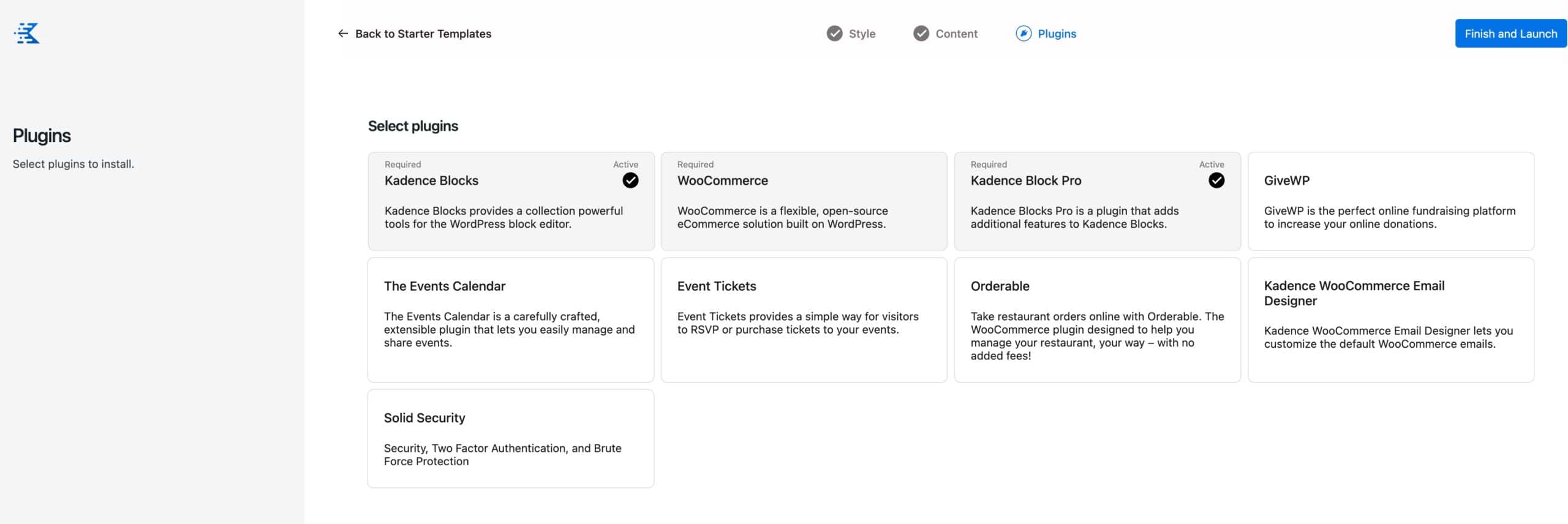
You can select the plugin(s) you wish to add to your website, and then you can press the “Finish and Launch” button to begin the importation process. Once everything is imported, you can click on the “See my site” button.

That’s it! Now, you can customize and use your AI Starter Template as needed.