

How to Add ‘Customers Also Bought’ Products
If you’re looking to add related products to a modal popup after a customer adds a product to their cart, you can do so with Iconic Sales Booster for WooCommerce.
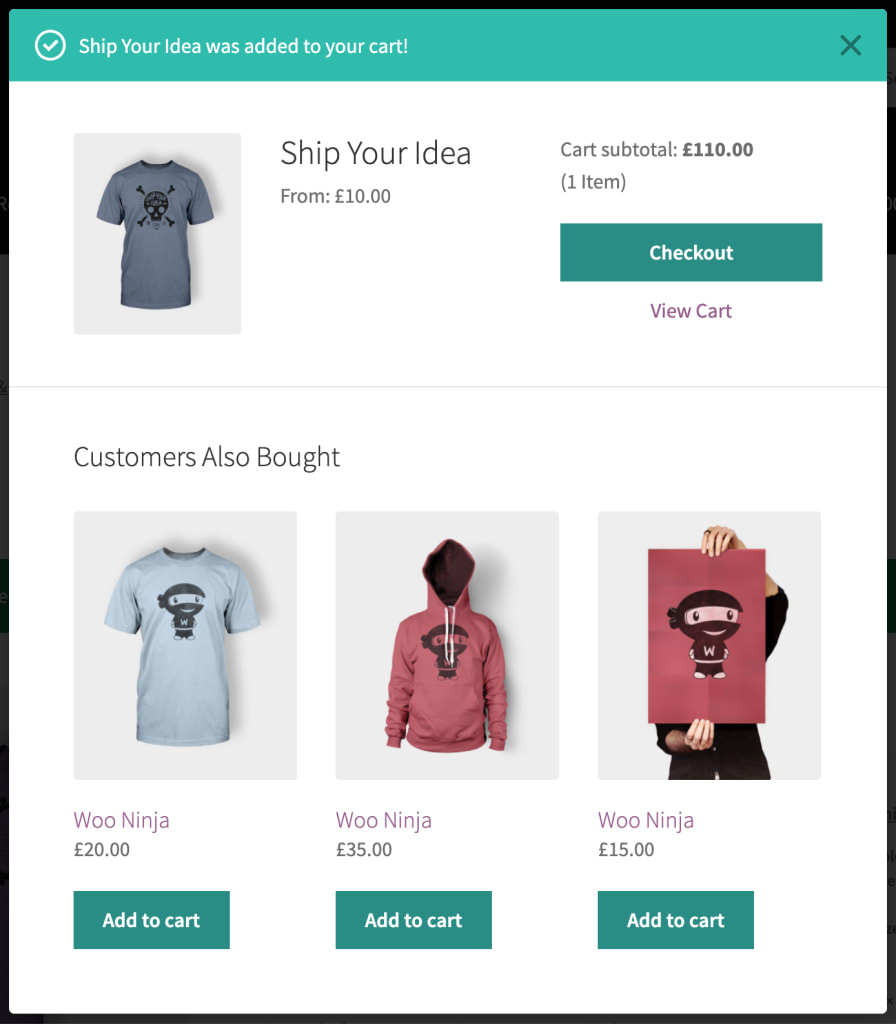
These products appear in the ‘Customers Also Bought’ section of a modal popup as confirmation of the product they added to their cart. They’re set on a per-product basis so you can get really specific.
Customers can then add these products to their cart from within the popup for a seamless experience.
To get this set up, take the following steps:
- From your WordPress dashboard, go to Products > All Products and click to edit the product you want to add your cross-sell products to.
- Scroll down the page to the Product data section and click on the Sales Booster tab.

- In the After Add to Cart field, start typing the name, SKU, or ID of a product you want to offer as a cross-sell.
- Once your product appears, click it or press enter to add it.
- Then, once you’re happy with your selection, scroll up to the Publish section of the edit product page and click the blue Update button.
Note: The pop-up will only display a maximum of 3 products that are available to purchase.