Icon List Block
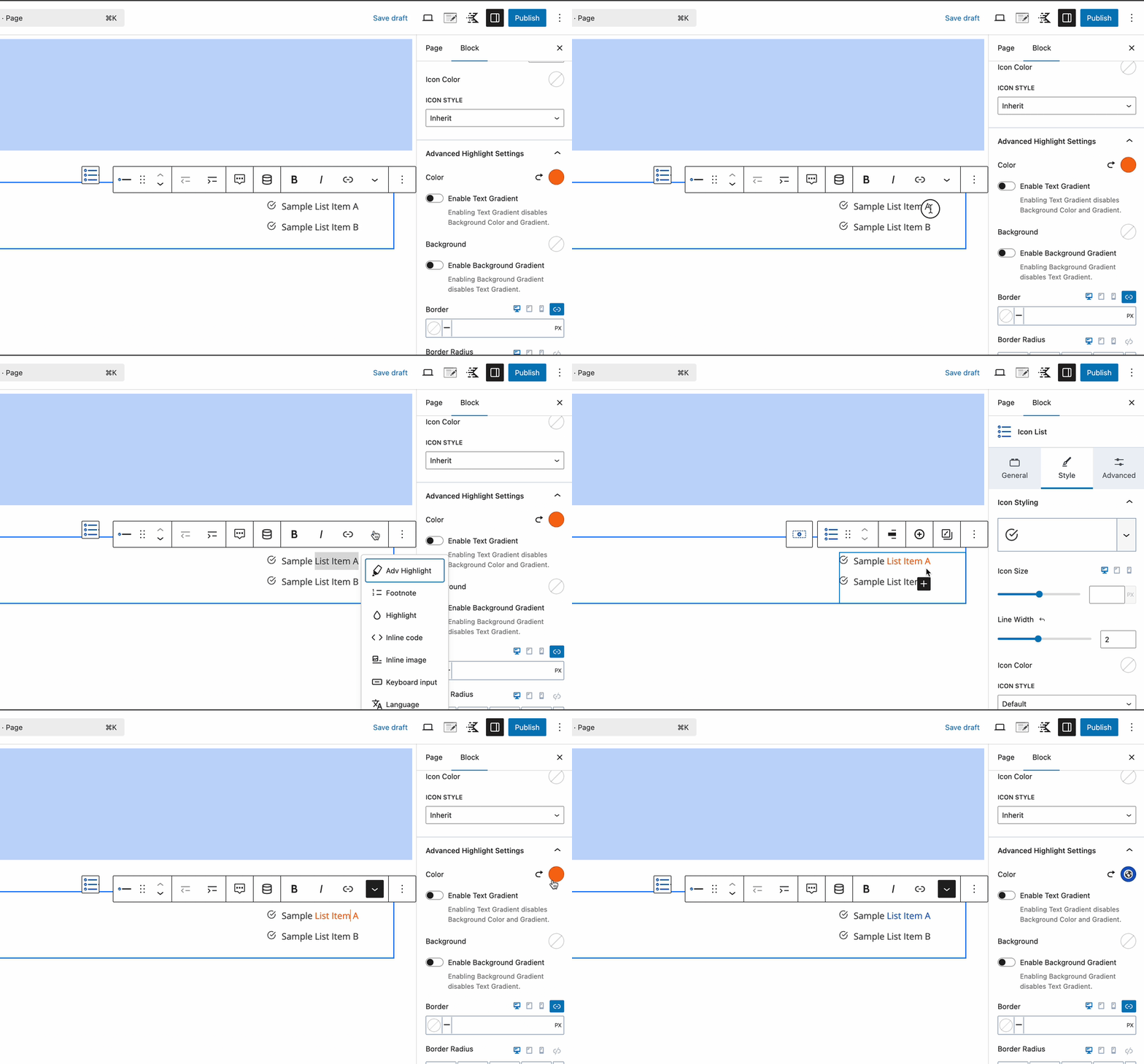
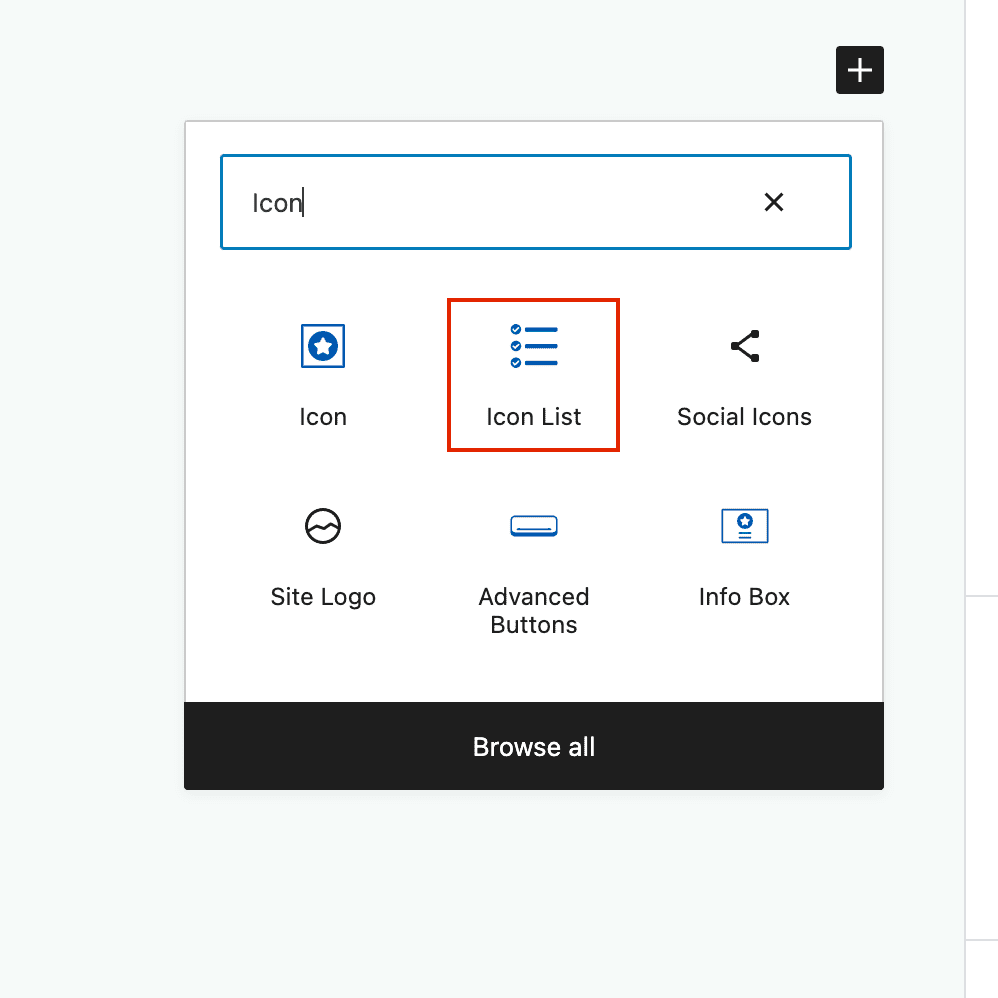
The Icon List Block allows you to add a styled list to your pages and posts. Start by inserting an Icon List block to your post.
General Settings
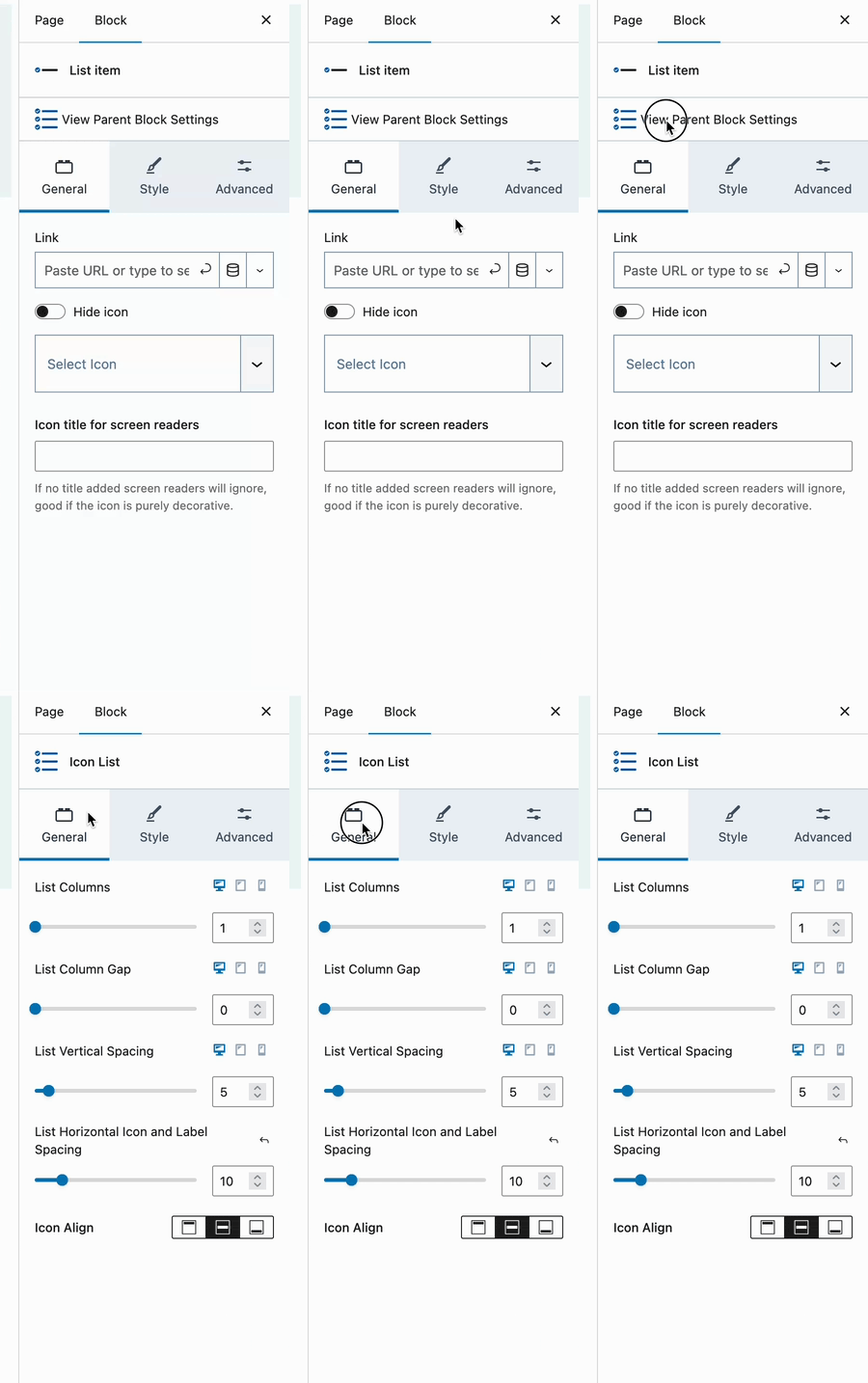
Note: Be sure to select the Parent Block to adjust these settings.
List Columns: Choose from 1, 2 or 3 columns. Select tablet or mobile to adjust the responsive columns.
List Column Gap: When using 2 or 3 columns, adjust the gap between your columns.
List Vertical Spacing: Adjust the spacing between your list items.
List Horizontal Icon and Label Spacing: Adjust the spacing between your icon and list text.
Icon Align: Align your icon to the text (top, center, bottom). This is especially important when you have multi-line list items.
Style Settings
Icon Styling
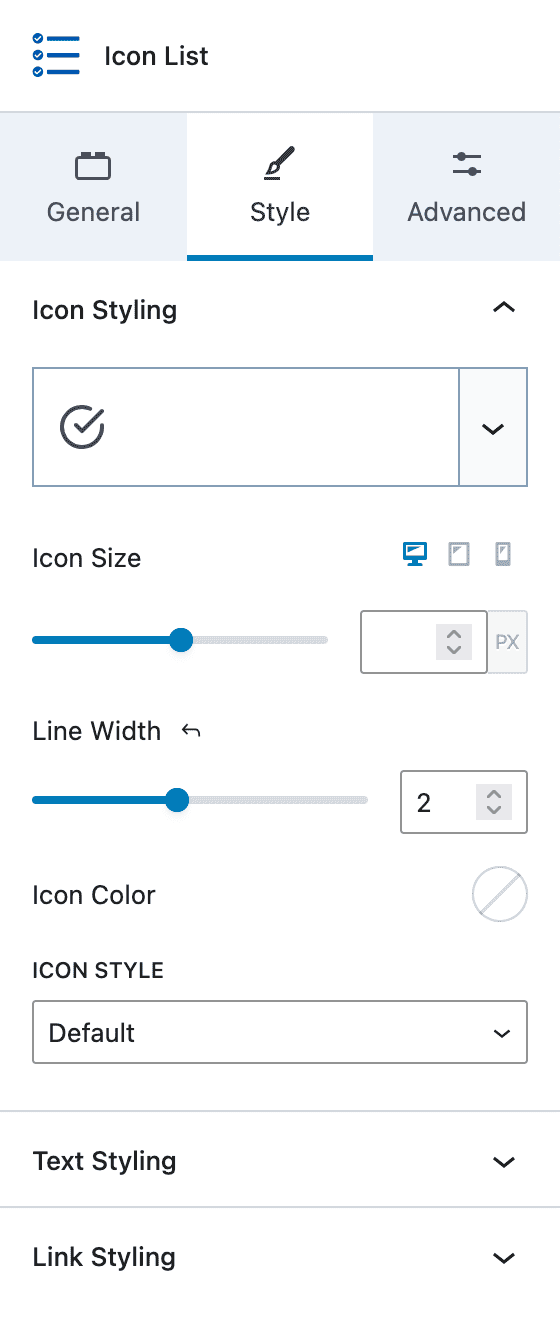
Select the default icon. This can be overridden on individual list items.
Icon Size: Adjust your icon size in pixels units. Blank will inherit the size of your text font-size.
Line Width: Adjust the thickness of your icon lines. This setting may not work when using custom icons.
Icon Color: Customize the color of your icons. Defaults to the color of your text settings. This setting may not work when using custom icons.
Icon Style: Setting to “Stacked” allows you to set the icon background and border color, border size, border radius, and padding.
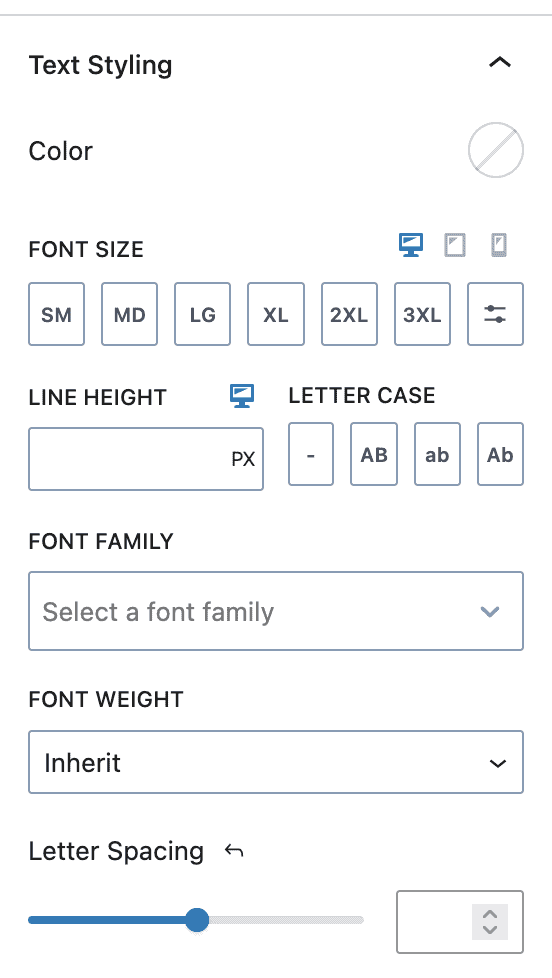
Text Styling
The Text Styling section allows you to set:
- Color
- Font Size
- Line Height
- Letter Case
- Font Family
- Font Weight
- Letter Spacing
Link Styling
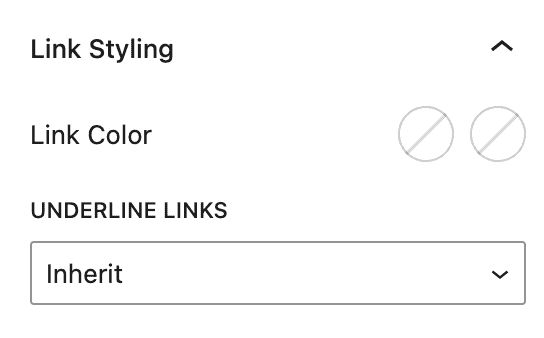
The Link Styling section allows you to set:
- Link Color – Normal and Hover
- Underline – Inherit, Underline, Underline on Hover, None
List Items
Individual list items have their own settings that will override the parent settings.
General Settings
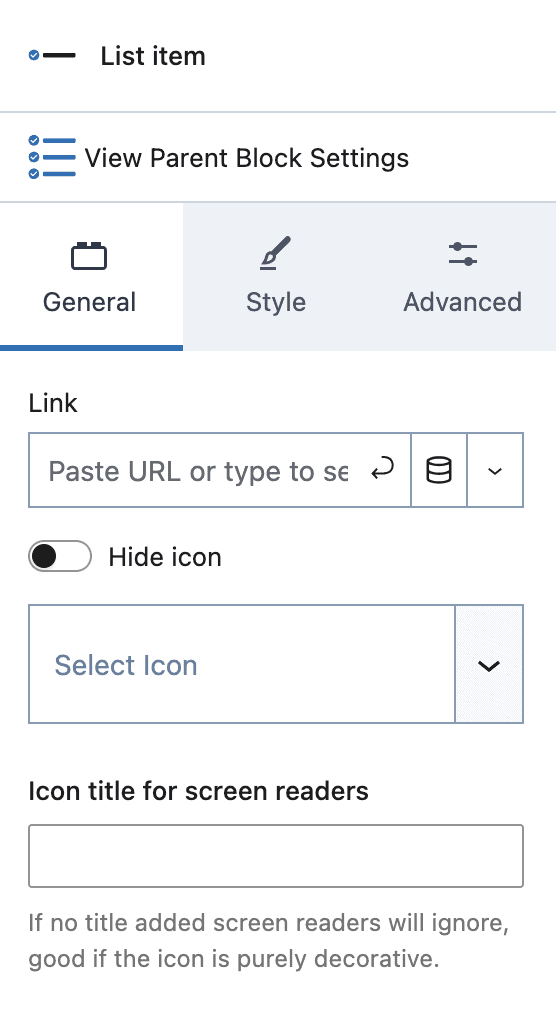
Link: Apply a link to the entire list item (including the icon).
Hide icon: Hide the icon for this list item.
Select Icon: Set an icon for this list item. This will override the Icon List block parent setting.
Icon title for screen readers: If your list item does not include descriptive text, you can specify a title for improved accessibility.
Style Settings
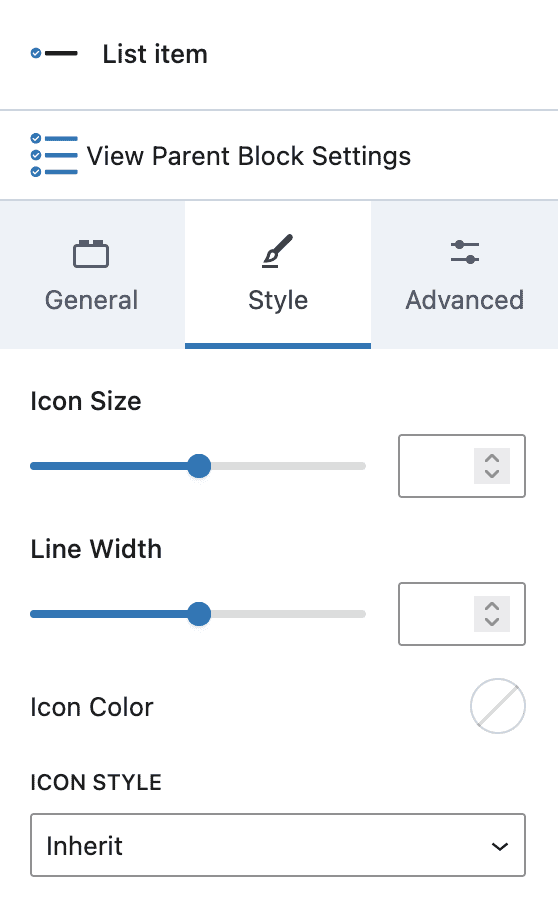
Icon Size: Set the icon size for this item.
Line Width: Set the icon line width.
Icon Color: Set a custom color for your icon.
By default, the above settings will be inherited from the Icon List block settings unless overridden here.
Icon Style:
- Inherit – Use the parent Icon List setting
- Default – Use the default setting
- Stacked – Set a custom “stacked” style
Advanced Highlight Settings