

Target Pages
If you’d only like to show your conversion items on certain pages, you can limit your target pages with this Kadence Conversion setting.
The default setting is None (i.e. do not show anywhere). If you do not set a Target Page, your Conversion will not display anywhere on your site.
There are numerous selections where you can set your Kadence Conversion item to show only where you’d like it to show. Start by first selecting the parameter where you want your target page to show. The Target Pages settings will guide you to select the targets that you want.
Target Entire Site
The first option is to set the target to Entire Site. This will display your Conversion on any and all pages, posts, and archives.

Target a Single Page
To show your conversion item on a single page such as a specific landing page, scroll to the Single Pages item. You’ll then be shown an option to show your conversion item on pages in a group, by a single author, or individually. Select Individually, and you’ll be able to click Select Items to select the pages you’d like your conversion shown.
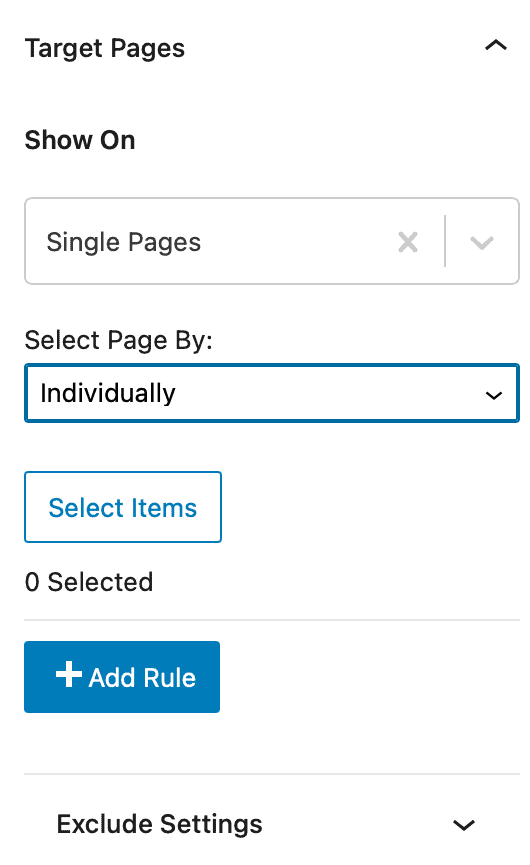
Targeting WooCommerce Pages
If you are using Kadence Conversions with WooCommerce, you have numerous targeting options. You can choose a number of different areas where you can display your conversion item within your online storefront. Choose to show on a single product, category archive pages, tag archive pages, product archives or product search.
Targeting The Events Calendar Pages
If you are using The Events Calendar with Kadence Conversions, you have numerous options for showing conversion items on your events pages. You can choose to show a conversion item on your event page, event archives, or event category archives.
Additional Target Pages Rules
To add additional flexibility for where you’d like to show a conversion item, add additional target page rules. For example, if you’d like to show a conversion item on a single landing page and also on two different product pages, you can add additional rules to show your conversion item.
Exclude Target Pages
If you’d like to show your Kadence Conversion item on many pages but exclude showing the conversion item on some pages or even a single page, you can set an exclusion within the Target Pages settings of Kadence Conversions. Simply choose which categories of pages or posts you’d like to exclude the conversion item from being shown.
You can get very specific of which pages you’d like to exclude. By adding additional exclusion rules, you can identify specific pages for exclusion. For example, you can choose to show your conversion item on the entire site, but exclude 2 specific pages, a number of different category archives, or any other exclusions you wish to set up.