

Scheduling Kadence Conversions
No one wants to get up at midnight to toggle a conversion element off or on, and there’s no need for lost sleep when you use Kadence Conversion’s scheduling settings.
There are two different ways to schedule conversions to be displayed to site visitors: range scheduling and recurring scheduling.
Range Scheduling
Choose a start date and time for when your conversion item will be displayed, and then schedule the Expires time, which is when you would like the conversion display to stop.
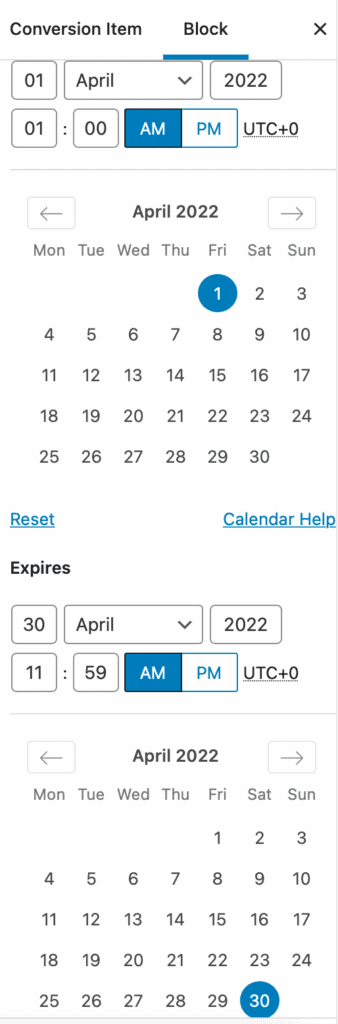
You can either enter in the exact date and time when you would like to start your conversion schedule, or you can use the calendar selector to more easily determine the day of the week for your range scheduling.
For “Expires,” you can also either enter in the exact date/time or use the calendar selector.
Calendar Selector Help
Click the right or left arrows to select other months in the past or the future, and click the desired day to select it. If you are navigating with a keyboard, follow the steps below to select your dates:
↵ Select the date in focus.
←/→ Move backward (left) or forward (right) by one day.
↑/↓ Move backward (up) or forward (down) by one week.
PgUp/PgDn Move backward (PgUp) or forward (PgDn) by one month.
Home/End Go to the first (home) or last (end) day of a week.
Recurring Scheduling
Show your conversion item at recurring times, for example, every Tuesday and Thursday from 9 am until noon.

Combining Range and Recurring Scheduling
You can easily combine range and recurring scheduling for a unique display of your Kadence Conversion item. For example, if you want your conversion item to show on every Wednesday from 9 AM – 5 PM in the month of April 2022 only, first set your range from April 1, 2022 to April 30, 2022.
Then, set your recurring schedule for Wednesday 9-5.
