Testimonial Block
The Testimonial block allows you to add a customizable testimonial section to your site. Add customer feedback and client praise to any block enabled area of your site!
Insert a Testimonial Block
To get started using the Testimonial block, first insert it using the block editor:

Choose the Testimonial Layout and Style
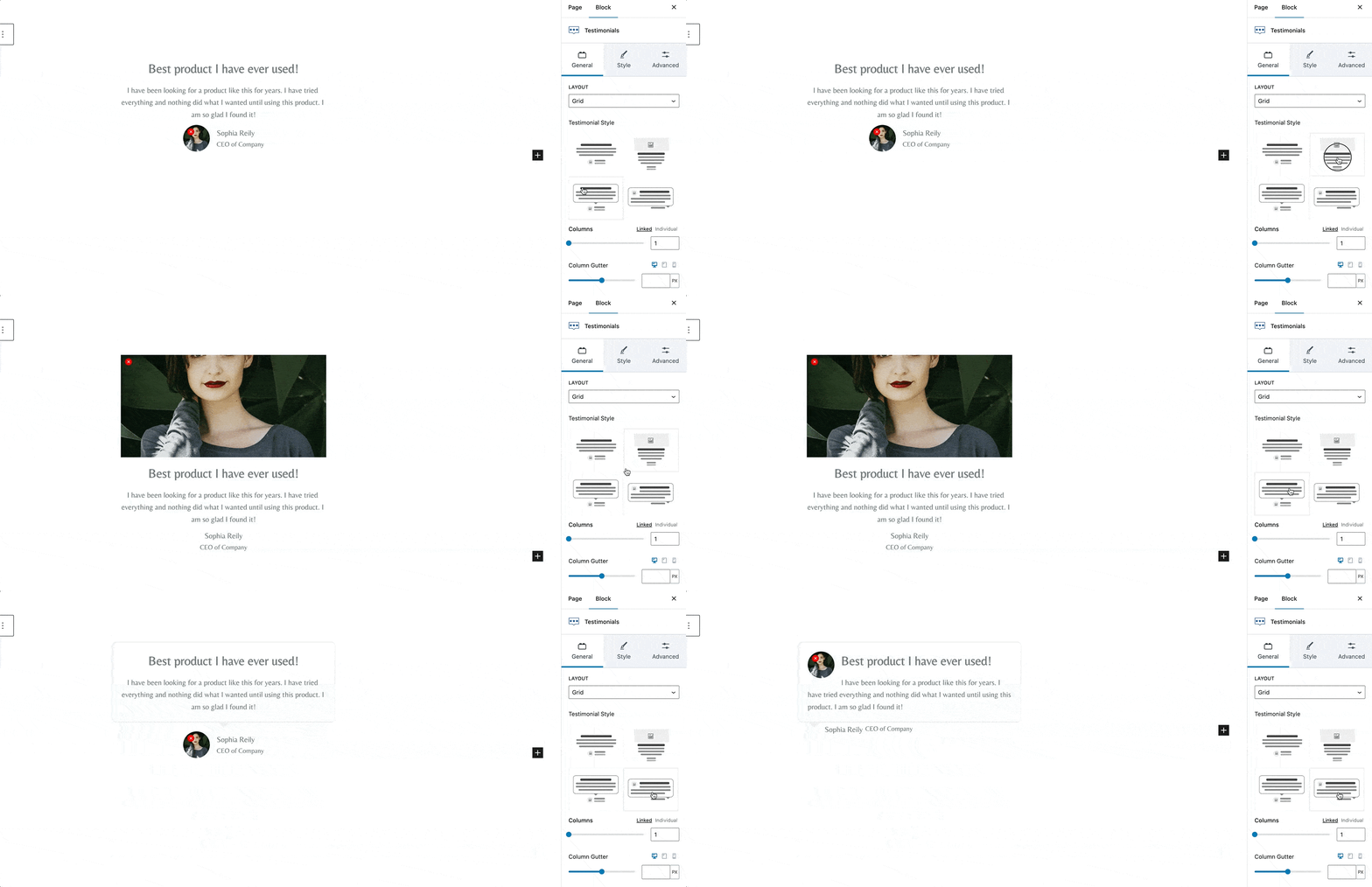
In the General tab you can choose between a Grid layout and a Carousel layout. You can also specify how many columns and adjust the spacing between each testimonial.
Carousel Settings
After selecting the Carousel layout, a new settings section appears.
Carousel Type: Choose either Infinite Loop or Rewind.
Carousel Auto Play: When enabled, the slider will automatically start on load. This also reveals the Autoplay Speed setting.
Carousel Slide Transition Speed: Controls the speed of the slider transition.
Slides to Scroll: Choose One or All.
Arrow Style: Choose a navigation style or None to disable.
Dot Style: Choose a dot style or None to disable.

Style Settings
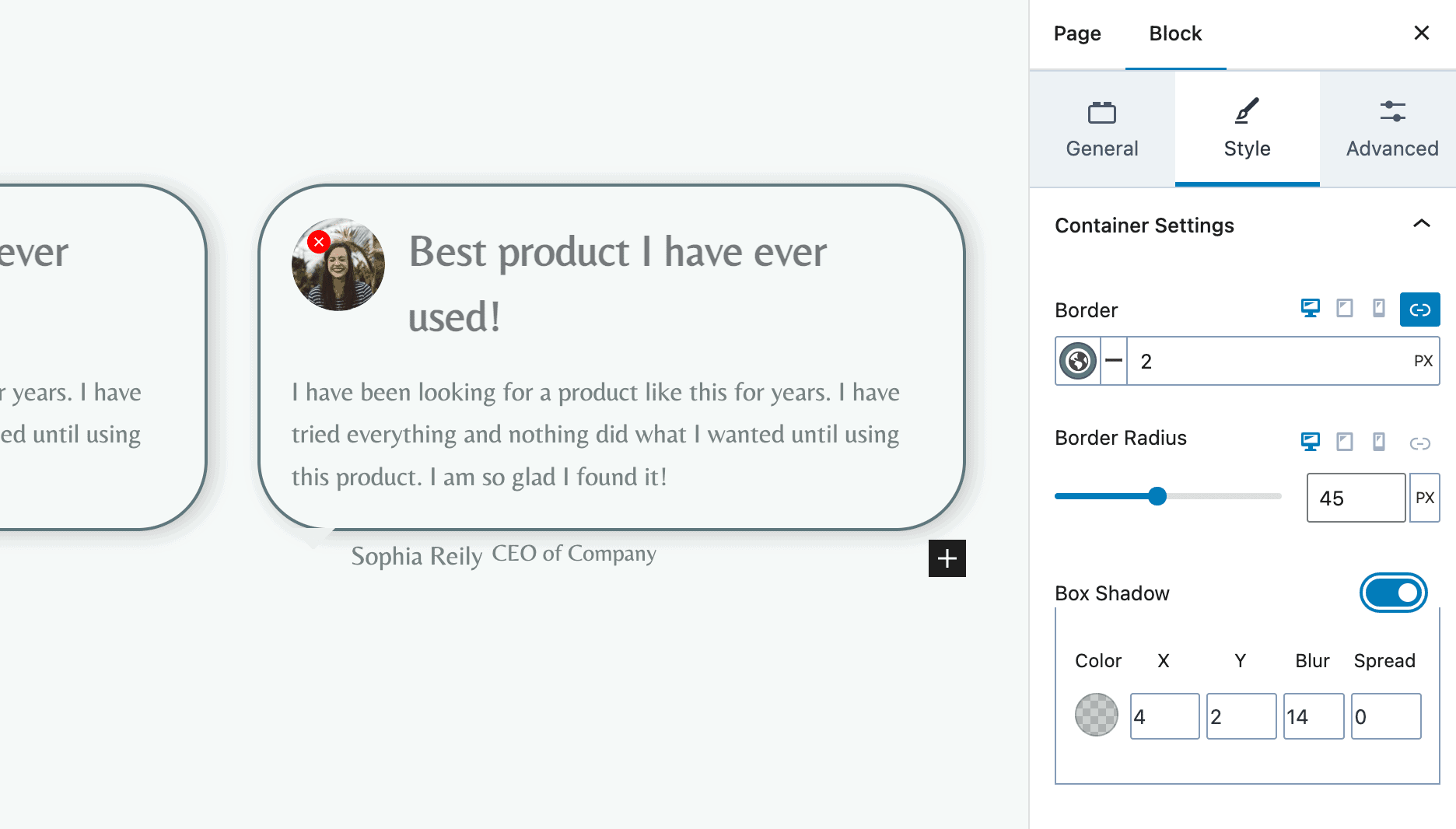
Configure your container settings:
Scroll through the rest of the settings and make adjustments until you’re happy with the configuration of your testimonials.
Icon Settings: Enable to insert an icon above your testimonials.
Title Settings: Show the title and adjust HTML tag, font-size, etc.
Rating Settings: Show star ratings and customize color and icon size.
Content Settings: Show and style the testimonial content.
Media Settings: Show and style the testimonial image.
Name & Occupation Settings: Show and style the Name and Occupation fields.

Advanced Settings
The Advanced Settings section allows you to control the individual testimonial setting as well as the overall block “wrapper” settings.
Padding: Controls the padding inside individual testimonials
Container Max Width (px): Set a maximum width for testimonials.
Container Min height: Set a minimum height for testimonials.
Wrapper: Set the overall block padding and margins.

Individual Testimonial Settings
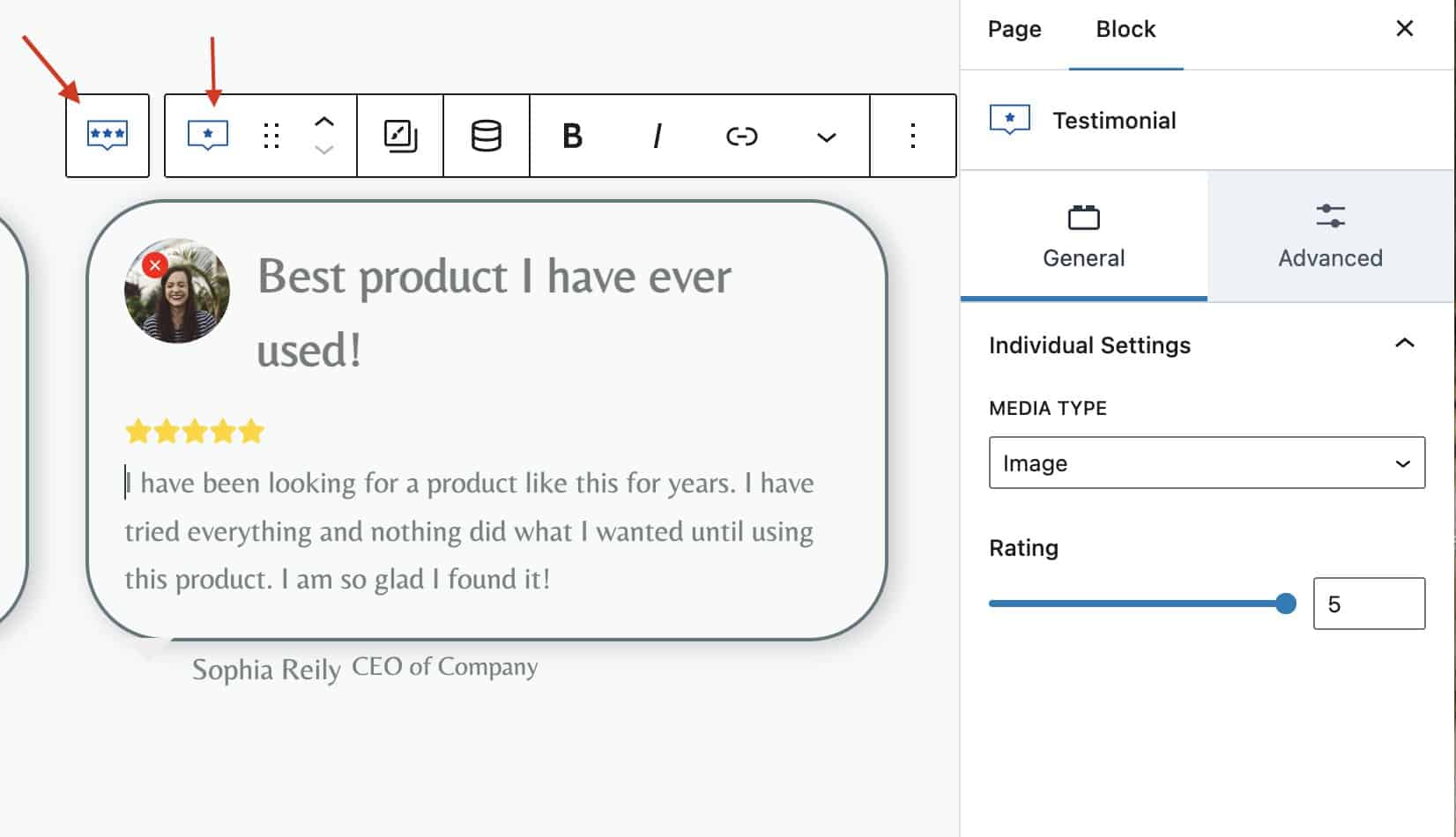
You can customize the settings for each individual testimonial by clicking on it. Here you can set the type of media (Image or Icon) and adjust the Rating.