Icon Block
The Advanced Icon Block allows you to configure icons in a myriad of ways. Setting up the icon block is simple!
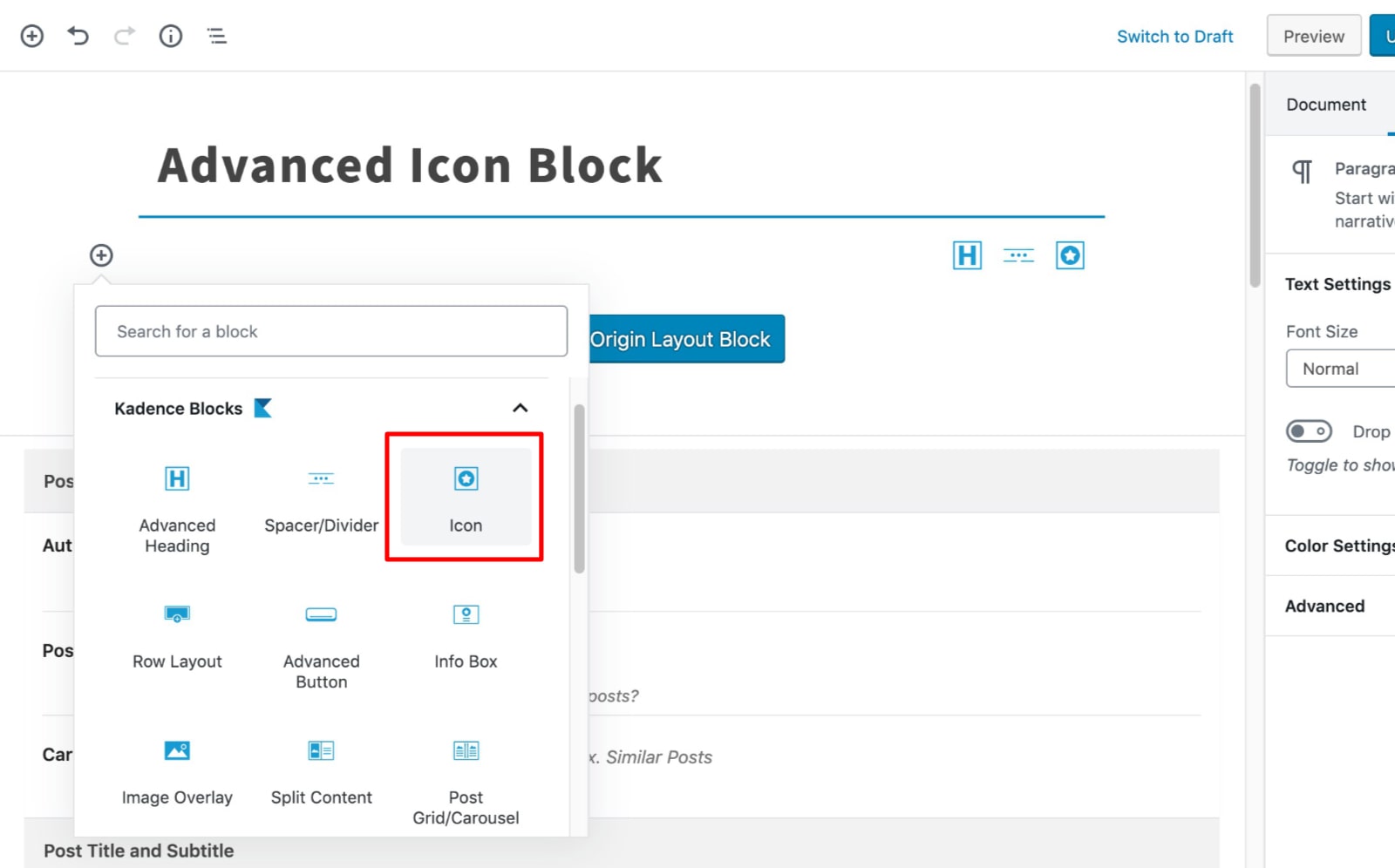
Firstly, select the icon block from your Gutenberg blocks list. Remember that Kadence Blocks are all blue for faster selection:
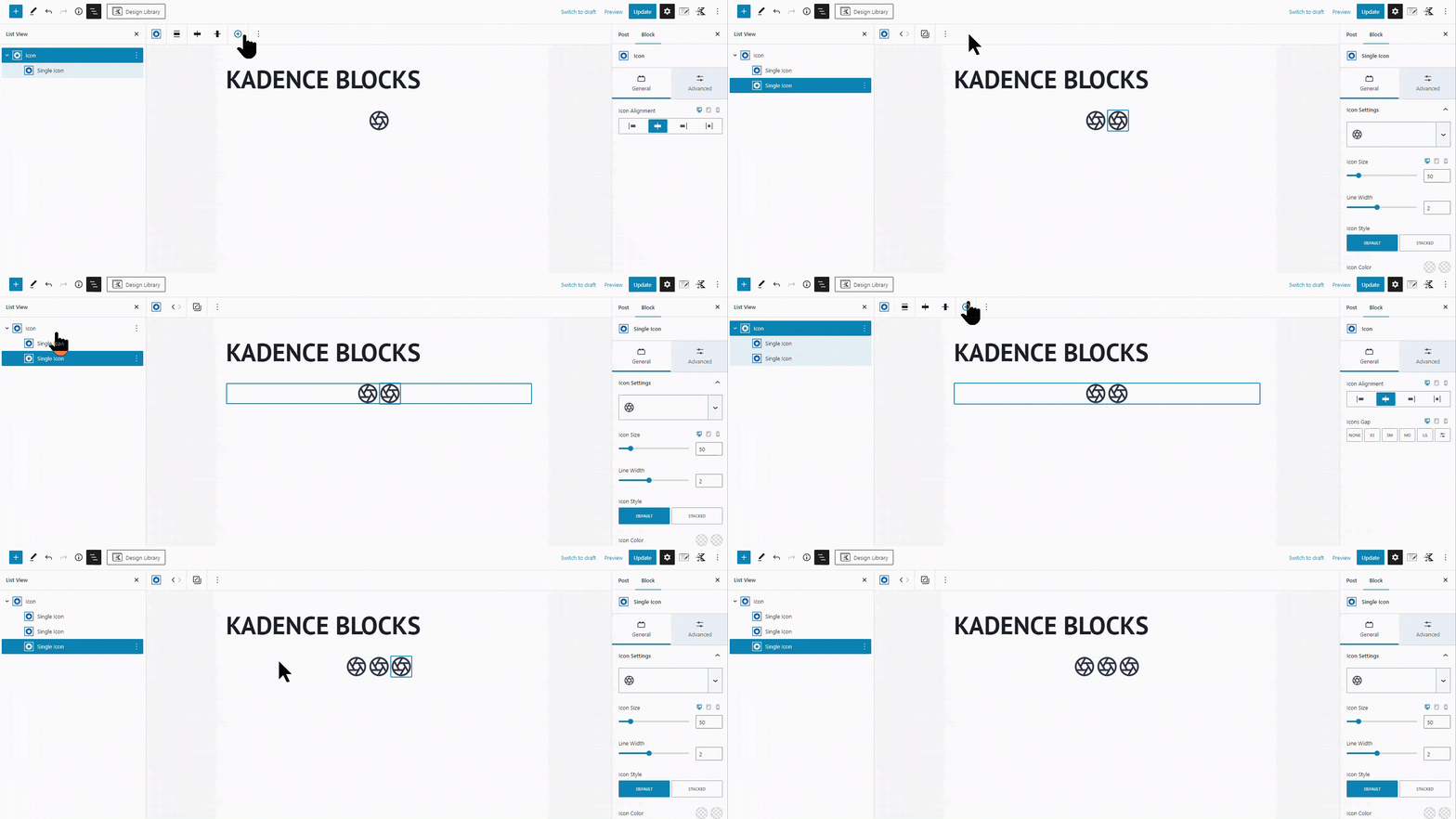
By default, the block adds a single icon. However, you add more icons using the “Add Another Icon” button located on the toolbar.
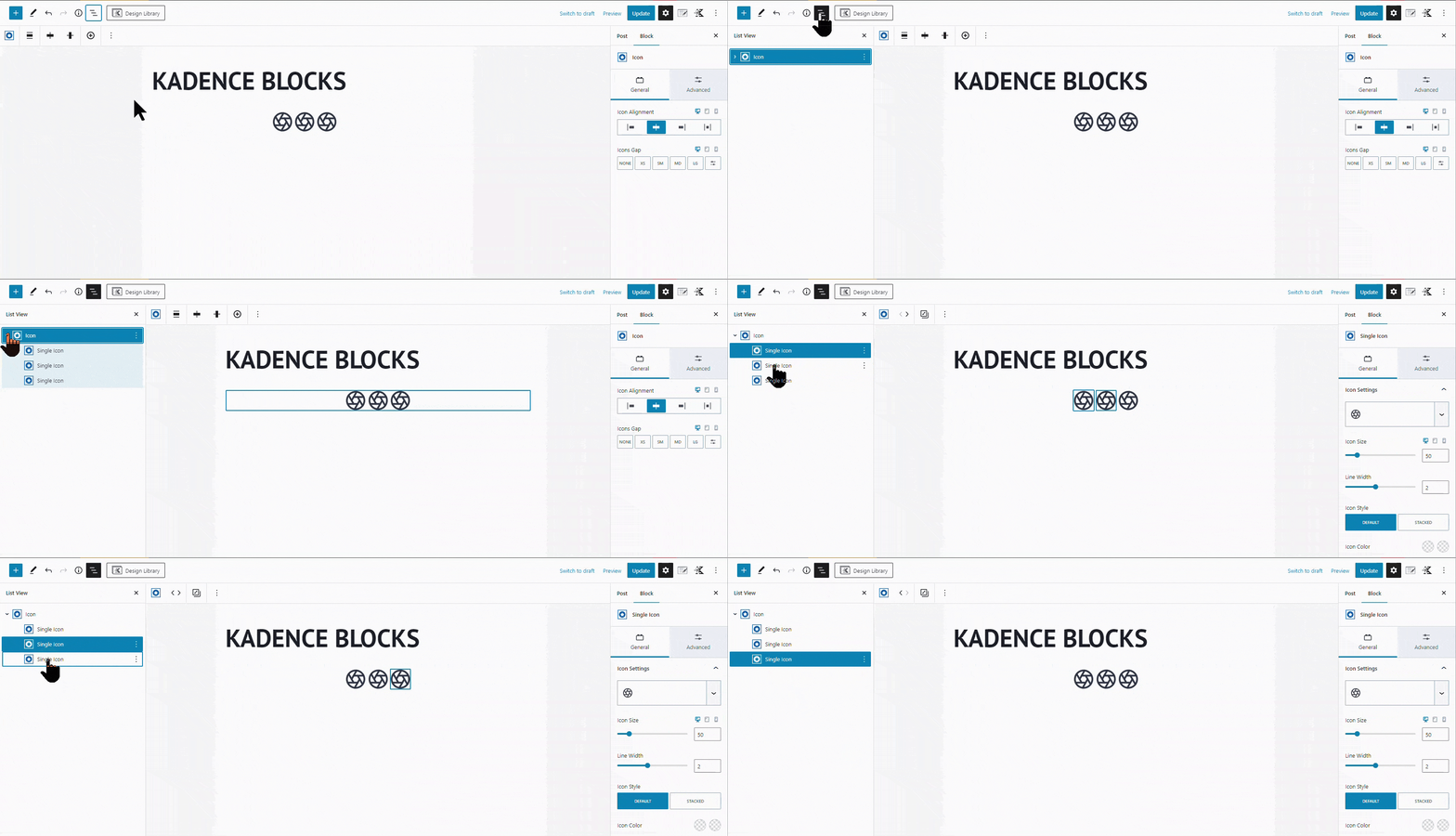
When multiple icons are chosen, you need to edit them individually by opening each icon’s settings:
Select which Icon you’d like to edit by selecting the icon from the List View.
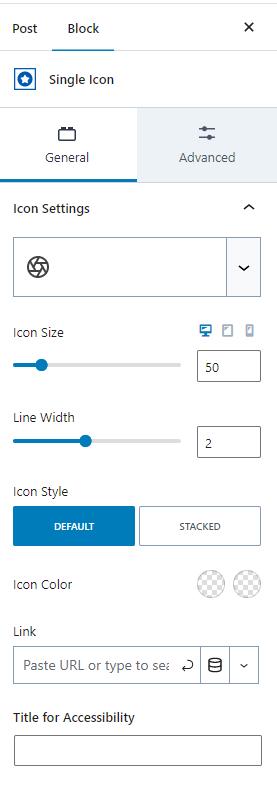
The individual icon settings are as follows:
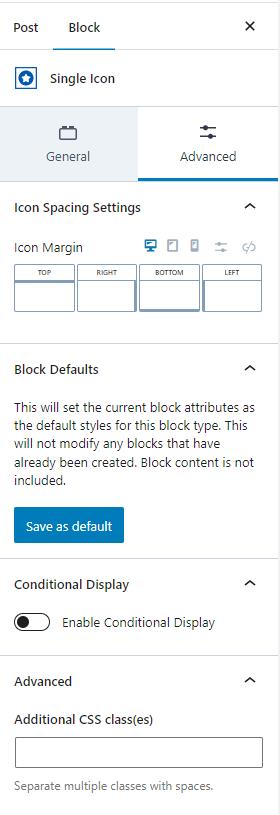
Configure your icons as needed. When happy with the layout, save your page changes and view on the frontend: