Displaying Shortcodes in the WordPress Editor
When using Kadence Elements, custom Shortcodes, or Shortcodes from third-party plugins, it may be necessary to display them using the WordPress Block Editor. Gutenberg provides the Shortcode Block to achieve this. ShortCode Blocks can be added to posts, pages, elements, widgets, and to anywhere the Block Editor is available.
Using the Gutenberg ShortCode Block
To add a shortcode in the editor, first, insert a Shortcode Block into the page. This block enables shortcode input and ensures it is executed on the front end. A Shortcode Block can be added anywhere blocks are available, such as in the Post Editor or Widgets.
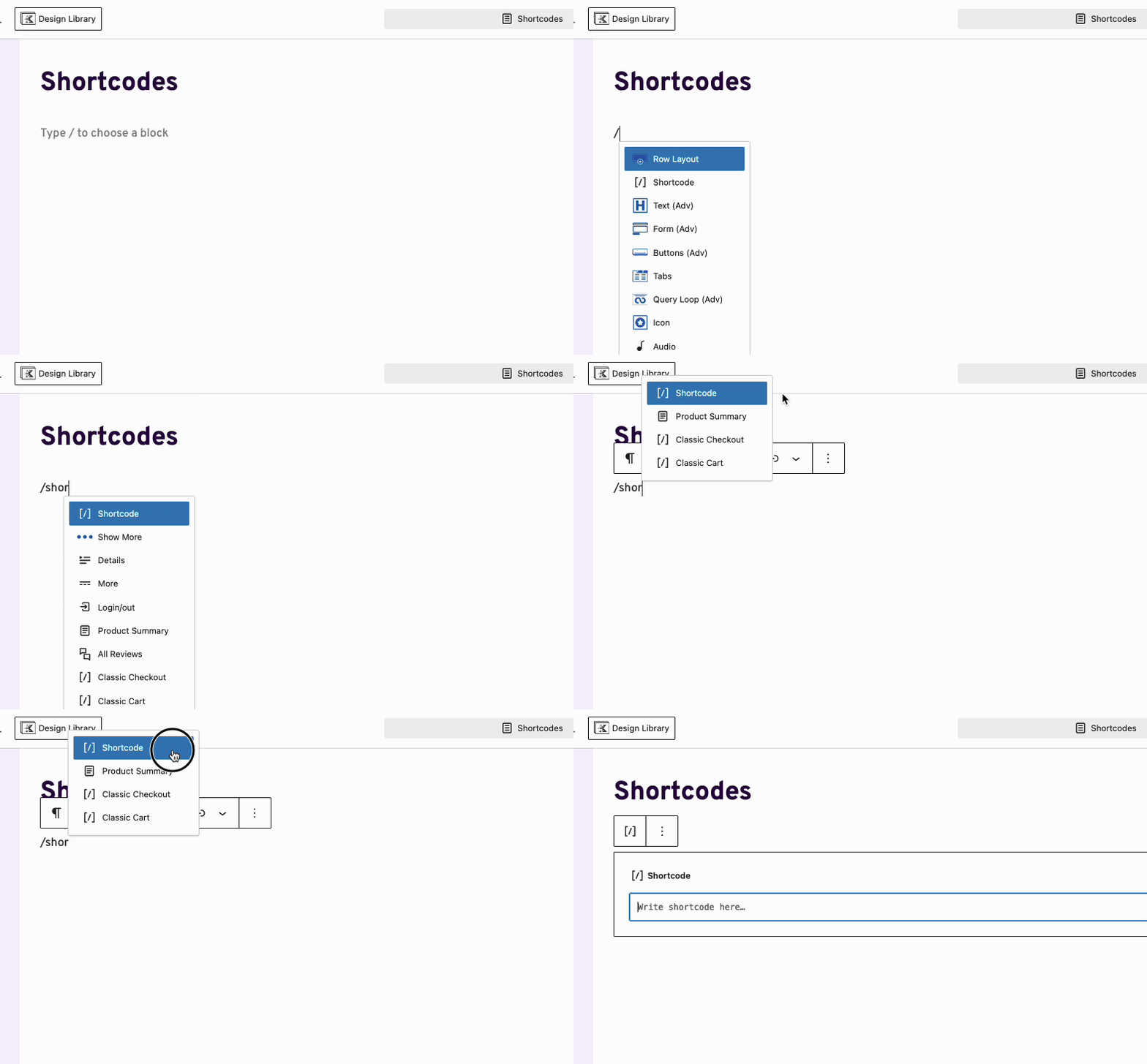
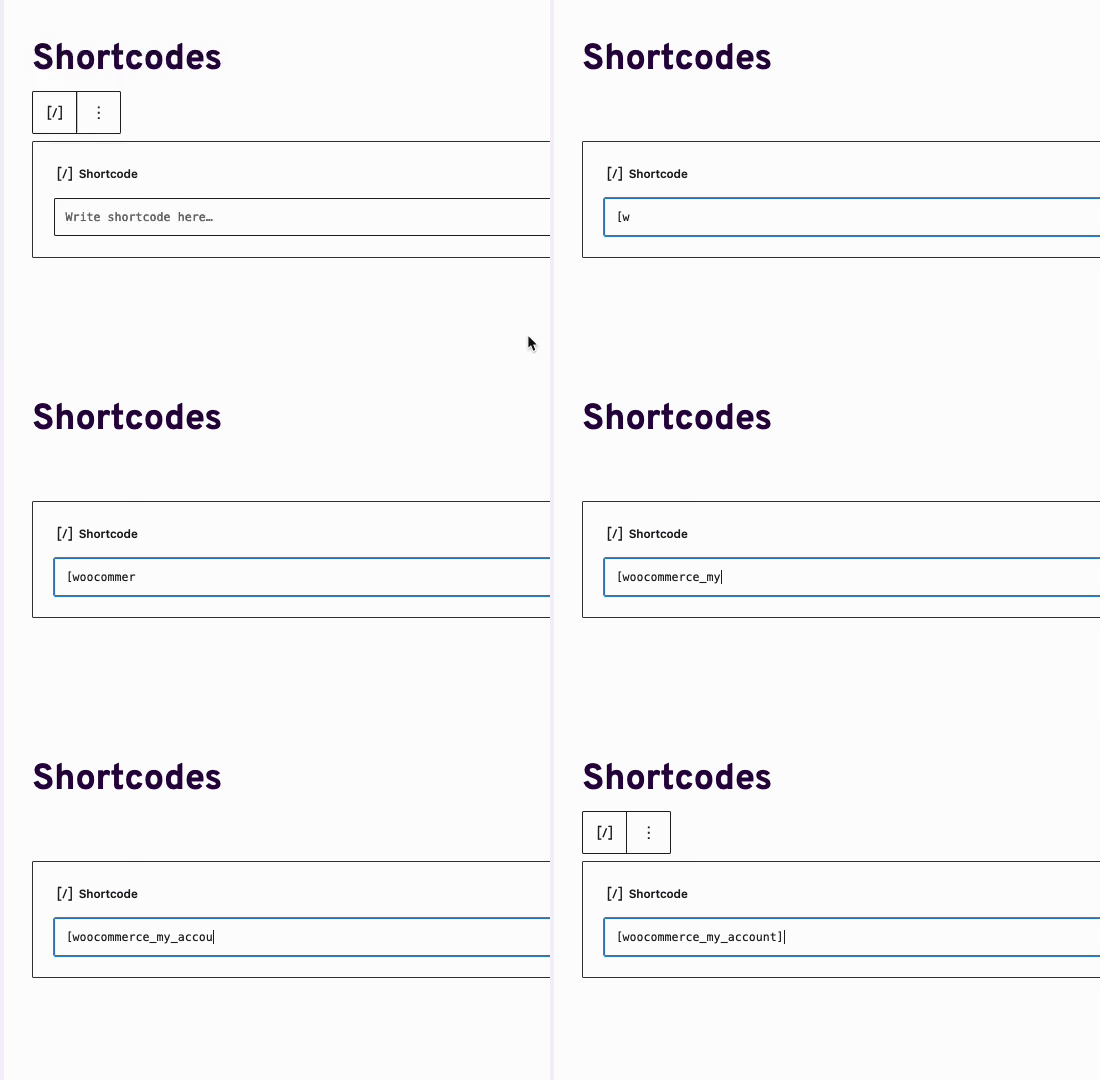
Inside the Shortcode Block, enter the text of the shortcode you wish to use, then save the changes.
On the Front End of the page, the Shortcode will be executed.
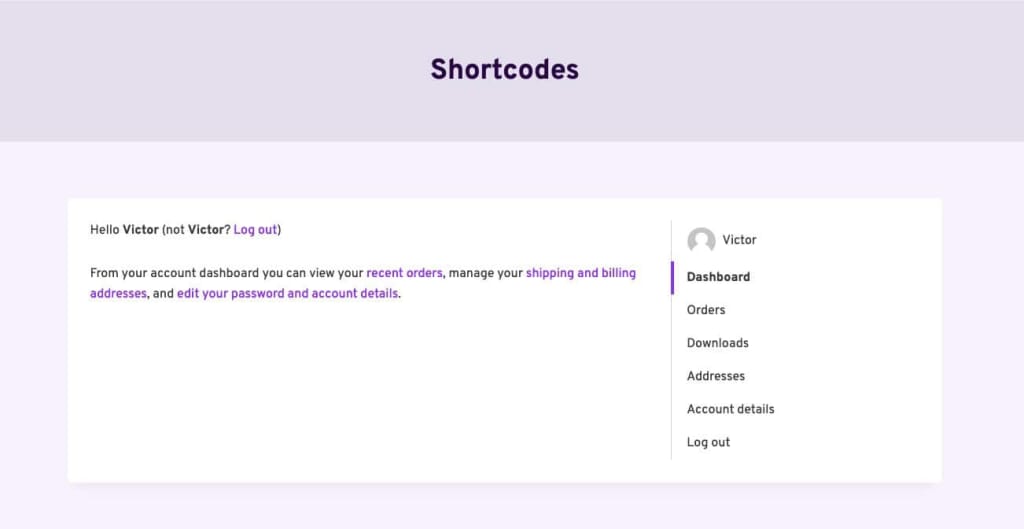
*Please note that in this example, the Shortcode added comes from the WooCommerce plugin*
Using Element Shortcodes (Pro)
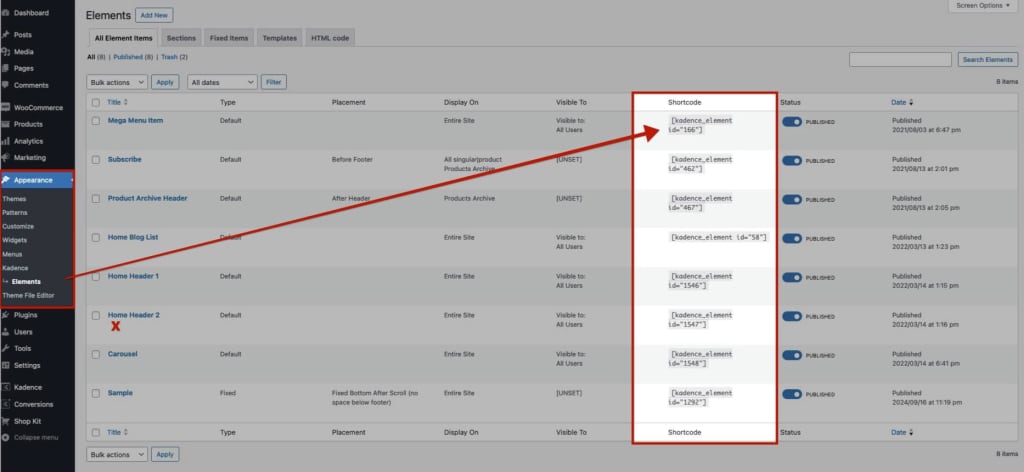
Kadence Theme Kit Pro offers Hooked Elements. Each Kadence Element generates a shortcode that can be used to display the Element. To find the shortcode for a specific Element, navigate to Dashboard → Appearance → Kadence → Elements.