

How to Make a Top Section Sticky with Kadence Blocks
The Row Layout Block is commonly used to create sticky left or right sections. This setup allows one side of your layout to stay visible as the other side scrolls.
However, there may be times when you want a top section to remain visible and overlay the content below as the page scrolls. In that case, the Kadence Section Block can help you achieve that effect.

Getting Started
Start by adding a Section Block to a page.
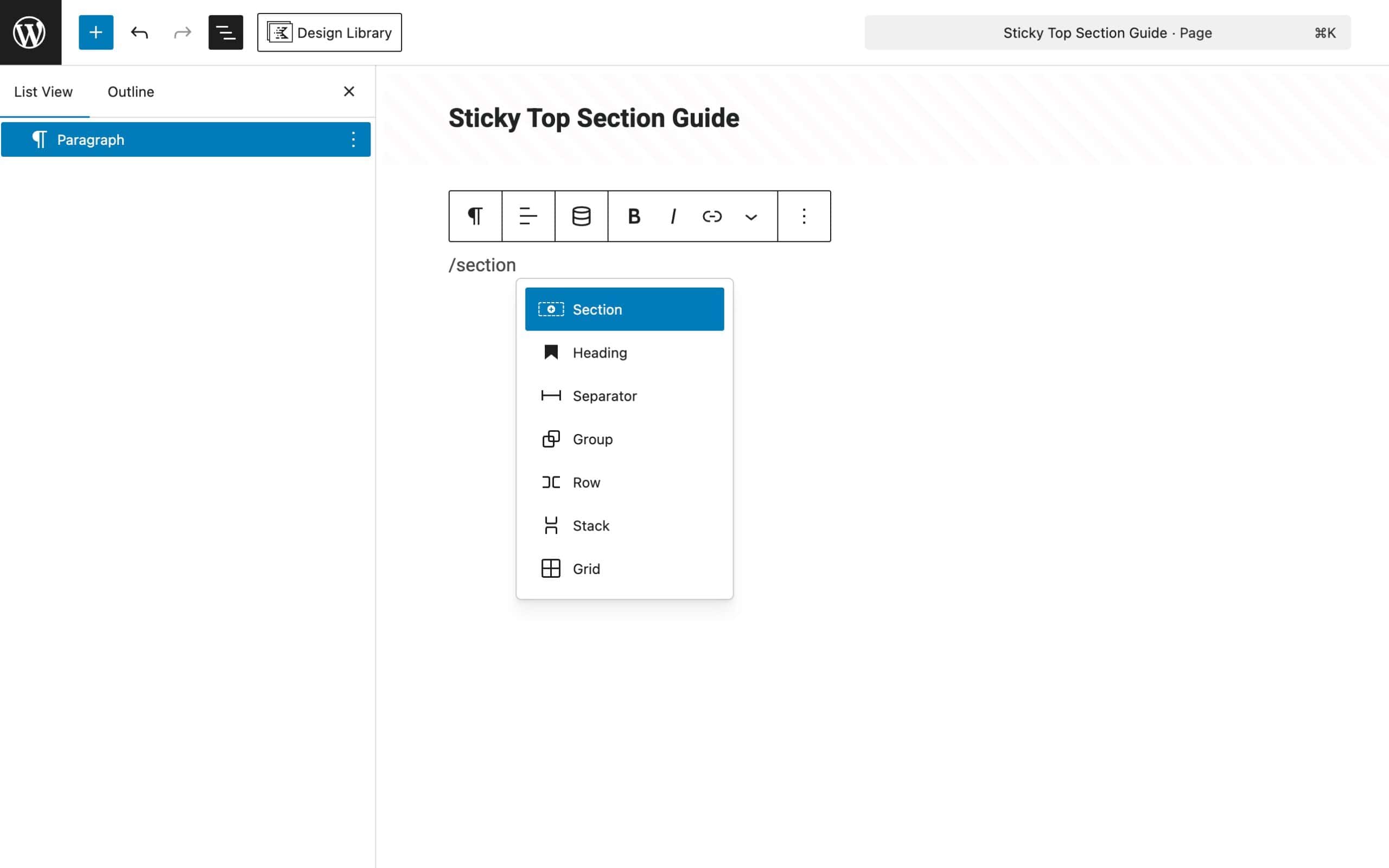
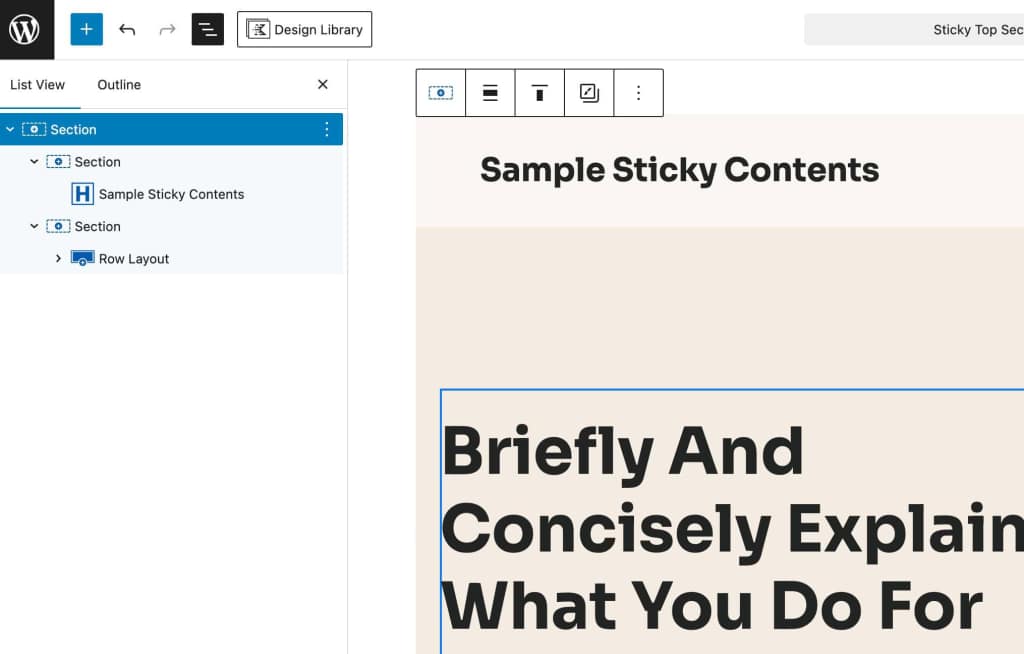
Inside the Section Block, add two more nested Section Blocks. By default, they will stack.

Then, add the Sticky Content you wish to display to the First Section and the other contents in the Second Section.
Once your content is ready, select the First Section and go to the Block Settings -> Advanced Tab -> Sticky Settings and enable the Sticky Section feature.
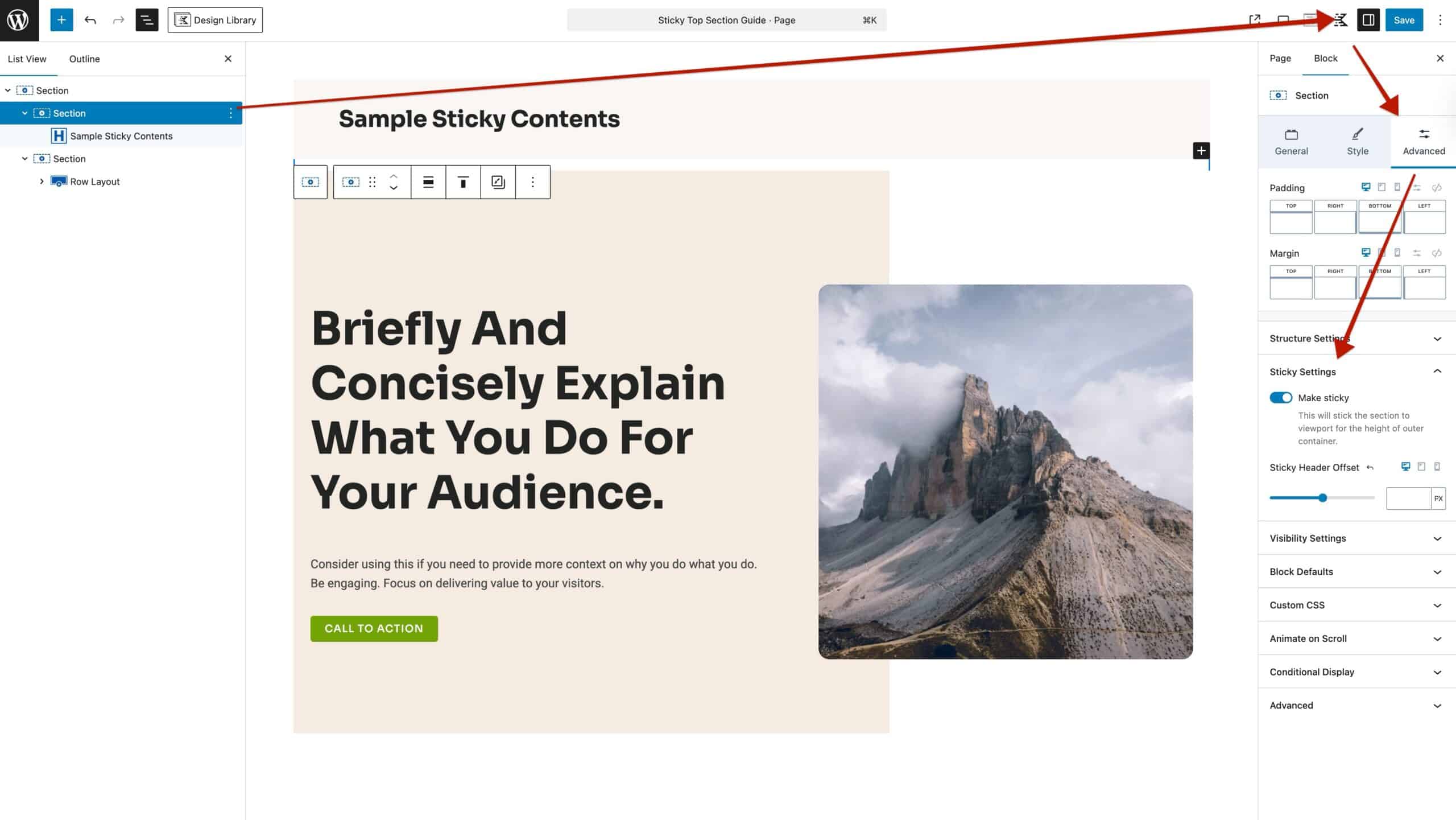
This will effectively make the Top Section overlay the Bottom Section as the user scrolls down the page. See the GIF below for reference.