

Integrating Kadence Forms with Mailerlite
The Kadence Form and Form (Adv) Blocks both support integration with Mailerlite. Below, you will learn how you can start using Kadence alongside Mailerlite.
Mailerlite Setup
You must set up an account with Mailerlite, create a Group for users to be added to, and connect a Mailerlite API Key to your Kadence Form to fully integrate Mailerlite with Kadence.
Get started by heading over to the Mailerlite Website. You can create a new account or log in to an existing one.

Creating a new group
From the Mailerlite Dashboard, go to the Subscribers tab.

Once on the Subscribers page, find the sub-page named Groups and click on it.

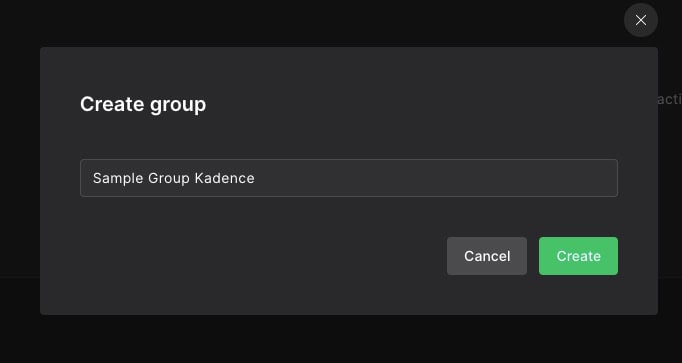
Click on the Create group button to create a new group. In the popup, create a name for the group, then click on the Create button.

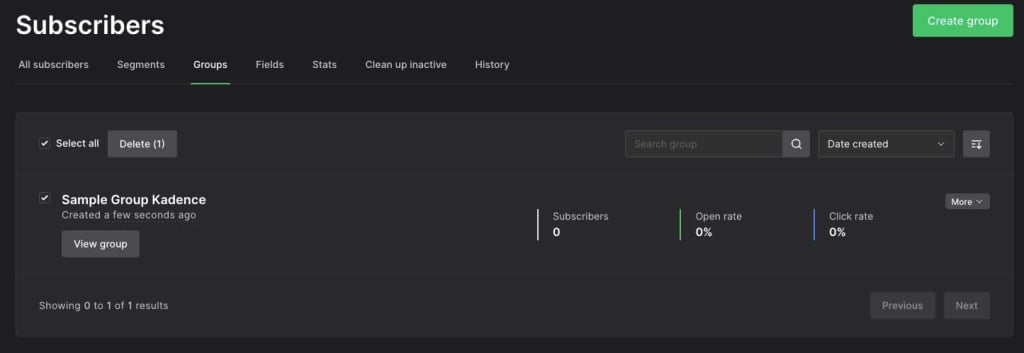
Once the group is created, you will be left with a basic overview of the new group.
Navigate to the Fields tab to add or remove fields from the group. Kadence Forms and Advanced Forms Fields can be mapped to send input data to Specified Group Fields.

Creating an API Token
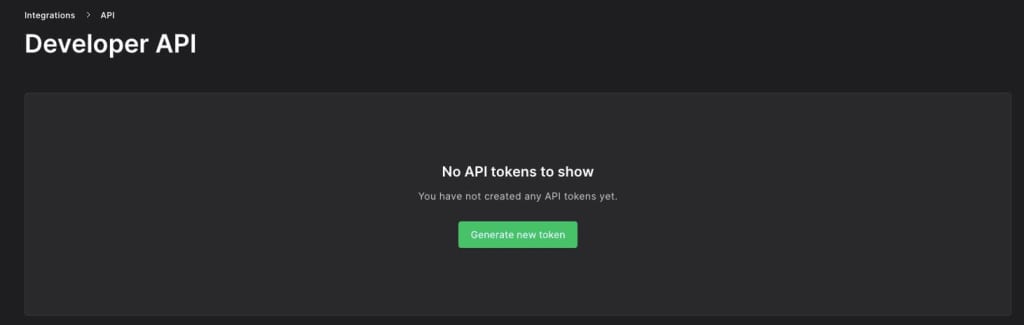
Next, you need an API Token for your Form to connect with. Navigate over to the Integrations Tab from the MailerLite Dashboard. Next to the API section, click on the Use button.

Then, click on the Generate New Token button to generate a new one to associate with Kadence.
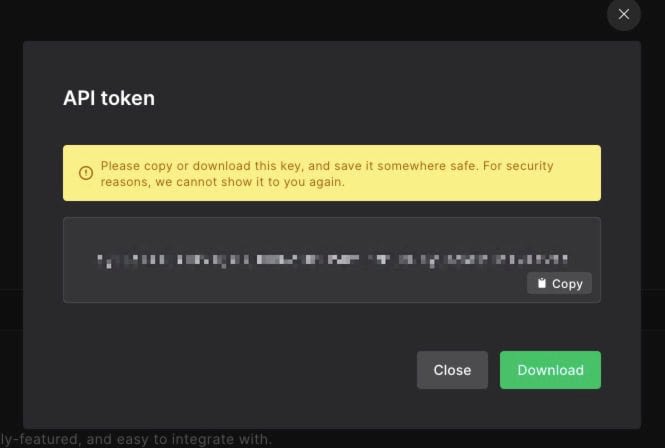
The API token will then be generated. Click on the Copy button to copy the Token to your clipboard. You can also download this Token using the Download button. This API Token can be used to connect Mailerlite to the Kadence Form Blocks.
Using Mailerlite with the Kadence Form Block
Using Mailerlite with the Kadence Form Block is easy.
Get started by adding a Form Block to a page.
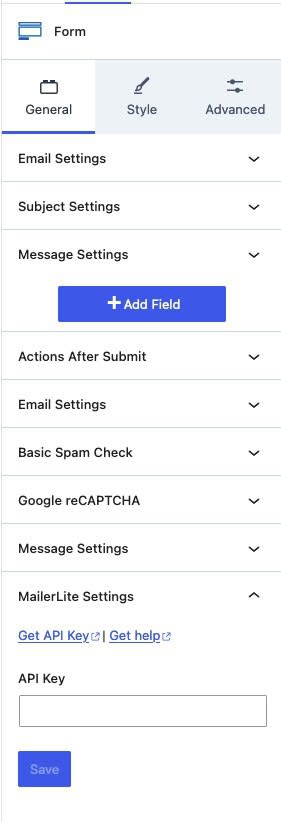
Then, navigate to the Block Settings -> General Tab and expand the Actions After Submit tab.
Then click on the Checkbox next to Mailerlite.

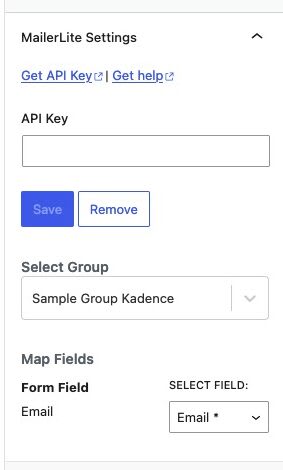
Once Mailerlite is enabled, there will be a new tab in the Form block settings named MailerLite Settings.
You can expand this tab and add then save your MailerLite API Token to the Kadence Form.
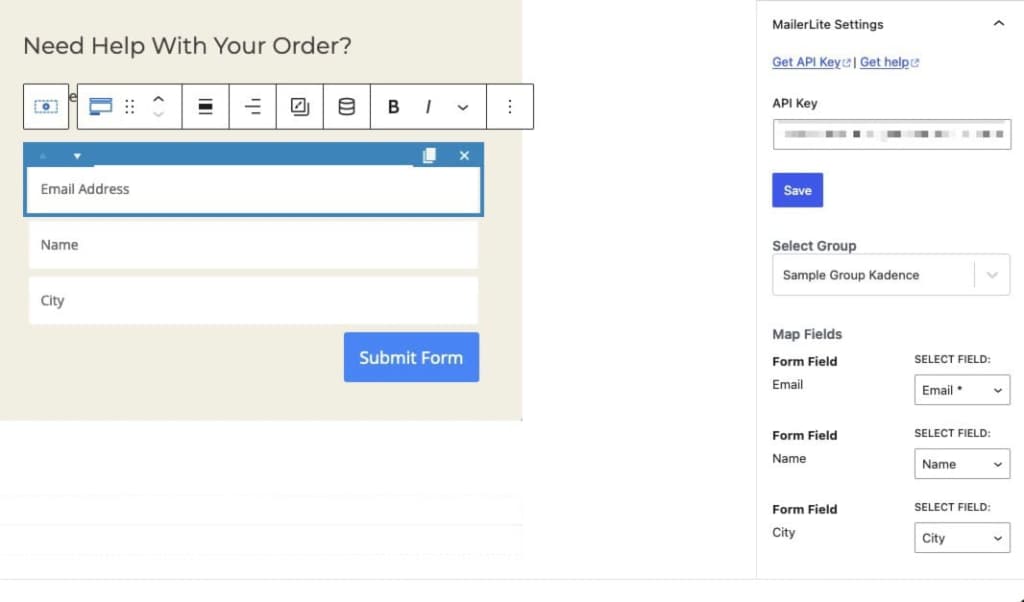
Finally, select the appropriate Group and map each Kadence Form Field to a Group Field using the MailerLite Settings
Using Mailerlite with the Kadence Advanced Form Block
Get started by adding a Form (Adv) Block to a page.
Then, navigate to the Block Settings -> General Tab and expand the Actions After Submit tab.
Click on the dropdown toggle and select Mailerlite from the list of selectable options.
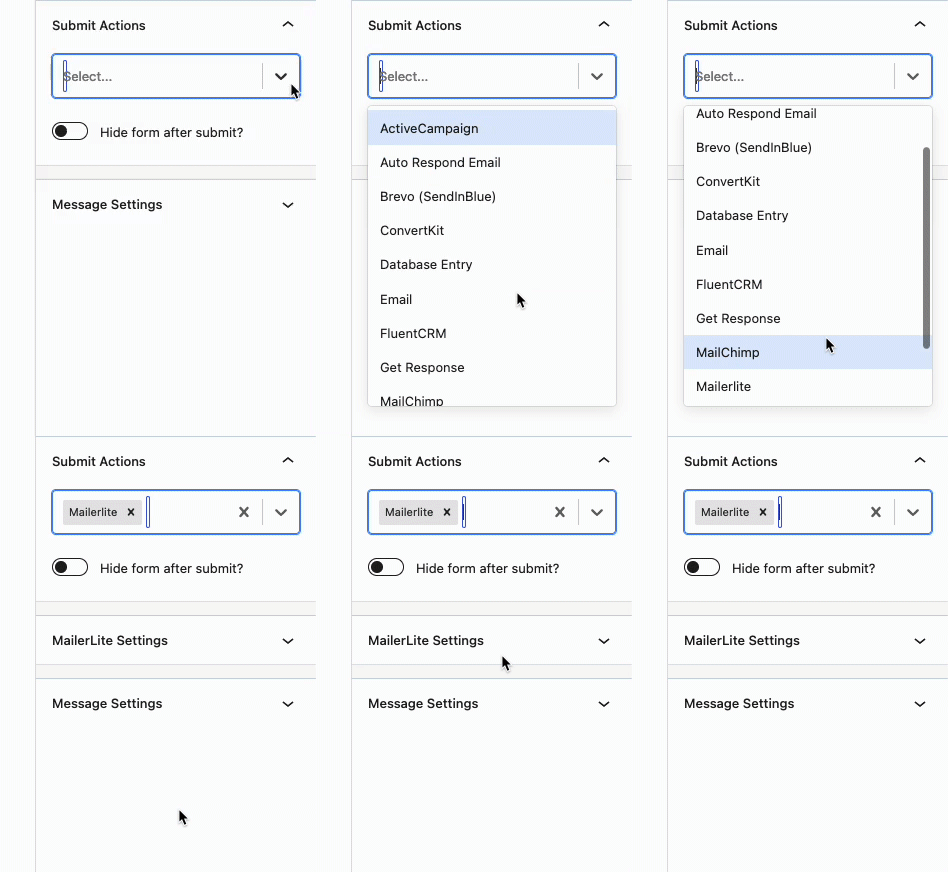
Once Mailerlite is enabled, there will be a new tab in the Form (Adv) block settings named MailerLite Settings.
Expand this tab and add then save the MailerLite API Token to the Advanced Form.
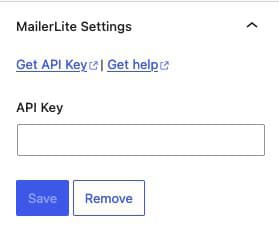
Finally, select the appropriate Group and assign each Advanced Form Field to a Group Field using the MailerLite Settings
Viewing Subscribers
Once users have subscribed to a Form, you can control the rest of the process through the MailerLite Dashboard. Navigate to the Subscribers -> Groups page to view the current subscribers and/or change group details.

You can view your Group to get more details on the Subscription list.

That’s all you need to get started using Kadence with MailerLite.