

How to Create a Custom Search Page with Hooked Elements and the Advanced Query Loop
By default, WordPress generates a simple search results page that lists posts matching the user’s search query. With Kadence Hooked Elements and the Advanced Query Loop block, you can fully customize the design and layout of your search results page without editing template files or writing custom PHP.
Getting started
You must have the Kadence Theme Kit Pro and Kadence Blocks Pro plugins installed, activated, and licensed on your website.
Step 1: Create a New Hooked Element
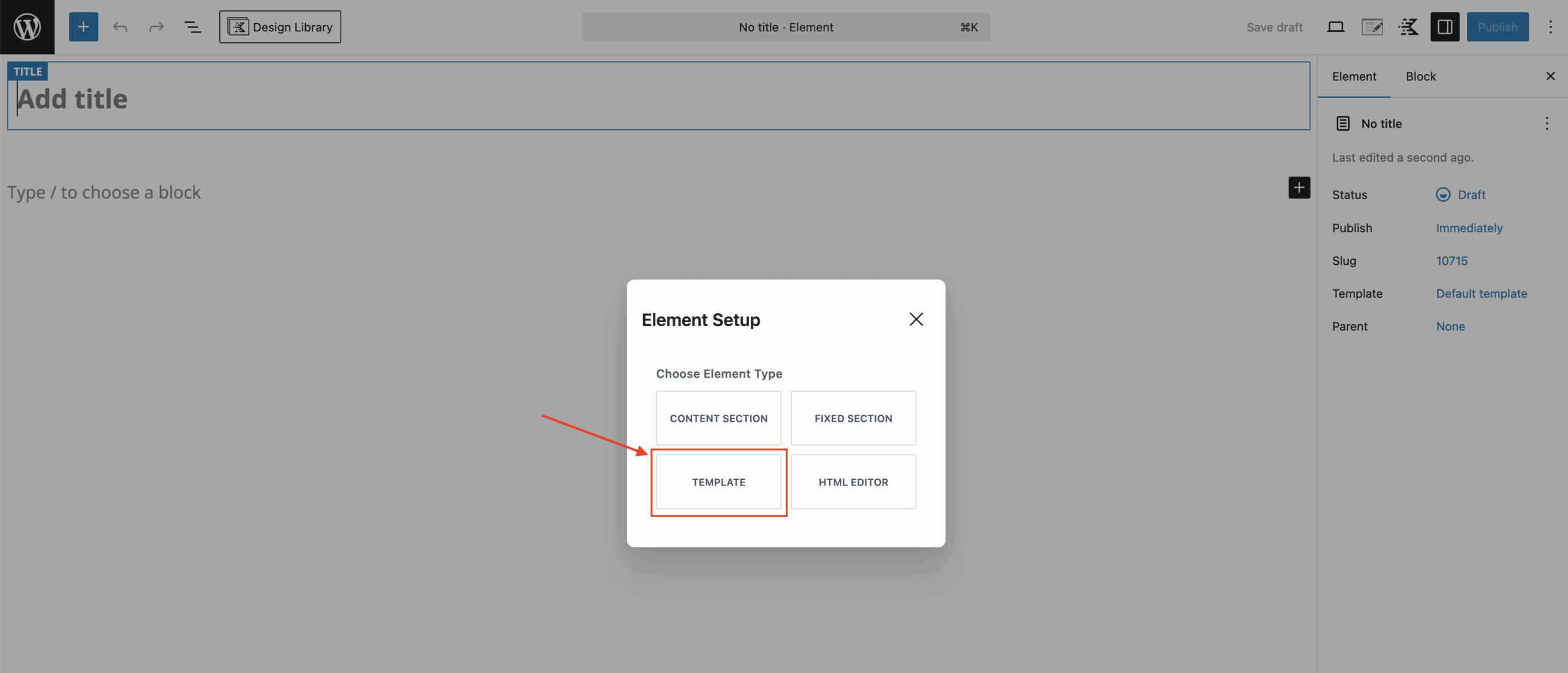
First, create a Template Element. Template Elements replace the default theme output and can be used to replace the archive loop item content.
Step 2: Insert the Advanced Query Loop
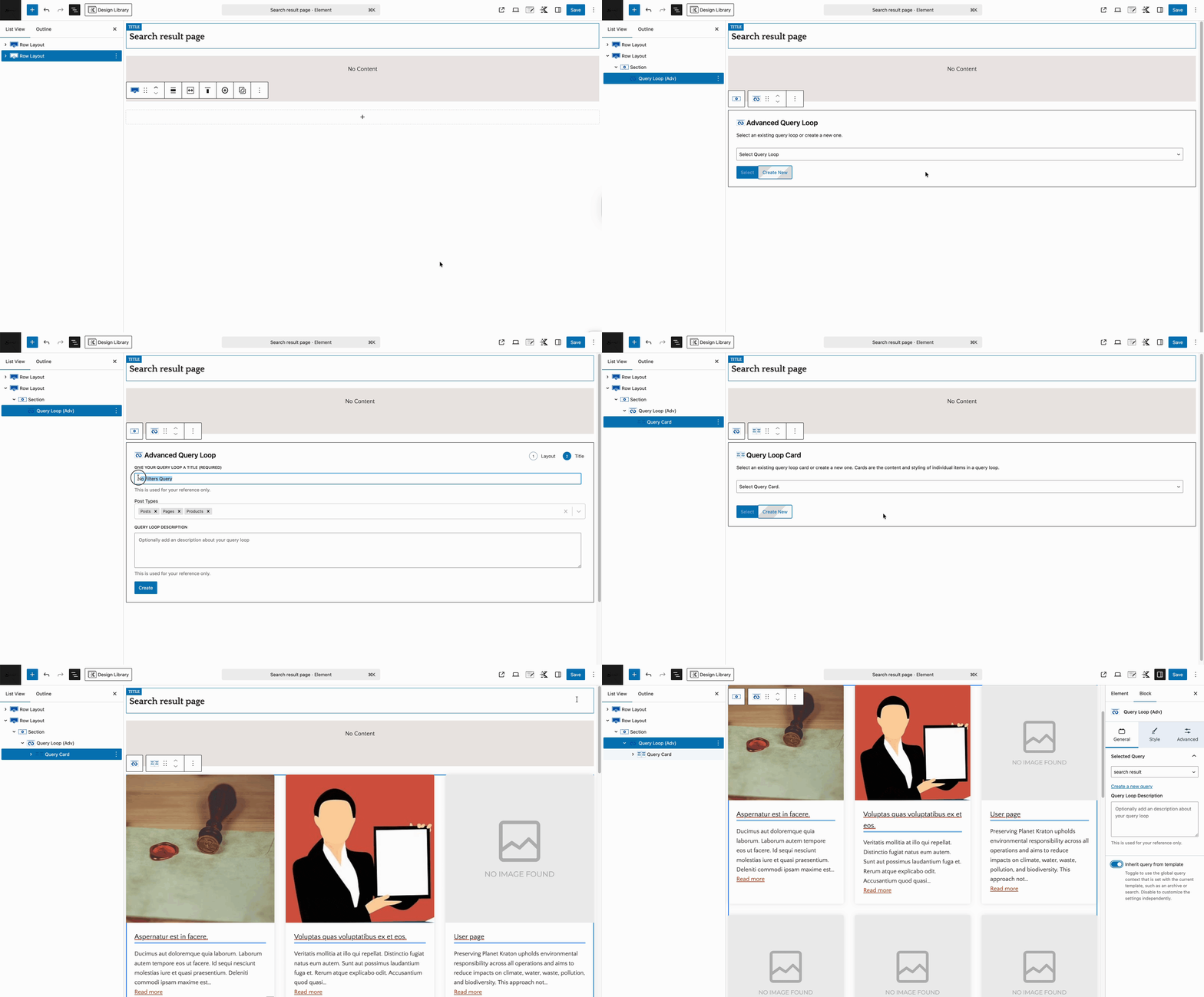
- Inside the element editor, add the Advanced Query Loop block.
- The block will display the pop-up to create/select the query loop and query card. (Click here to learn more.)
- Once all is set up, enable the Inherit query from template option from block settings.
Step 3: Hook the Element into the Search Page
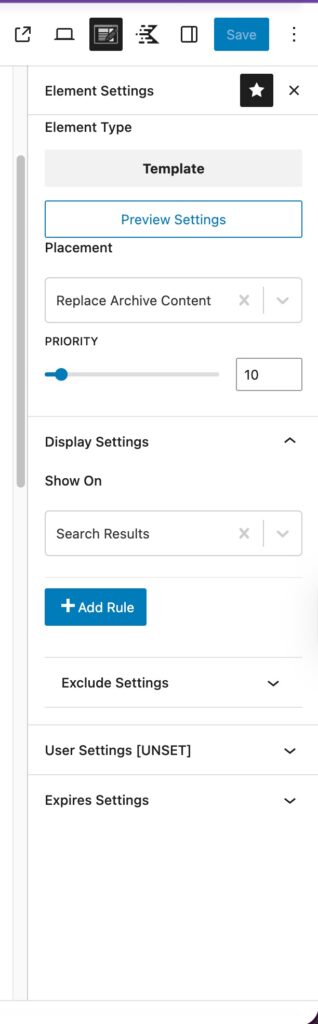
- Select Element Settings from the right top icons.
- Placement: Replace Archive Content
- Show On: Search Results.
- Click Publish.
Optional Enhancements
- Add Pagination: Insert a Pagination block inside the Query Loop to allow users to browse more results.
- Add a “No Results Found” Message: Add a text block below the query loop and set it to appear conditionally when no posts match the search query. This improves user experience and provides helpful context.