Image (Adv) Block
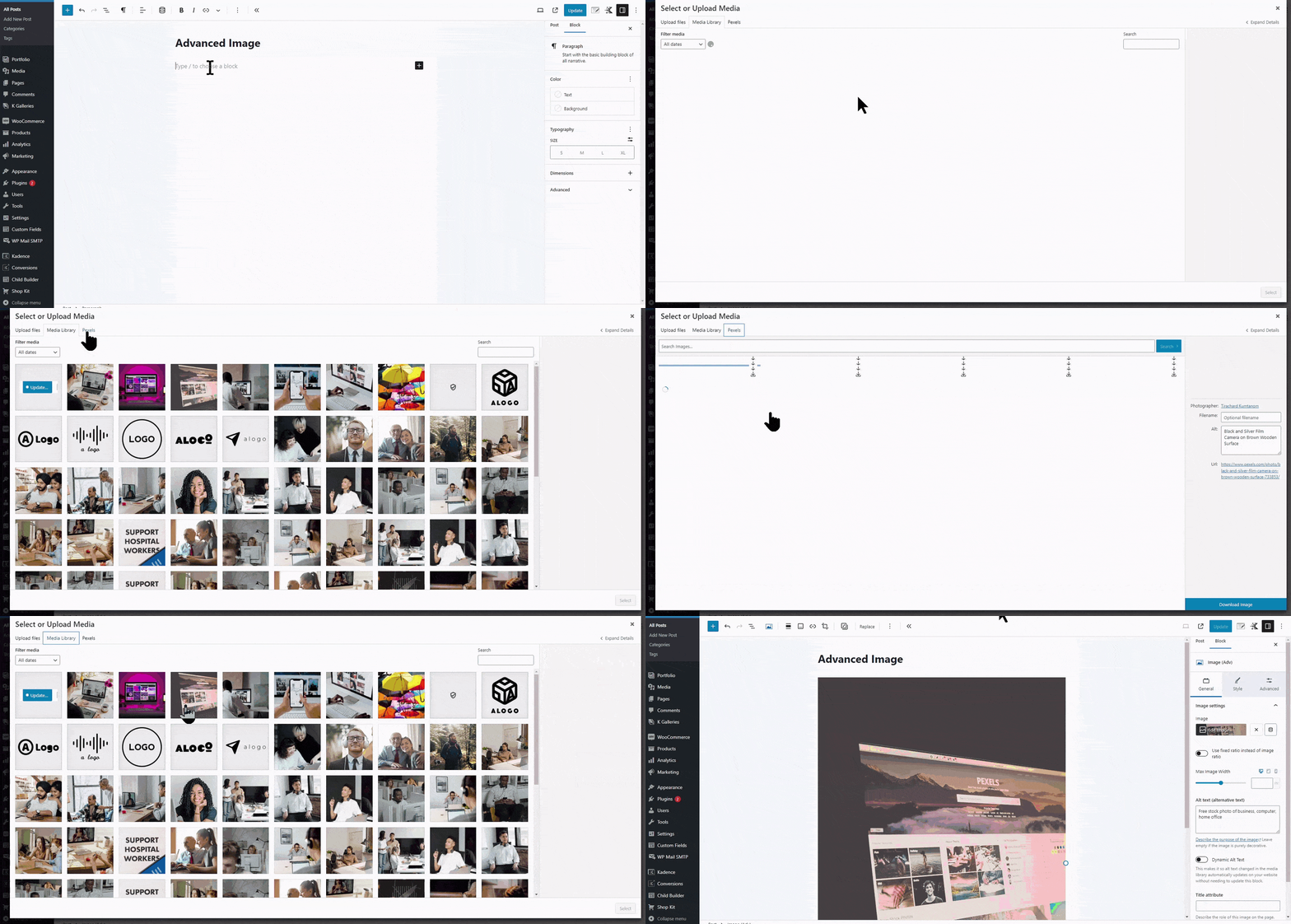
The Advanced Image block allows you to add an image that can be highly customized. There are settings to configure the image, allowing you to adjust the photo size, padding, and margin, add a mask, and more. The block lets you insert images from your media library or Pexels.
General
The General tab in the block settings has two sections. One section is for Image Settings, and the other is for Link Settings.
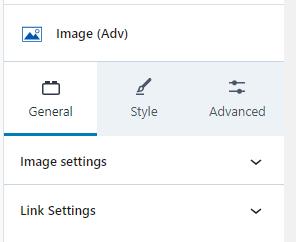
Image Settings
Using the Image settings tab, you can change your image, select the file size, use a fixed ratio, set the max image width, and add an alternate text and a title attribute. There is a switch to enable “Dynamic Alt Text” that will show the alt text from the media gallery. If you have Kadence Blocks Pro, you can also enable a dynamic image by clicking the Dynamic Content icon. Set the Image File Size to full if you want to play a gif file.
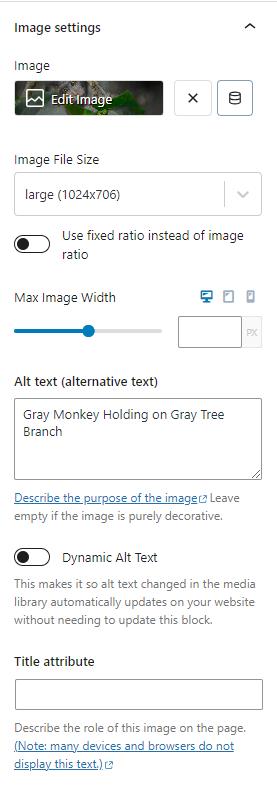
Note: the Max Image Width option will not show if you’ve selected a wide or full width alignment for the Image(Adv) block.
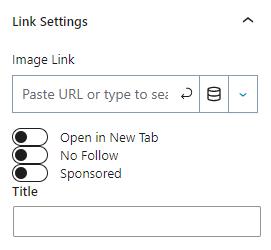
Link Settings
The Link settings provide a way for the user to add a link to the image. Adding a URL turns the entire image into a link that will redirect the user when they click it. Link settings provide options to open the link in a new tab and add the rel=”nofollow” or rel=”sponsored” HTML tag to the link. You can also add a title to your link.
If you have access to Kadence Blocks Pro, you can dynamically access image fields by clicking the Dynamic Content icon and targeting a field.
Style
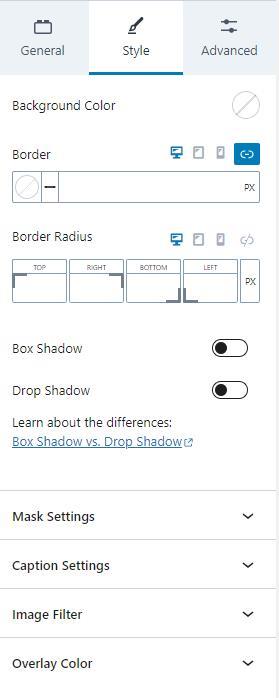
The Style tab has settings for the background color, border, border radius, box and drop shadows, mask and caption settings, and an image filter. The border and border radius can be set for desktop, tablet, and mobile devices.
Mask Settings
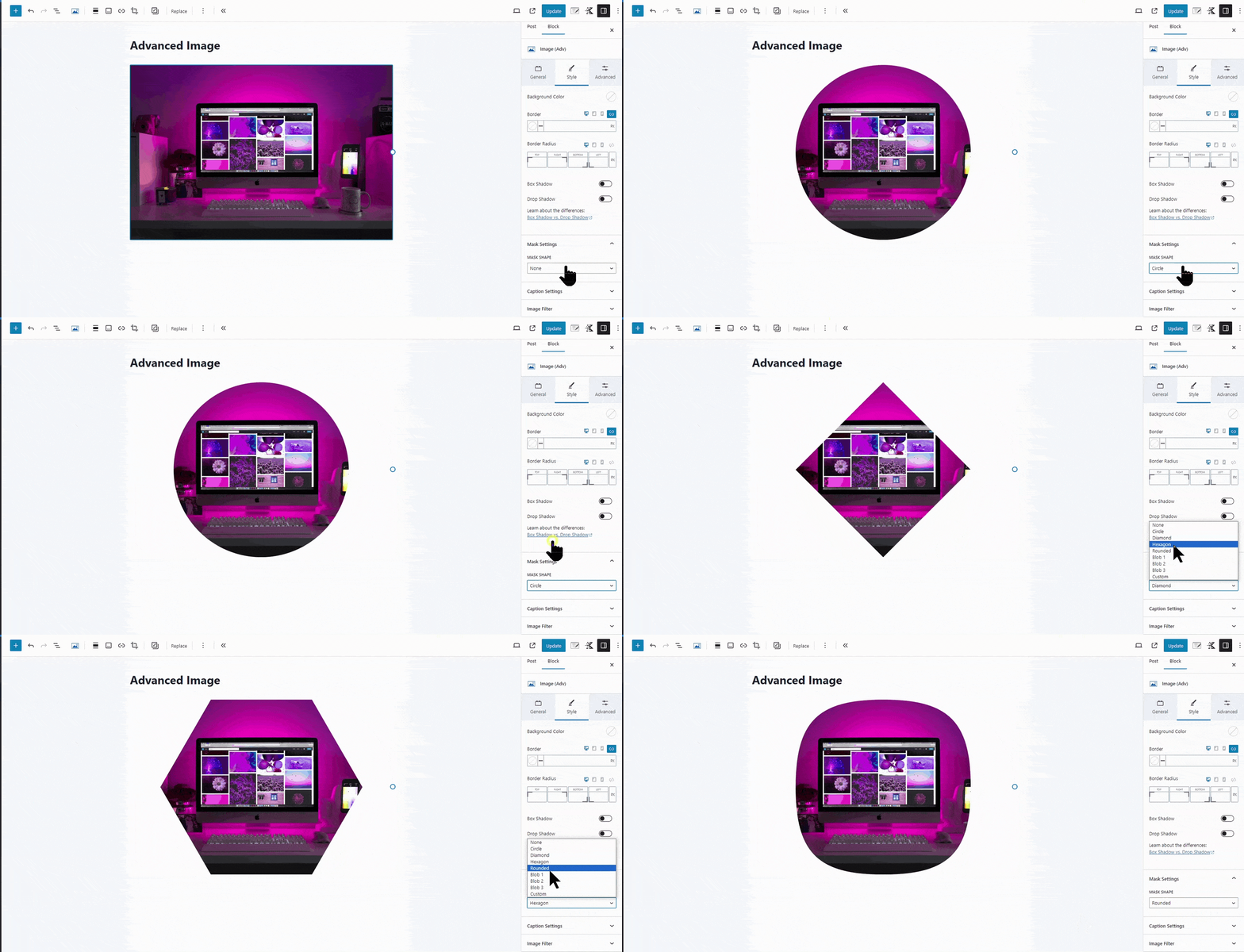
The Advanced Image block allows you to add mask settings. Mask settings let you set a mask that covers the image and adds a great design touch to your content. Several masks are available by default, and you can add a custom mask.
Caption Settings
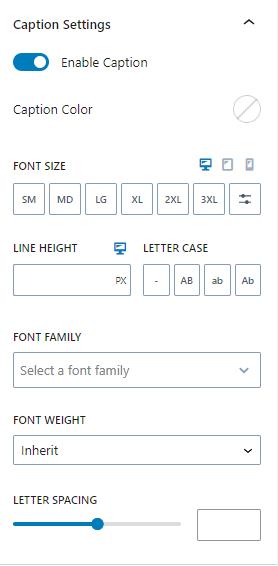
Another powerful feature is the caption settings that let you display and design the image’s caption. There are settings to change the caption color, font size, line height, and letter spacing. Also, you can perform text transformations like capitalizing or uppercase. You can also use these settings to change the font family and weight.
To ensure the image caption is properly detected, make sure to add the caption directly in the image’s media settings before inserting it into an Advanced Image Block. If you add the image first and then try to add the caption afterward, it may not be recognized correctly. In that case, you’ll need to remove the image from the block and reinsert it after the caption has been added in the media library.
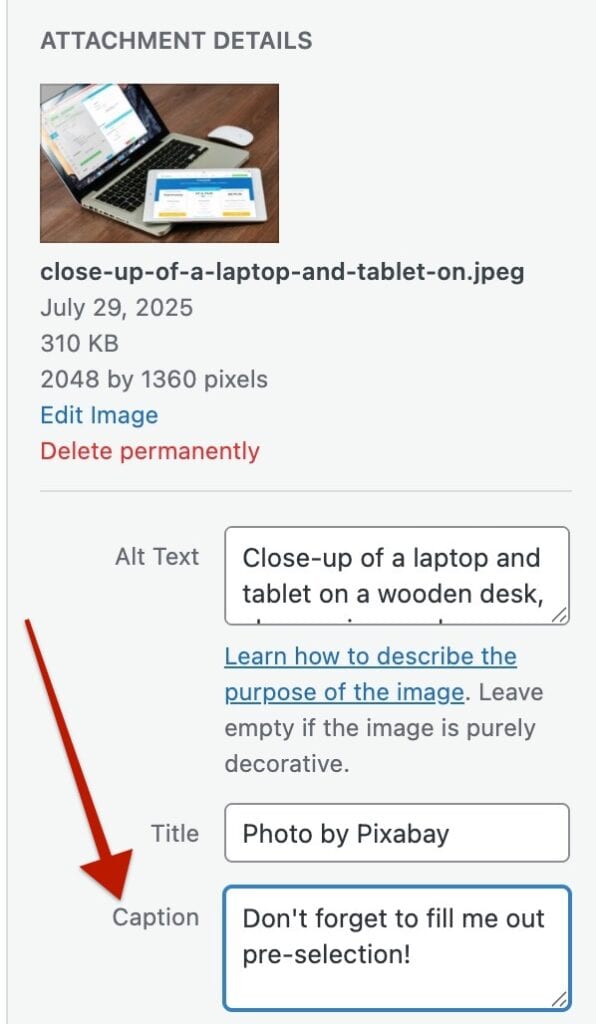
(You can do this directly through the Advanced Image Block’s Image Selection feature, but make sure to fully remove and re-add the image manually; otherwise, the caption won’t be detected. Simply adding a caption without re-selecting it will not work.)
Image Filter
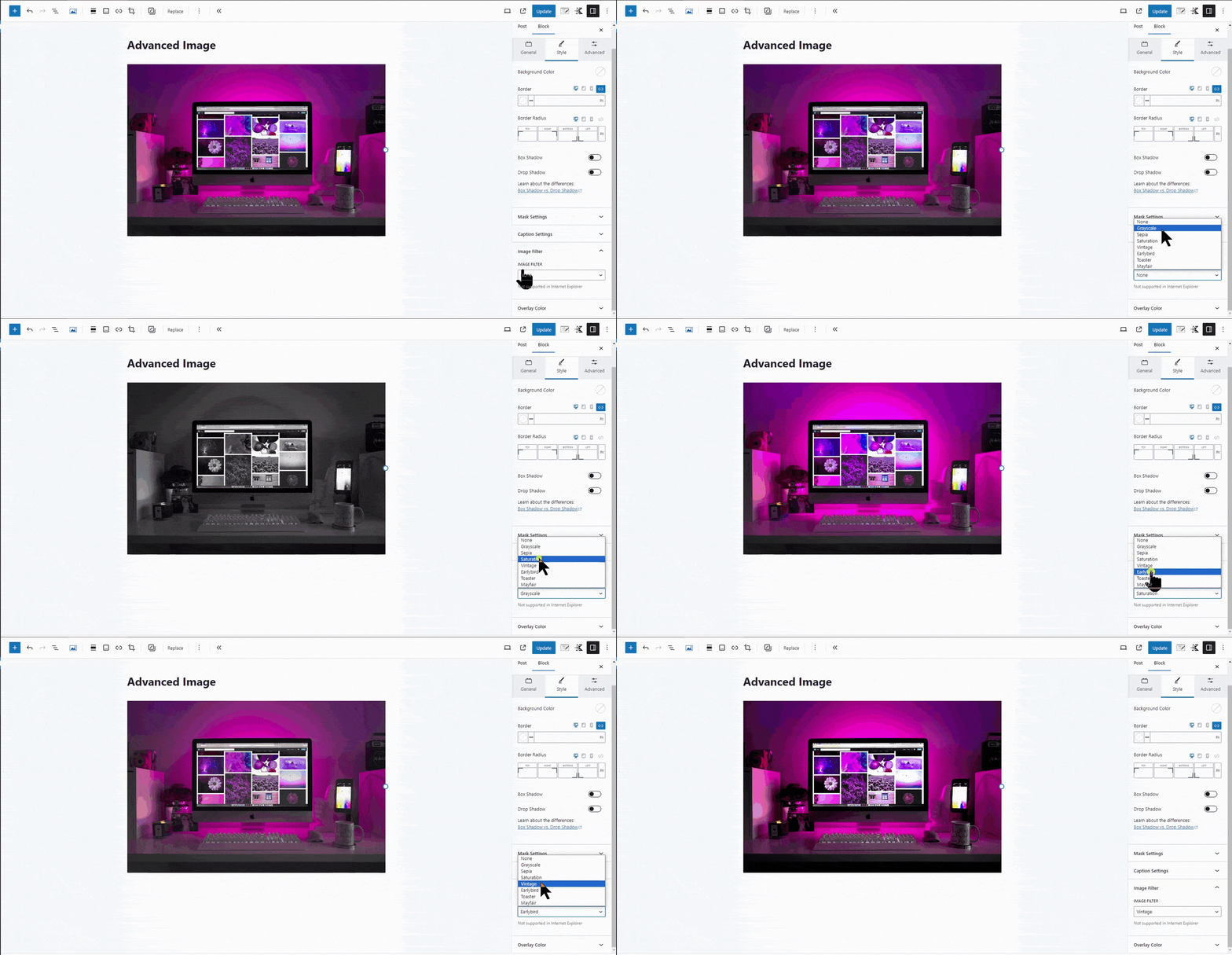
Another design feature is the image filter, which places a filter on the image. There are several filters for you to add to your photo.
Overlay Color
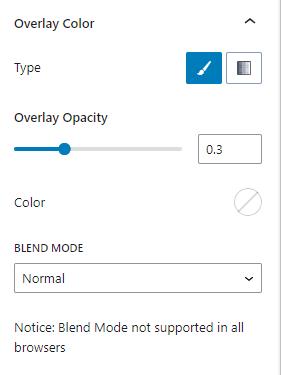
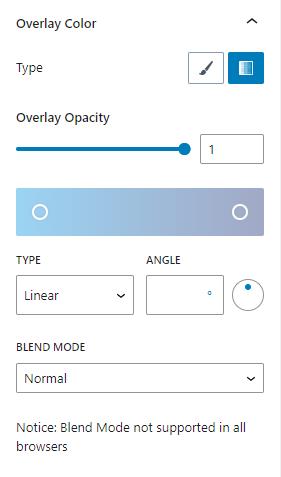
An overlay color adds a colored layer above your image. Generally, the color is semi-transparent, so the image is still visible through the tint. The Advanced Image allows a classic solid color or a gradient. After choosing a solid color or gradient, you can also set the blend mode.
Advanced
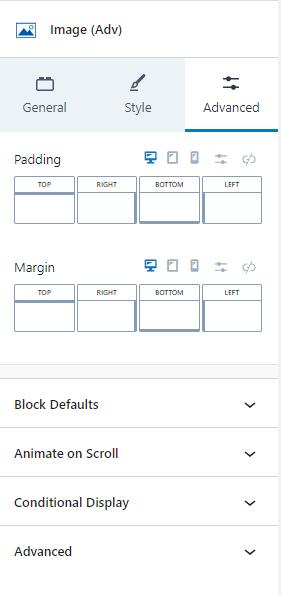
The Advanced tab provides space settings for padding and margin, as well as settings for Block Defaults. If you have Kadence Blocks Pro, you also have access to settings for animation and conditional display. The padding and margin can be adjusted for desktop, tablet, and mobile devices.