

Donation Upsells for WooCommerce
This add-on allows you to combine WooCommerce and Give by adding donation options to your WooCommerce cart or checkout based on your Give forms and form options. Payments made during the WooCommerce checkout process are all processed with your WooCommerce gateway. The donation amounts are sent to your Give donations records for proper reporting and donor management purposes.
Settings
You can find the settings for Donation Upsells under your WooCommerce Settings screen. That’s found in:
WooCommerce > Settings > Donations

Enable WooCommerce Donations
Settings Type: Radio Buttons
Options: Enable | Disable
Default: Disabled
In order to use Donation Upsells in your WooCommerce shop, this must be enabled. Once enabled, all the settings below become visible.
Donation Location
Settings Type: Radio Buttons
Options: Cart | Checkout
Default: Cart
This allows you to choose where the Donation Upsells appear within your checkout process. The “Cart” is the traditional place to put Upsells in general since this is the easiest place to refresh the contents of the purchase.
Intro Text
Settings Type: Textarea
Default: None
Use this area to write an introduction to the Donation Upsells section within your cart/checkout. This helps inform customers on the purpose of the section and potentially how the donations benefit your organization.
Display Text
Settings Type: Text field
Default: “Donation to {donation_title}”
This is how each donation form that appears in the Donation Upsells area will be listed. There are two different tags you can use to auto-populate information in this field:
{donation_title}— this will show the title of the Give donation form{donation_amount}— this will populate the “Set Donation” amount of the form.
NOTE: Keep in mind the exact title of your forms. In order to make the sentence be grammatically correct for any form you choose you may want to wrap the tag in quotes.
Donation Forms
Settings Type: Multi-select dropdown
Default: None
This is where you choose your forms to be populated in the Donation Upsells area. You can choose as many or as few as you like. They will be applied to the cart or checkout every time your customers add any product to their cart.
Multi-level Display Style
Settings Type: Radio buttons
Options: Dropdown | Radios
Default: Dropdown
If the form you choose to add as an upsell has multi-levels, you can choose here what style they will appear as.
The Customer/Donor Experience
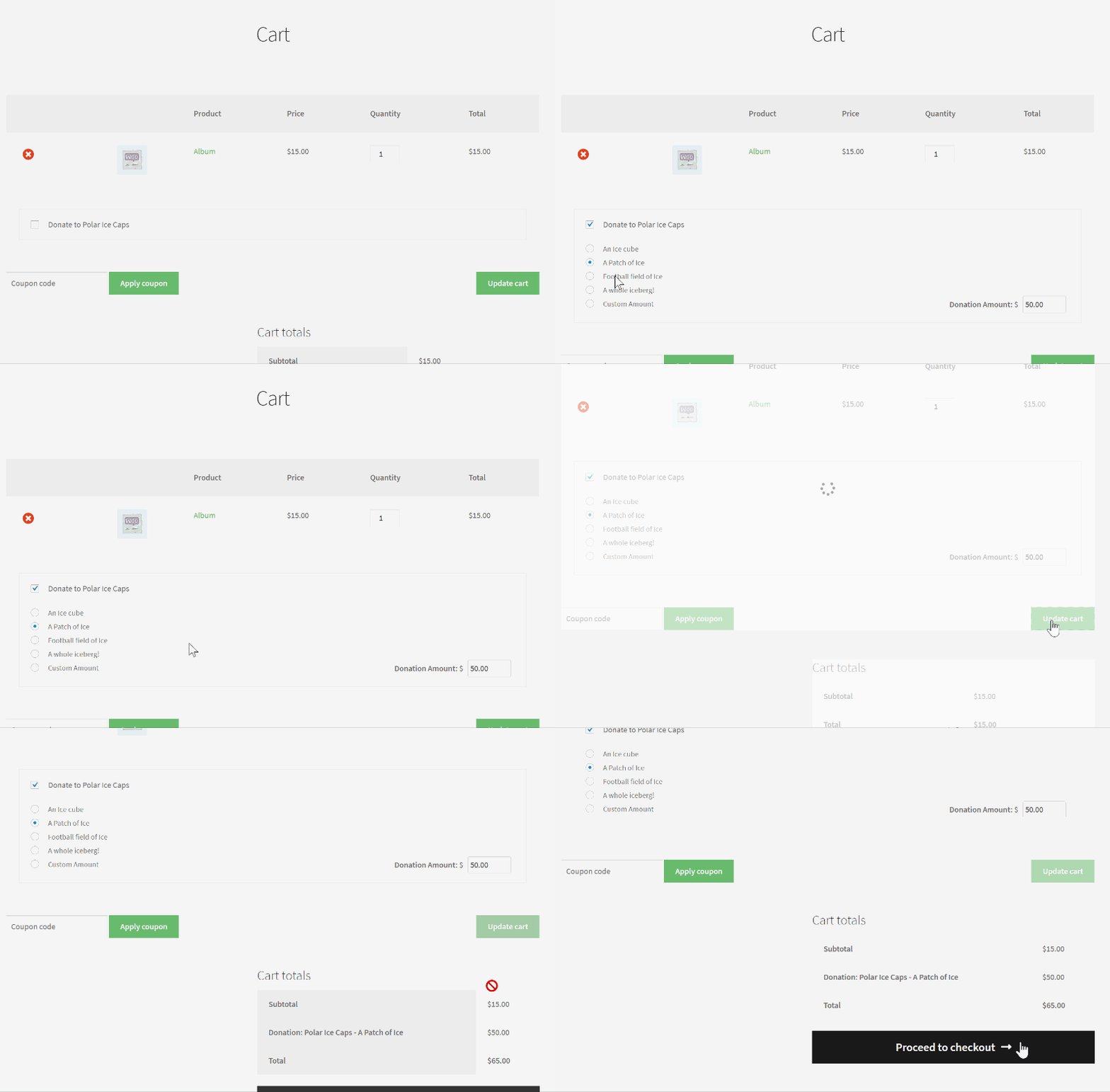
Give Donation Upsells is a seamless donation experience for your customers. You can add it either to the Cart or to the Checkout.
FAQ
Donation Upsells are applied to the checkout as an additional item and are therefore always excluded from ALL discounts/coupons.For example: If a customer bought $60 worth of product, then added a $50 donation, their total would be $110.If they had a discount code that was 10% off their whole cart, that 10% would be applied only to the products, not the donation.If it was applied to the whole cart (donation included) then they would receive $11 off, so $99 total. Instead, they receive 10% off the $60, so $6 off the product total (making it $54), then the $50 donation is applied above that for a total of $104.

Similarly to Discount/Coupons, taxes are not applied to Donation upsells at all. All sales taxes are calculated completely on the subtotal of your cart/checkout, not the additional donations that you add to your purchase.
When you purchase with a Cheque or “Pay on Delivery” option, GiveWP sets the donation to be “Pending” just the same as an Offline Donation in a GiveWP form, and how WooCommerce handles them as well. This allows you to set the donation to “Complete” after you’ve received the actual physical payment.
Yes. By default the GiveWP form “excerpt” will be output as text below the form title.
Currently, Donation Upsells can be added to a WooCommerce Subscription payment, but they will only be applied to the initial payment, not any of the recurring payments.At checkout, you’ll see the subscription added to the subtotal, but the donation exists outside of that. You’ll also see the recurring charge at the checkout reflecting only the Subscription cost, not the addition of the donation amount. Here is an example:

Yes, like GiveWP Core and all GiveWP add-ons, we attempt to make our code as extensible and developer-friendly as possible.Here’s a quick list of available filters:
give_wc_donation_form_title — customize the Donation form Titlegive_is_wc_donation — filter how WooCommerce decides whether part of the order is a donation or not.give_form_level_text Customize your form levels just in the Upsells section.give_wc_form_args — Customize the donation form attributes passed to the Donation Upsell list on your cart/checkout.give_wc_gloabl_settings_fields — Customize your own GiveWP Donation Upsells Settingsgive_wc_create_donation — modify the GiveWP donation data that is passed to the WooCommerce order.give_wc_donation_title — customize how the form title looks on the Upsells area.give_wc_sync_payment_status — customize how the payment status is mapped from the WooCommerce order to the GiveWP Donation payment status.
Not currently, but we plan to implement that in a future release.
Unfortunately not at this time.
Unfortunately not at this time.
Unfortunately not at this time.