


Sending Custom Data to Salesforce
The GiveWP Salesforce add-on sends basic data about the donation to Salesforce, each time a new donation happens on your GiveWP-powered donation site. This developer-level document walks through how you can send custom data to salesforce and associate it correctly with the Donation Opportunity on Salesforce’s side.
Quick reference
Filter name:
give_salesforce_donation_argsFilter API
apply_filters('give_salesforce_donation_args', [], GiveSalesforceSalesforceDataTransferObjectsSalesforceOpportunityData $salesforceOpportunityData);Filter Example:
Description
This filter allows additional data to be sent to Salesforce during Donation Opportunity creation on Salesforce’s side (after a donation is completed on the GiveWP side). This provides an easy way to tap into the data syncing process to ensure terminology matches your Salesforce terminology for custom data. A typical use case would be to map GiveWP custom fields to Salesforce custom fields.
Scenario 1: Adding Donation Form Title to a Custom Salesforce Field
This example demonstrates how to add a Field label from a non-custom value on the GiveWP side into a custom value on the Salesforce side.
To Start, navigate to the Fields & Relationships page within your Salesforce admin at
{your-salesforce-domain}.lightning.force.com/lightning/setup/ObjectManager/Opportunity/FieldsAndRelationships/view
Once you are there, search for the Field Label you want to use.
| FIELD LABEL | FIELD NAME |
| Current Generator(s) | CurrentGenerators__c |
Copy that field name for use in the associative array within your custom function. The whole code snippet looks like this:
With that snippet added to your site, once a new donation comes through the Donation Title will be added to your custom field of “Current Generator(s)”

Scenario 2: Adding A Form Field Manager Field to a Custom Salesforce Field
The process for adding a custom field added with Form Field Manager to your GiveWP donation form is similar to scenario 1, with the main difference being the meta value to fetch is displayed in the Form Edit screen.


Make note of that meta key, and then (as before) isolate the Custom Field name on the Salesforce side of things:
Navigate to
{your-salesforce-domain}.lightning.force.com/lightning/setup/ObjectManager/Opportunity/FieldsAndRelationships/viewSearch for the Field label:
| FIELD LABEL | FIELD NAME |
| My GiveWP Custom Field For Salesforce | My_GiveWP_Custom_Field_For_Salesforce__c |

Using those two values (the meta key from GiveWP’s side, and the Field Name from Salesforce’s side) here’s the sample snippet you can use:
That snippet adds Custom Form Field Manager-gathered data to your custom field at Salesforce:

Scenario 3: Adding donations to a Salesforce Campaign by GiveWP Donation Form
The final example digs a little deeper, allowing you to assign donations to specific Salesforce campaigns based on the GiveWP Donation Form used in the donation.
To set up the snippet, you need the Salesforce Campaign ID and the GiveWP Donation Form ID.
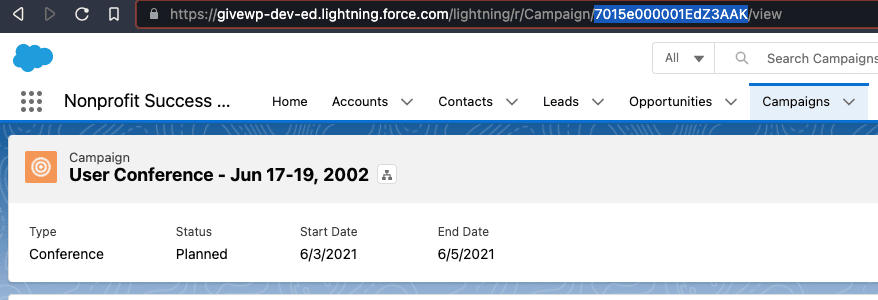
The default test campaign in the Salesforce account used for testing and documentation here is a conference in 2002, but don’t get distracted by that: the point is to find the campaign ID. TO do that, navigate to the “Campaigns” tab of the Salesforce account, and then click on the campaign you want to use.

The URL for the individual campaign has the ID as a part of the slug:
Similarly, on the edit screen of Donation Forms within GiveWP, you can see the ID of the donation form. Navigate to the form edit screen for the form you want to use. The Form ID is the post ID, seen here:

Using the Campaign ID and the Form ID, this snippet associates all donations to the given example form to the given example campaign:
With the snippet in place, all donations to the given form are associated with the given Campaign:
