

GiveWP Blocks
Introduction
The WordPress Block Editor (also known as Gutenberg) uses “blocks” to insert dynamic content into your pages and posts. Blocks allow for fluid layout changes on the fly, enabling you to visually build your content and see the exact layout before publishing. This is a massive upgrade from the old classic editor and shortcodes.
GiveWP provides several dedicated blocks that integrate perfectly with this modern editor, allowing you to build beautiful donation experiences visually. (For a comprehensive guide on the WordPress Block Editor itself, you can visit WordPress.org).
How Do I Find Blocks?
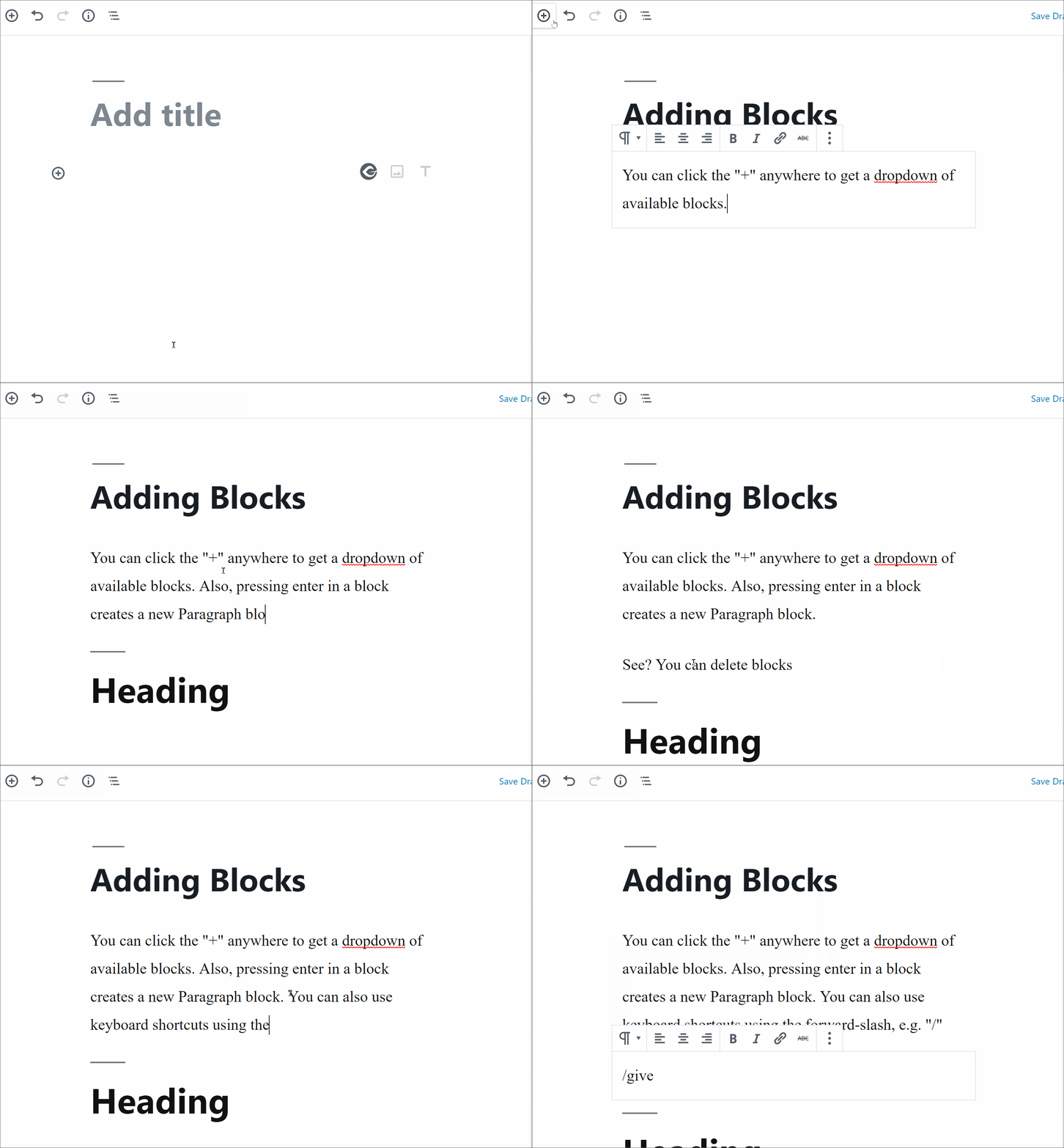
Adding a block to your page is simple. You can discover and add blocks in three different ways within the editor:
- By clicking the “+” symbol next to or below your current block.
- By clicking the “+” symbol at the top-left of the editor screen.
- By typing “/” in an empty paragraph block as a quick keyboard shortcut to search for a block by name.
What Blocks does GiveWP Provide?
GiveWP currently provides several main blocks for your use. Once you open the block menu using the steps above, search for “GiveWP” to find the following options:
- GiveWP Form Block: Insert any individual GiveWP donation form into your post or page. It works just like a shortcode but gives you a live visual preview of the final result.
- GiveWP Form Grid Block: Embed a highly visual, organized grid of multiple donation forms so users can choose which cause to support.
- GiveWP Donor Wall: Embed a scrolling or paginated grid of your most recent donations and donors to publicly recognize your community.
- Campaign Pages: Use these specialized blocks for customizing your larger campaign content pages.
- Peer-To-Peer Blocks: Learn more about Peer-To-Peer Blocks here.
Using Shortcodes inside the Block Editor
Keep in mind that the WordPress Block Editor also has a dedicated “Shortcode Block,” and shortcodes will also render if pasted directly inside a standard paragraph block.
This means you can continue to use any of our GiveWP shortcodes anywhere on your site, even with the modern editor. The only downside is that shortcodes will not render a live visual preview in the editor; they will only display the actual form once the page is published.
What if I Am Using the Classic Editor?
The Classic Editor is a plugin that disables the modern WordPress Block Editor. While we highly recommend using the Block Editor for the best visual experience, we understand that some sites need to maintain legacy functionality.
If you have not updated your editor, do not worry! All of our GiveWP shortcodes are still available. You will still see the GiveWP Shortcode Builder button when using the Classic Editor, meaning you can continue using GiveWP just as you always have.