Setting Up Reverse DNS (rDNS)
DNS records are necessary to make your site visible on the web. They match a URL to your IP address so website visitors see the right site. For a full explanation of DNS, check out our articles on What Is the Domain Name System (DNS)?, What Are DNS Records?, and Adding and Editing DNS Records.
This article is specifically going to cover reverse DNS, also called rDNS, as it relates to Liquid Web’s dedicated servers, VPS hosting, and cloud hosting services. rDNS is exactly what it says: DNS in reverse. Regular DNS turns a domain name into an IP address. Reverse DNS turns an IP address into a hostname.
If you don’t set up rDNS, people will be able to visit your server’s websites just fine (as long as your DNS records are correct). So why does rDNS matter?
rDNS is absolutely necessary if you want to send email from your server. If you don’t have rDNS set up, many recipient mail servers will reject your email as possible spam. So, it’s best to set up rDNS on your server, especially because it only takes about five minutes.
- Log into your Liquid Web account.
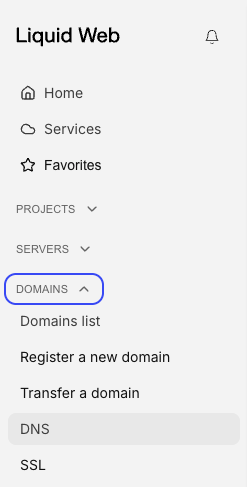
- In the left navigation menu, click Domains. Next, click the DNS link.

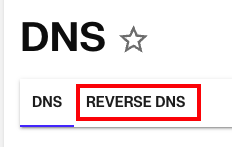
- On the DNS page, click Reverse DNS.

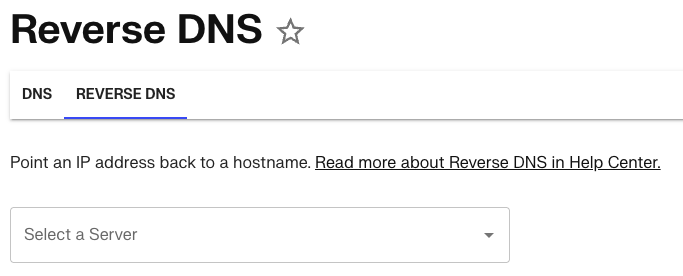
- Select the server that you want to work on from the drop down menu.

- The IP address and default hostname of the server are already populated. If you need to change this information, click on the three dot menu to the right of the hostname and click Edit.
(If you are unsure about your server’s hostname, see What Is a Hostname?)
- Confirm that the information is correct, then click Save to save your rDNS record.