Setting Up Email in Mac OS X Mail
Conveniently read email on your desktop. This article walks you through setting up your email account using the Mail app for OS X.
Desktop email clients, like the Mail app in OS X, retrieve your email from your server so you can read email without opening a web browser. You don’t have to use a desktop client, but many people find it convenient.
This article will walk you through setting up email using the Mail app for OS X.
Before you can set up your email client, you’ll need to find your email configuration settings:
Once you’ve done that, you’re all ready to set up your account.
Configuring Mail for OS X
- Open Mail by clicking on the Mail icon in your dock or in Launchpad.
- Click on the Mail menu, then choose Add Account.
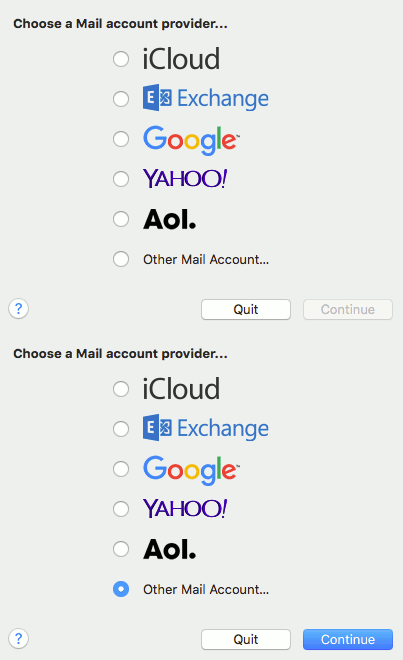
- Select the radio button next to Other Mail Account and then click Continue.

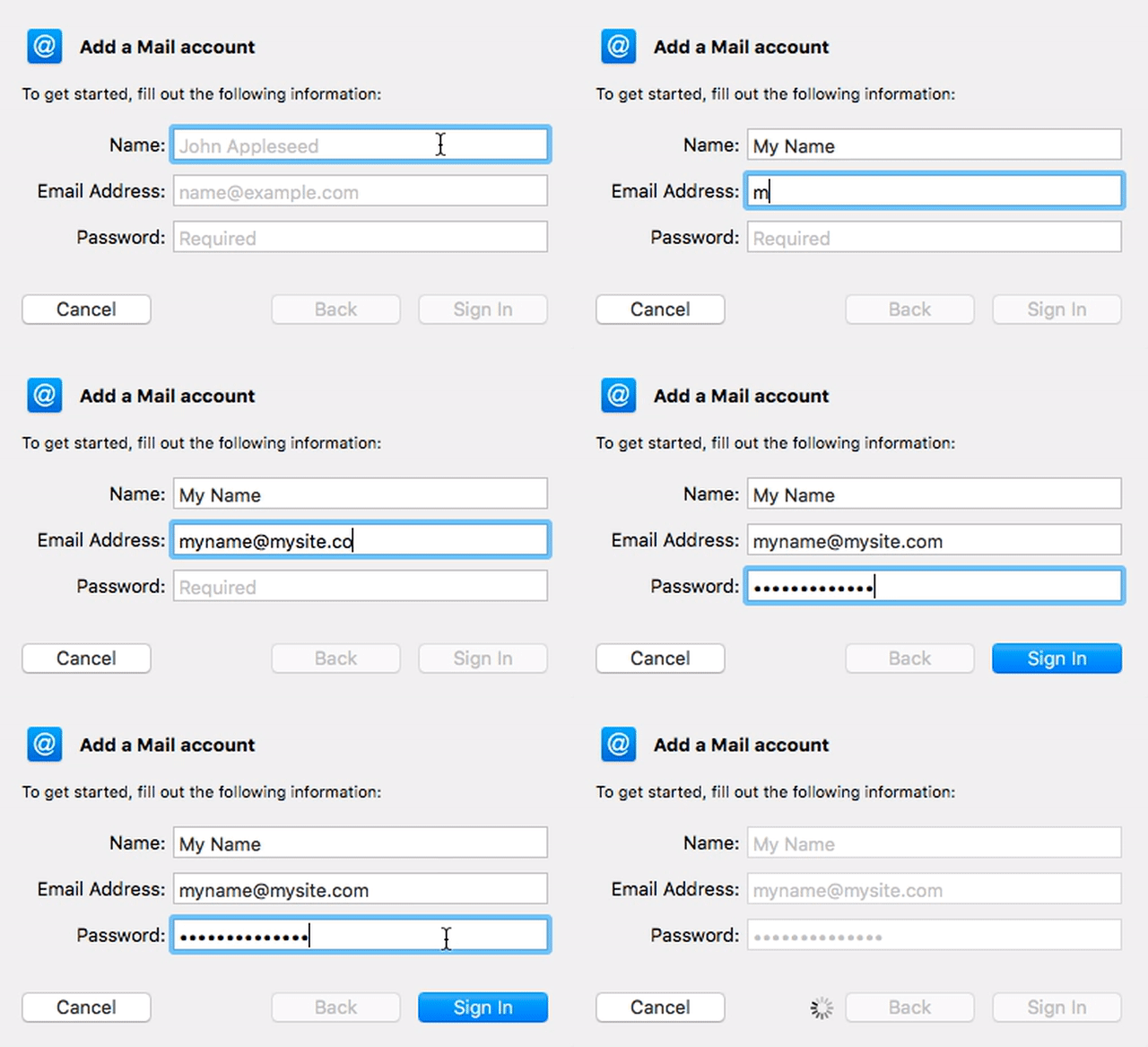
- Enter your Name, Email Address, and Password.

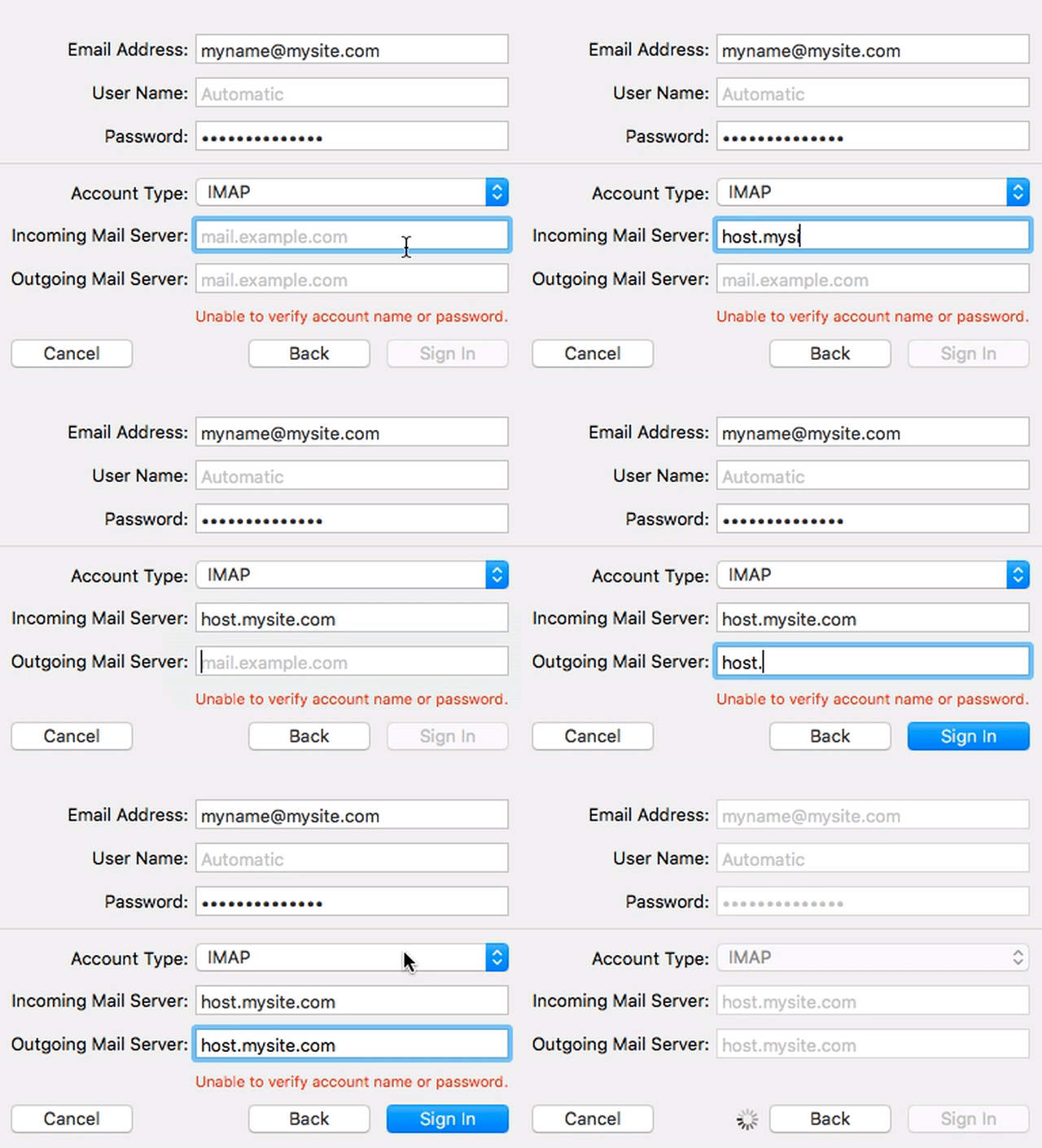
- Click Sign In. Three new fields will appear: they are for your email settings from cPanel/Plesk.
- Choose the Account Type: IMAP or POP (We recommend IMAP).
- Type in the Incoming Mail Server from your cPanel Manual Settings.
- Type in the Outgoing Mail Server from your cPanel Manual Settings.
- Click Sign In

Tip:
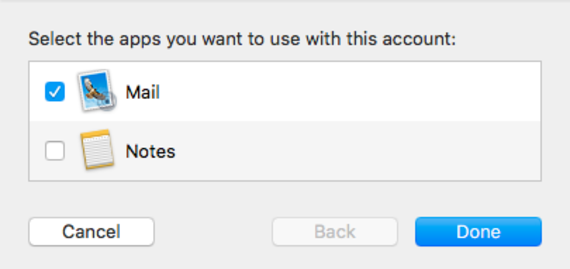
You may receive a warning about your SSL certificate when you set up your mail client. This is because you probably have a self-signed SSL certificate instead of a certificate signed by a recognized certificate authority. Your email will still be encrypted even if you have a self-signed SSL certificate. To see if an SSL certificate signed by a certificate authority is right for you, read What Is an SSL Certificate?. Click Continue to finish setting up your email. - Make sure the box next to Mail is checked (so your messages will show up in your mailbox). Then click Done. Your account is all set up in Mail!