

A Guide to Windows Server Memory (RAM)
Overview
Is your Windows Server running low on memory, or are you trying to diagnose a performance issue? Understanding how your server uses RAM (Random Access Memory) is the first step to solving these problems.
RAM acts as your server’s high-speed, short-term workspace. Windows intelligently uses this workspace to run your applications and caches data to speed up your server. When your website loads a page, processes a checkout, or runs a task, the data required is stored in RAM as the CPU processes the request. This guide will show you how to read the key memory metrics in Windows, understand what they mean, and identify when you might need to upgrade.
Parameters / Features
When you open Task Manager or Resource Monitor, you’ll see several terms. Here’s what the most important ones mean for you.
| Category | Term | Definition |
|---|---|---|
| Physical RAM | Total RAM | The total amount of physical memory installed on your server. |
| In Use (Committed) | The memory portion is currently taken up by running programs, system drivers, and Windows. | |
| Available RAM | Memory that’s immediately available for use by new or existing applications. | |
| Free RAM | Memory that’s entirely unused and not assigned to any process or cache. | |
| Non-Paged Pool | System memory that must remain in physical RAM and cannot be paged to disk. | |
| System Cache | Cached | Memory Windows stores frequently accessed files and data for faster performance. |
| Virtual Memory | Paged Pool | System memory can be written to the paging file when needed. |
| Committed Memory | The total amount of virtual memory (RAM + page file) that has been allocated. |
Standby Memory
Windows Server intelligently manages memory and uses free RAM for caching. It proactively loads frequently used files and application data into what’s known as standby memory. This caching makes your system more responsive, and if a new program needs that memory, Windows instantly makes it available. The more RAM your server has, the more applications and services it can handle at once without slowing down. When your physical RAM fills up, Windows Server can move some of that data into a special file on your storage drive called the page file.
Virtual Memory (Page File)
The page file, called pagefile.sys, acts like a backup workspace for your computer when RAM is full. Windows moves data that isn’t needed immediately into this file, which helps the system stay responsive even under heavy memory use.
You’ll usually find it at the root of your system drive (for example, C:pagefile.sys).
Managing the Page File
Windows manages its size automatically by default, but advanced users can set a custom size. To do this:
- Navigate to your Control Panel.
- Select System, then Advanced System Settings.
- In the System Properties popup, under the Advanced tab, click Settings under the Performance section.
- Click the Advanced tab. There you can find your current Virtual memory configuration, including a Change button.
When to Upgrade Your Server’s RAM
After monitoring your server, you may wonder if you need more RAM. You should consider upgrading your plan if you see these two signs at the same time:
- Your Available memory is consistently low (near zero).
- Your server is heavily using the Page File. (You can see this in Resource Monitor on the Memory tab as a high number of Hard Faults/sec.)
A high number of hard faults means your server has run out of high-speed desk space (RAM) and is being forced to use the slow filing cabinet (your disk drive). This combination is a clear sign that your server’s performance is bottlenecked by a lack of RAM.
Examples
Memory Inspection
Quickly check Windows memory usage through several built-in tools.
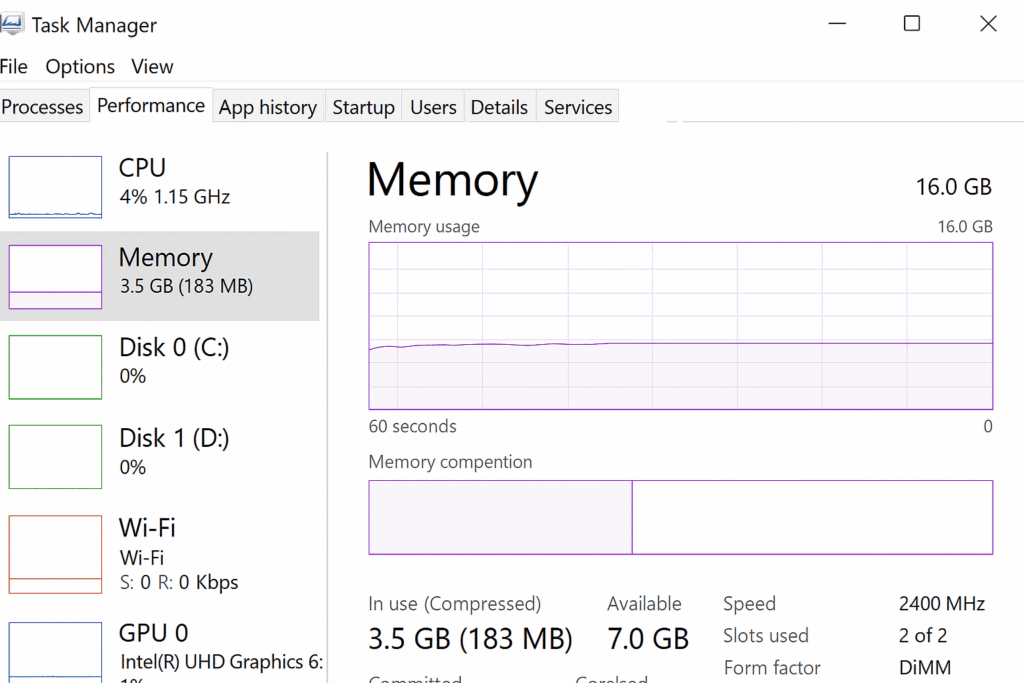
Task Manager
A live overview of your system’s RAM usage.
- Press Ctrl + Shift + Esc.
- Go to the Performance tab.
- Select Memory.
Resource Monitor
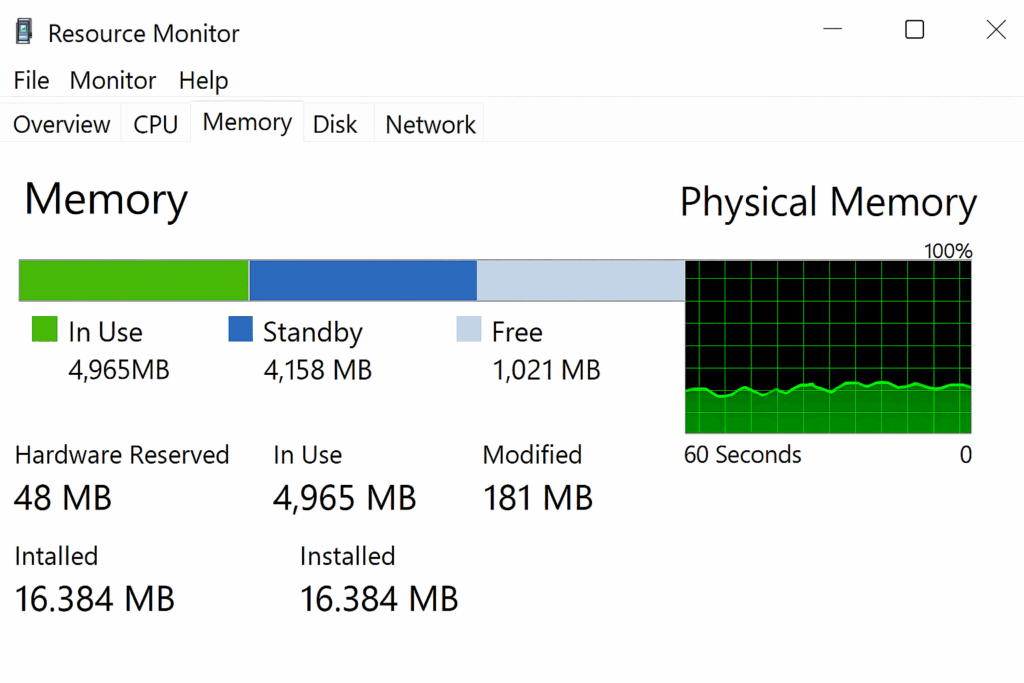
Displays active, standby, and free memory, helping identify memory-hungry processes.
- Run resmon.
- Navigate to the Memory tab.
More information on Resource Monitor can be found here.
PowerShell Commands
The following commands will give you detailed information to assist you with your Windows memory management:
View overall memory usage
Get-CimInstance Win32_OperatingSystem | Select-Object TotalVisibleMemorySize, FreePhysicalMemoryGet-CimInstance Win32_OperatingSystem |
Select-Object @{Name="Total Memory (GB)";Expression={[math]::round($_.TotalVisibleMemorySize/1MB,2)}},
@{Name="Free Memory (GB)";Expression={[math]::round($_.FreePhysicalMemory/1MB,2)}},
@{Name="Used Memory (GB)";Expression={[math]::round(($_.TotalVisibleMemorySize - $_.FreePhysicalMemory)/1MB,2)}}Output
Total Memory (GB) Free Memory (GB) Used Memory (GB)
32.00             12.50            19.50
This example shows that the system has 32 GB of RAM, with around 19.5 GB used and 12.5 GB free. If available memory gets too low, Windows will begin paging data to disk.
Get per-process memory usage
Get-Process | Sort-Object -Property WS -Descending | Select-Object -First 10 Name, WSDisplay system commit limit and page file info
Get-WmiObject Win32_PageFileUsageCommon Uses of RAM in Windows
RAM plays a role in almost everything your computer does. Some essential ways it’s used include:
- File and disk caching: Windows keeps frequently used files and applications in memory so they open quickly.
- Running applications: Programs like web browsers, IDEs, or office tools store active data in RAM to stay responsive.
- Databases and virtualization: Tools such as SQL Server, IIS, or Hyper-V rely on RAM for caching, sorting, and running virtual machines efficiently.
- Managing workloads and spikes: Having enough RAM helps your system handle multitasking and heavy workloads without slowing down.
- Gaming and media processing: RAM stores textures, assets, and frame data, helping games run smoothly and media render faster.
Use Cases for Memory Commands
- Monitoring memory health on Windows VPS, or Dedicated servers.
- Diagnosing slow system performance and identifying RAM bottlenecks.
- Planning for system scaling or resource upgrades.
- Troubleshooting virtual machine or SQL Server performance issues.