Deleting Unnecessary Backups
If you have a lot of old backup files, you might want to delete some of them from your server. Backups can be quite large and storing a lot of them on your server can slow down your websites. You'll generally do this for manual backups: your scheduled backups will automatically rotate out.
If you have a lot of old backup files, you might want to delete some of them from your server. Backups can be quite large and storing a lot of them on your server can slow down your websites. You’ll generally do this for manual backups: your scheduled backups will automatically rotate out.
Using cPanel to Delete Unnecessary Backups
- Log into your website’s cPanel account. If you haven’t created a cPanel account yet, read Creating a cPanel User Account.
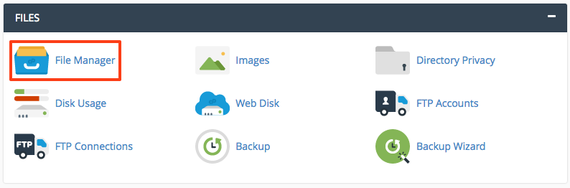
- In the Files section, click on File Manager.

- Look for filenames starting with “backup.” These are your manual backups. (Your automatic scheduled backups are stored somewhere else: usually in the /backups directory.)
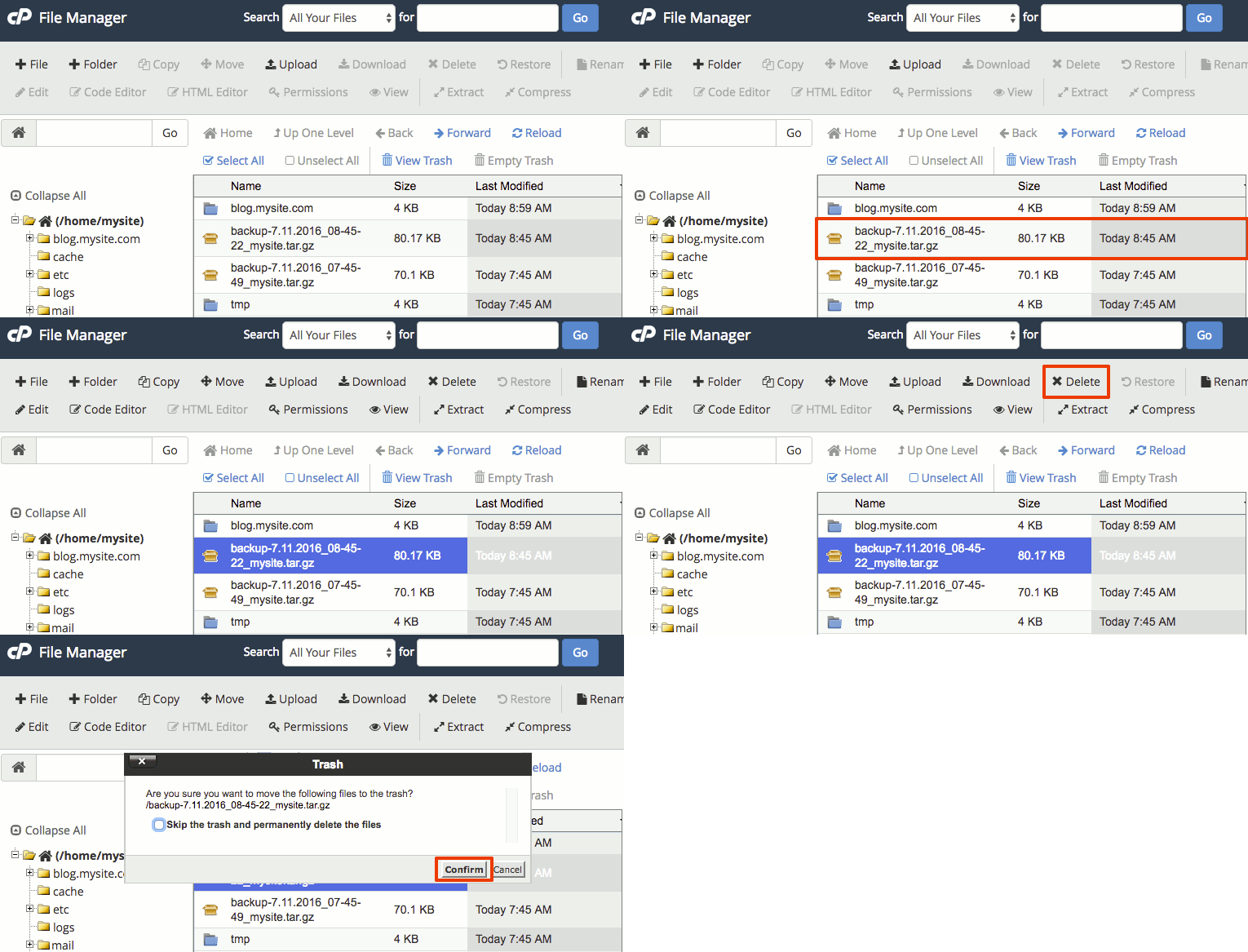
- Click on the backup file you’d like to delete and then click Delete in the top functions menu. Confirm that you want to delete the file.

Using Plesk to Delete Unnecessary Backups
- Log into your Plesk control panel.
- Depending on the view you use in Plesk, the way you get to your backups will be different.
In Service Provider view:
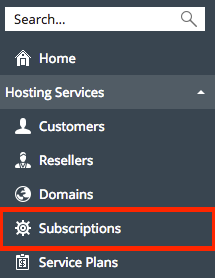
- Click on Subscriptions from the menu on the left hand side of the page.

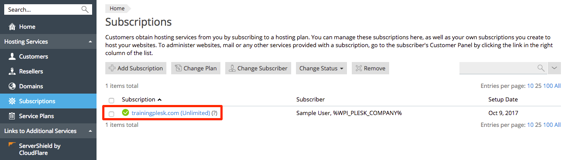
- Click on the necessary domain to open its home page.

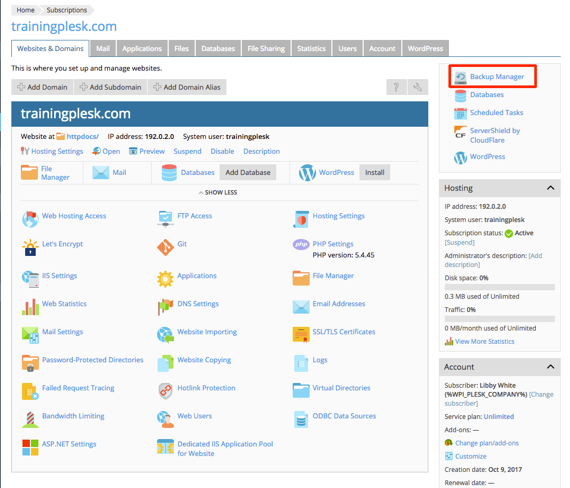
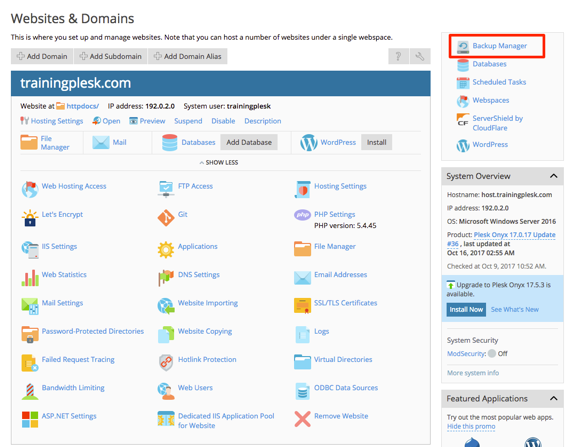
- Select Backup Manager from the menu on the right hand side of the page.

In Power User view:
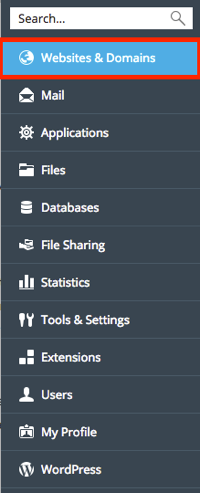
- Click on Websites & Domains in the left navigation menu.
- Then, click on Backup Manager in the menu on the right hand side of the page, and select the necessary domain.

Server-Level Backups:
If you want to delete server backups:
- Click on Tools & Settings in the left navigation menu.
- Then, in the Tools & Resources section, click on Backup Manager. Now you can follow steps three and four as normal.
- Click on Subscriptions from the menu on the left hand side of the page.
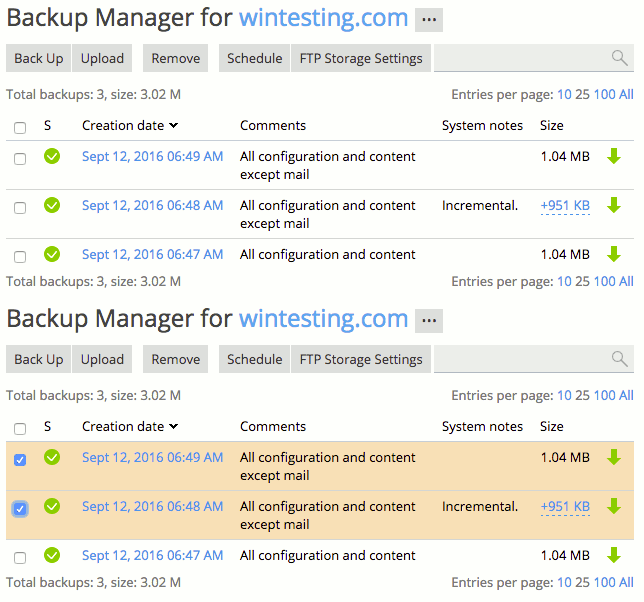
- You will see any backups you have in the Backup Manager list. Select the checkbox next to any backups you’d like to remove.

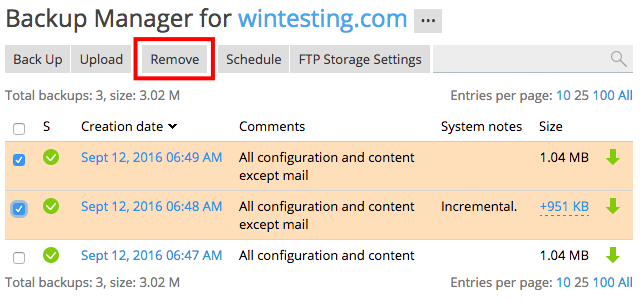
- Click Remove. Confirm you want to remove the backups you selected. Your backups will be removed.