

Editing Files with the Nano Text Editor
Understanding how to edit text files on your server is a crucial skill. While there are several text editors available for the command line, Nano stands out as a user-friendly option. It is considered a descendant of the Pico editor and offers a more straightforward interface compared to others like VI, making it quick and easy for new users to master. This guide will show you how to install and use Nano effectively.
Installation
Although Nano is often included by default on many systems, it’s occasionally not present. If you find that Nano is not available on your server, you can easily install it using your system’s package manager.
For CentOS, AlmaLinux, or RHEL distributions, use the following command:
yum install nanoFor Ubuntu systems, use the following command:
apt install nanoGetting started with Nano
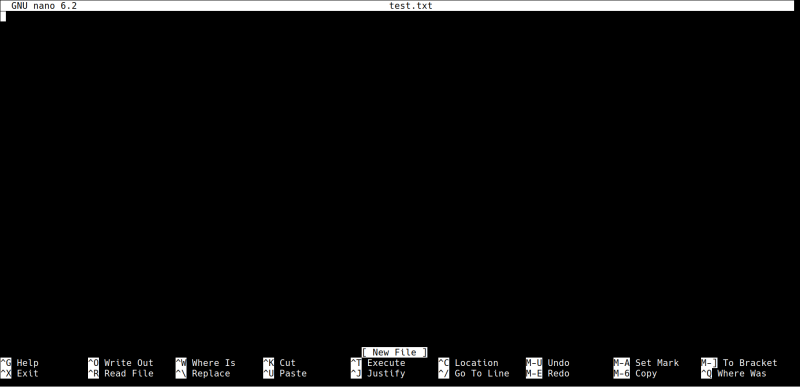
To begin using Nano, you simply specify the nano command followed by the name of the file you wish to open.
nano <filename>If the file you specify already exists, Nano will open it for editing. If the file does not exist, Nano will automatically create it for you. Once the editor is open, you can start typing or editing the text within the file.
Understanding common key commands
One of Nano’s helpful features is that it provides a list of available commands at the bottom of the screen, tailored to the current view. Unlike some other editors, you don’t need to remember complex modes or commands. Most commands are accessed by pressing and holding the Ctrl key and then pressing the specified letter shown in the menu.
Ctrl-G (Access Help)
To access the Help menu, which provides documentation for the program, you would press Ctrl and G.
Ctrl-X (Exit Help)
To exit the Help menu, you press Ctrl and X.
Ctrl-X (Exit Nano)
To exit the Nano program entirely, you use the Exit command. If you haven’t made any changes, Nano will close without further prompts. However, if there are unsaved modifications, it will ask you if you wish to save.
Ctrl-O (Write Out / Save without exiting)
If you want to save the changes you’ve made to the file you’re currently working on but remain in the Nano editor, the Write Out option is useful.
Ctrl-R (Read File)
To insert the content of another file into the file you are currently editing, you can use the Read File option. This appends the content at your current cursor position.
Ctrl-W (Where Is / Search)
Nano includes a search feature, known as Where Is. Pressing the command allows you to enter a word or character combination to search for. Nano will scroll to the first instance found or notify you if the term isn’t present. To search for the next occurrence of the same term, you can simply repeat the initial command and press Enter again.
Ctrl-K (Cut Line)
For removing entire lines of text, the Cut feature is very useful. It’s often used in conjunction with the Paste command.
Ctrl-U (Paste)
The Paste command takes any lines you have recently cut and inserts them into the document at the current cursor position. You can paste multiple copies of cut text. Note that the cut buffer may be lost if you perform other actions after cutting.
Ctrl-T (Execute command)
Nano allows you to run a limited number of shell commands from within the editor itself using the Execute function. The results of the command will be pasted directly into your current document. Be aware that only basic ASCII text output will be added.
Ctrl-J (Justify text)
The Justify command will attempt to justify all text on the page. It is strongly recommended to use this cautiously, especially if you are editing configuration files or other documents requiring specific formatting, as it can significantly alter the layout.
Ctrl-C (Show Location)
To see your exact position within the document, the Location command is helpful. It displays the current line number, column number, and percentage through the file.
Ctrl-/ (Go To Line)
If you need to quickly move to a specific line number in a large file, the Go To Line command allows you to jump directly there.
Saving Your Work
There are two primary ways to save a file in Nano once you are finished editing.
Ctrl-X (Initiate exit process)
As mentioned earlier, if you attempt to exit Nano using Ctrl-X after making changes that haven’t been saved, Nano will prompt you. You will then be asked if you want to save the modified buffer. Press Y to save and continue exiting, or N to discard the changes and exit.
You can also press Ctrl-C at this prompt to cancel the exit and return to editing the file.
If you press Y to save, Nano will then prompt you for the filename. The original filename will be pre-filled, but you can type a new name if you wish to save it as a different file. Pressing Enter at this point will save the file with the displayed or entered name. You can still press Ctrl-C on this screen to cancel the save operation entirely.
Ctrl-O (Initiate save without exiting)
The second method, also mentioned previously, uses the Write Out command (Ctrl-O) to save your work without leaving the editor.
If you are saving a file that didn’t previously exist, Nano will prompt you to confirm or provide a filename. Pressing Enter will save the file and return you to your editing session.
Conclusion
By familiarizing yourself with these commands and processes, you can effectively use the Nano text editor for managing files on your server.