

Deleting Users in Linux
If you’ve added multiple users to your Linux server, you might eventually need to delete users, too. You can delete users in two ways:
Delete in cPanel
Delete from Command Line
These instructions apply to any hosted solution, including VPS hosting, dedicated servers, and cloud servers.
Delete in cPanel
If your Linux server uses cPanel, delete user accounts using WHM instead of the command line. Deleting users via the command line won’t delete everything necessary. Deleting a user in WHM is easy.
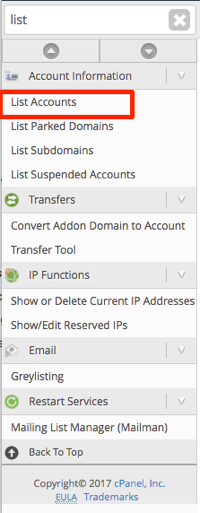
- Log into WHM. Then, search for “List Accounts” in the left search bar.
- Click on List Accounts in Account Information.

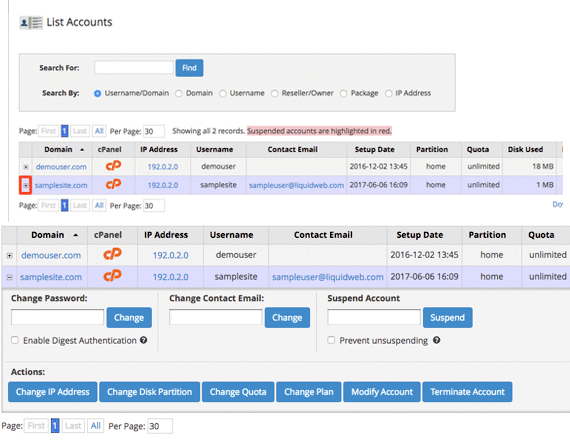
- Click the [+] plus sign next to the account you want to delete to open the account functions.

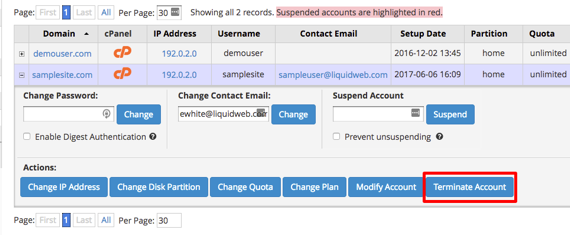
- Then, under Actions, click on Terminate Account.

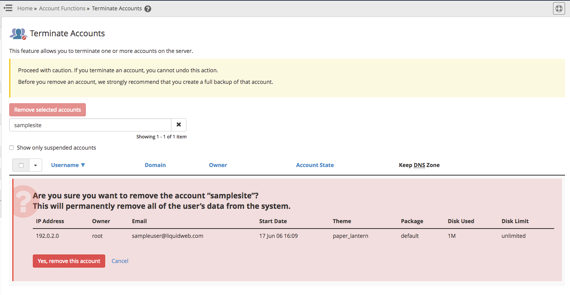
- You will have to confirm you want to really delete the account and all the user data. Once an account is deleted, it cannot be undone!

Delete from Command Line
If you need to delete users via command line, these instructions should work for all Liquid Web Linux servers.
- Using the terminal program of your choice, log into your server as root. If you haven’t logged into your server using the command line before, read Logging into Your Server via Secure Shell (SSH) first.
- You’ll use the userdel command to delete users. In the command prompt, type
userdel username
and press Enter. Replace “username” with the user you want to delete. If you want to remove all the user files, as well, type:
userdel -r username
and press Enter. This cannot be undone!