

Deleting a MySQL Database
Sometimes you may have databases you no longer need. Deleting unused databases can free up space on your server and increase your server performance. It also can make it easier to find things you need.
Warning: |
| Deleting a database is permanent! Even though you may not need the data anymore, we recommend backing up your database so you still have the data if you need it. There is no way to reverse database deletion if you don’t have a backup file. |
You can delete MySQL databases using:
Using cPanel to Delete MySQl Databases
If you aren’t familiar with using the command line interface, use cPanel to delete databases. Remember, once you delete a database, you will not be able to recover the data unless you have a backup saved. We recommend backing up your database before deleting it, just in case you need the data later.
- Log into your cPanel account for the database’s domain. If you aren’t sure how to access cPanel, read Getting Started with cPanel first.
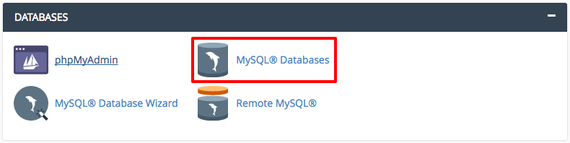
- Scroll down to the Databases section on the cPanel home page and click on MySQL Databases. This is where you can create new databases, manage current databases, create users, and manage users.

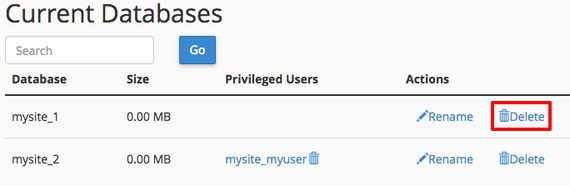
- Scroll down to Current Databases. You’ll see a list of your current databases. Under Actions, you have the option to Delete any database you’d like. Be very cautious when deleting databases: it’s irreversible!

Using the Command Line to Delete MySQL Databases
If you’re comfortable with the command line, it’s simple to delete MySQL databases. Remember, once you delete a database, you will not be able to recover the data unless you have a backup saved. We recommend backing up your database just in case you need the data later.
- Using the terminal program of your choice, log into your server as root. If you haven’t logged into your server using the command line before, read Logging into Your Server via Secure Shell (SSH) first.
- Now you’ll log into your MySQL server by typing
mysql -u root -p
Then press Enter. The -u root flag tells MySQL you want to log in as the root user, and the -p flag prompts MySQL to ask you for a password. When prompted, enter your root password and press Enter.
- You’ll now see a MySQL prompt that looks like
mysql>
- The command you use to delete a database is DROP DATABASE. Be very cautious when deleting databases: it’s irreversible! In your command line prompt, type
DROP DATABASE database_name;
Remember to replace “database_name” with the name of the database you want to delete. When you press Enter, your database will be deleted and cannot be recovered without a backup.
Database Doesn’t Exist
Sometimes you’ll get an error that says:ERROR 1008 (HY000): Can't drop database 'tutorial_database'; database doesn't exist
You can avoid this by using:
DROP DATABASE IF EXISTS tutorial_database;