

Backing Up a MySQL Database
To make sure you can restore your website if something goes wrong, you should have periodic automatic backups scheduled. Your MySQL databases will usually be included in those backups (depending on your personal configuration). For information on setting up backups, see the article related to your system:
Sometimes you’ll want to manually back up just a database in addition to your automatic backups. For instance, if you’re going to make large changes to your database, it’s a good idea to back up your current database just in case something goes wrong. That way, you can restore an old version of your database while your database administrator figures out the problem. It’s also a good idea to create a backup if you’re going to make major changes to your server.
You can back up your MySQL databases using:
Using cPanel to Back Up MySQL Databases
If you aren’t familiar with using the command line interface, use cPanel to back up your MySQL databases.
- Log into your cPanel account. If you aren’t sure how to log into cPanel, check out Getting Started with cPanel.
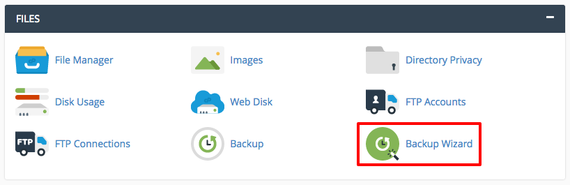
- In the Files section of the cPanel homepage, click on Backup Wizard.

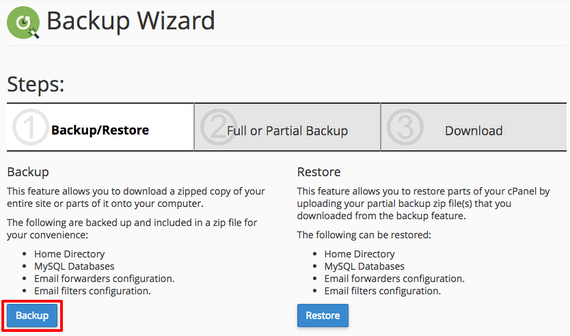
- The wizard will walk you through backing up your databases. Click on Backup.

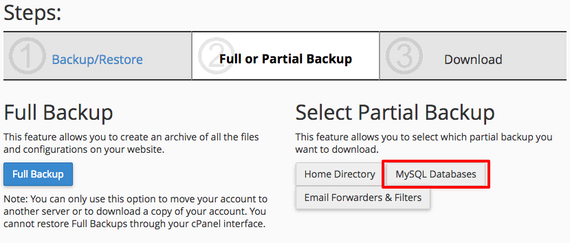
- To just back up your MySQL Databases, click on MySQL Databases in the Select Partial Backup section.

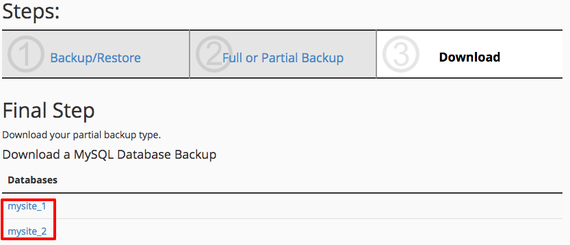
- Now just click on the database you’d like to back up. This will download a compressed file with all your database information to your computer.

You have your databases stored safely on your local computer (or wherever you decide to save the files). Now, learn how to restore a MySQL database!
Using Command Line to Back Up MySQL Databases
If you’re comfortable with the command line, it only takes a few minutes to back up your MySQL databases.
- Using the terminal program of your choice, log into your server as root. If you haven’t logged into your server using the command line before, read Logging into Your Server via Secure Shell (SSH) first.
- To back up a database, you’ll use a command called mysqldump. It puts all of the commands and data to recreate the database into a text file. In the command prompt, type
mysqldump database_name > database_name.sql
Then, press Enter. Remember to replace “database_name” with the name of your database in both instances.
Backing Up Multiple Databases
You can back up multiple databases into one file using: mysqldump --databases database_one database_two > two_databases.sql
Remember to specify the database names instead of using “database_one” and “database_two.” You can back up all the databases on your server into one file using:
mysqldump --all-databases > all_databases.sql
That’s it! Your databases are safely stored on your server. Now learn how to restore a MySQL database.
Using Plesk to Back Up a Database
If you use Plesk, you can easily back up all your databases from Plesk.
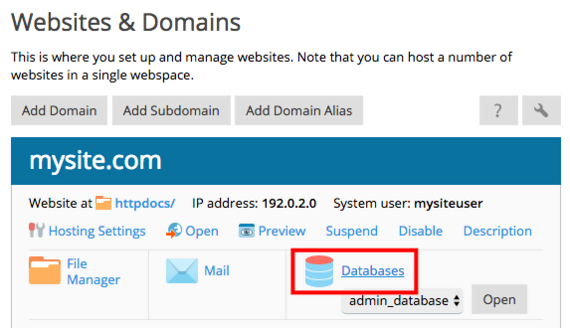
- First, find the database you want to back up. In Service Provider view, click on Domains in the left navigation menu and click on the domain you need. In Power User view, click on Websites & Domains in the left navigation menu.
- Click on Databases to see a list of all the domain’s databases.

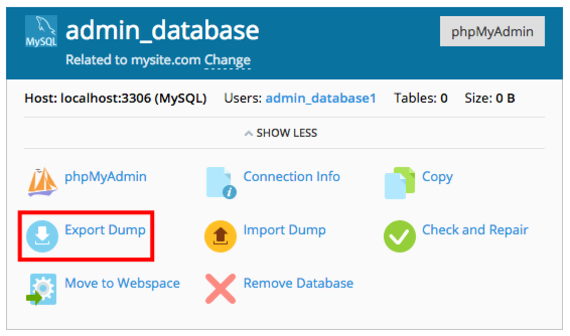
- In the database you’re backing up, click on Export Dump. A “dump” is a collection of all your database data with instructions on how to rebuild the database.
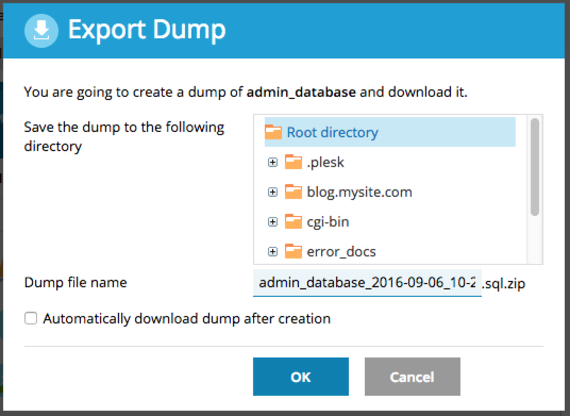
- Now, choose your backup options.

- Decide where you want to save the database backup on your server by selecting a directory.
- If you want, you can change the name of the file. Plesk automatically uses the database name and a timestamp.
- Your backup will be saved to your server, but you can also check the box to Automatically download dump after creation if you want to save a backup to your local computer or somewhere else.
- Once you’ve chosen your backup settings, click OK.
That’s it! Your databases are safely stored on your server and, if you chose, your local computer. Now you can learn how to restore a MySQL database.