

Allowing Remote Database Access
Allowing remote database access means other IP addresses (servers) can connect to your website’s databases. This may be necessary if you use a third-party application to manage your databases, your ecommerce presence, or your backups.
Remote database access is not allowed by default because it presents a security risk. Because databases are vital to most modern websites, it makes sense to disallow remote database access by default. If one of your database users has a weak password, your whole database, and potentially your whole website, could be compromised if remote access is available.
You can allow remote database access for:
Allowing Remote MySQL Access in cPanel
- Log into your website’s cPanel account.
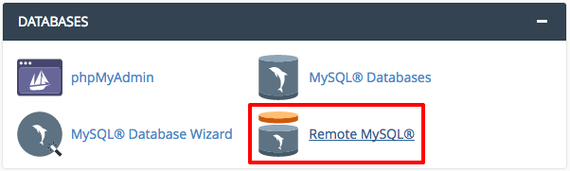
- In the Databases section, click on Remote MySQL.

- In the Host field, enter the IP address you’re allowing access for and click Add Host. Continue adding IP addresses until you’ve whitelisted all of the IPs you need.


Once you’ve added the necessary IPs, test to see if you can connect to the database as required by your third-party application. If you can’t connect, you will need to also whitelist the IPs in your firewall and allow those IPs to access port 3306.
Allowing Remote Database Access in Plesk
Plesk allows remote connections based on each database user. When you allow remote access for a database user, make sure that user has a strong password and you are using those user credentials to connect to MySQL remotely. If you use a different user, you won’t be able to connect!
- Log into your website’s Plesk account.
- In the left navigation menu, click on Databases. (If you use Service Provider view, click on Domains and select the domain you need, then click on Databases on the right hand side.)
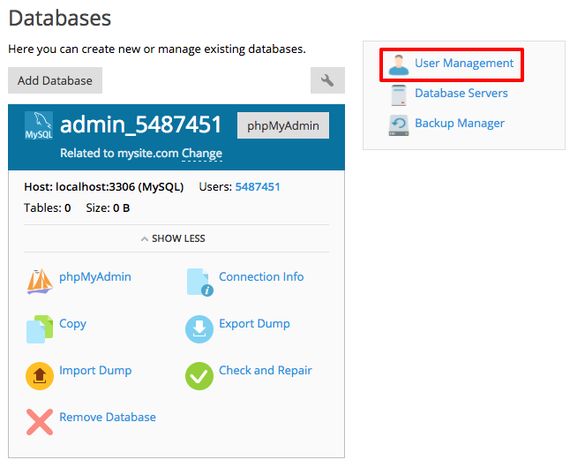
- You’ll see a list of all your databases. Click on User Management.

- Click on the database user you’ll use to access your database remotely.

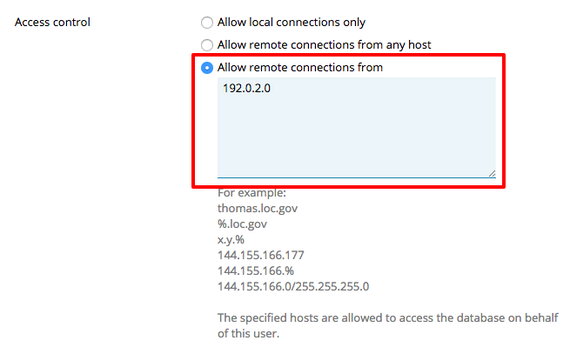
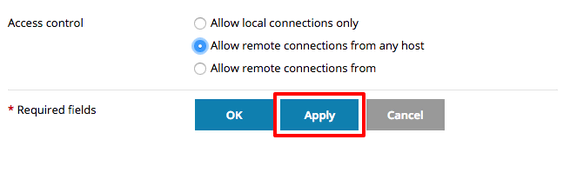
- Find Access control. Use the radio buttons to either Allow remote connections from any host or Allow remote connections from. If you will be allowing remote connections just from certain hosts, enter the hostnames or IP addresses you want to have access.

- When you’ve chosen your settings, click Apply.

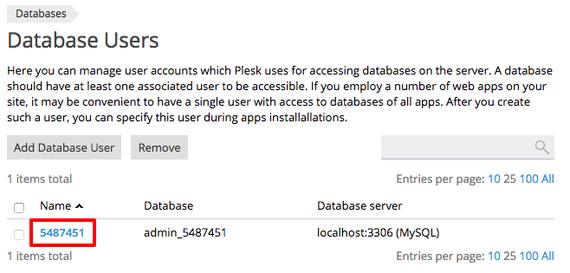
Once you’ve added the necessary IPs, test to see if you can connect to the database as required by your third-party application. If you can’t connect, you will need to also whitelist the IPs in your firewall and confirm that port 3306 is open.