Creating FTP Users
FTP (file transfer protocol) is a quick and easy way to upload files to your server. If you have a cPanel or Plesk server, the main cPanel or Plesk login credentials are also your main FTP credentials. Check out our FTP walkthroughs for Plesk and cPanel to learn more. You can also, however, create additional FTP users. This could be helpful if you have a developer who you don’t want accessing your whole cPanel account. This tutorial will show you how to create these additional FTP users in:
If you have Cloud Sites, follow the instructions in Uploading Files Using FTP in Cloud Sites.
Creating FTP Users in cPanel
Watch this video or scroll down for further instructions:
- Log into your domain’s cPanel account.
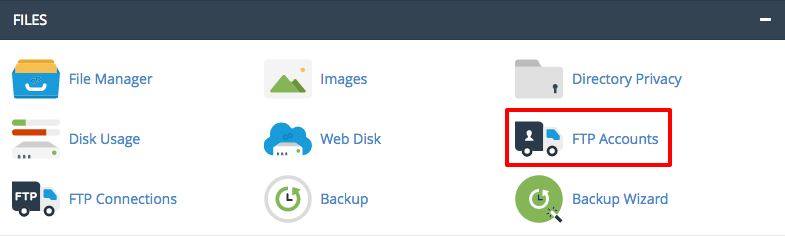
- In the Files section, click on FTP Accounts.

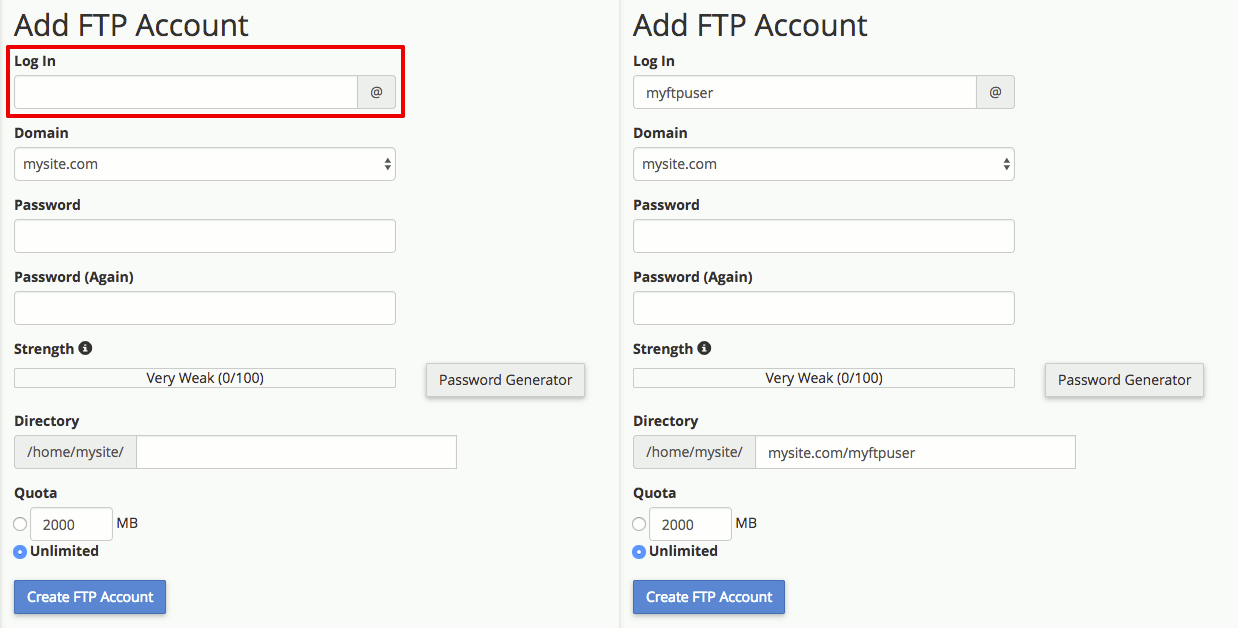
- Enter the username you want to assign to your new FTP user.

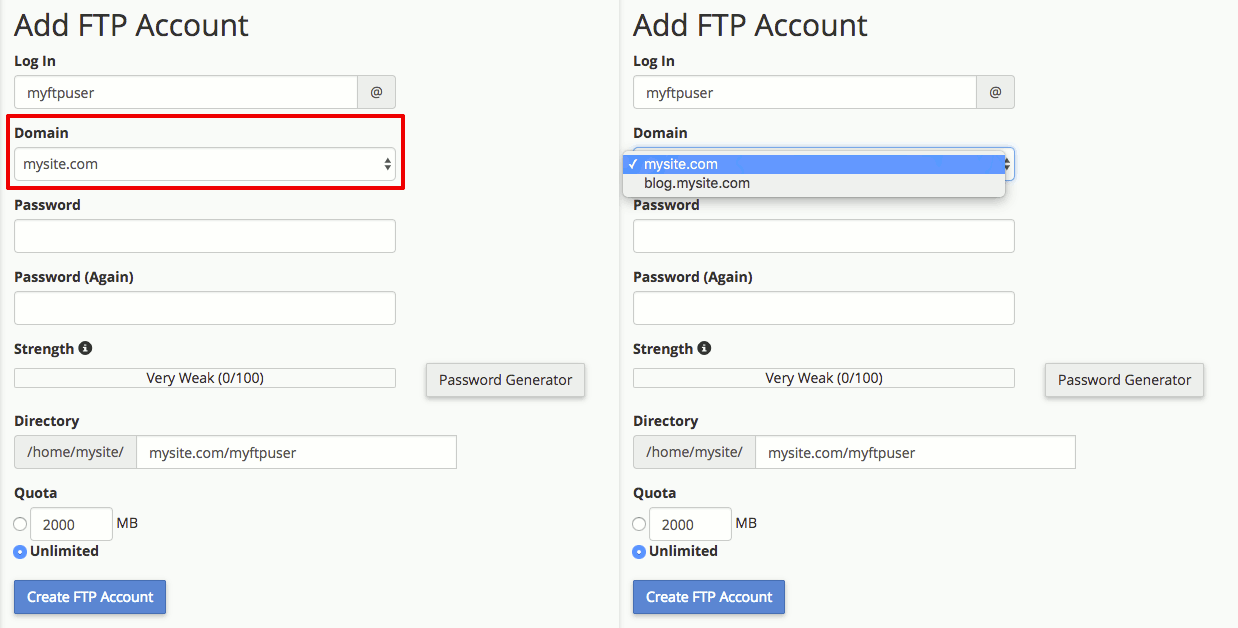
- If you have subdomains on your account, select the domain where you want your FTP user to be created.
- Choose and confirm a strong password for your user.
- The Directory determines where your FTP user will be able to view and upload files. cPanel defaults to creating a subdirectory, but you can change the filepath to whatever you need your new user to access.
- If you want your FTP user to have a quota, add a quota amount.
- Click Create FTP Account.
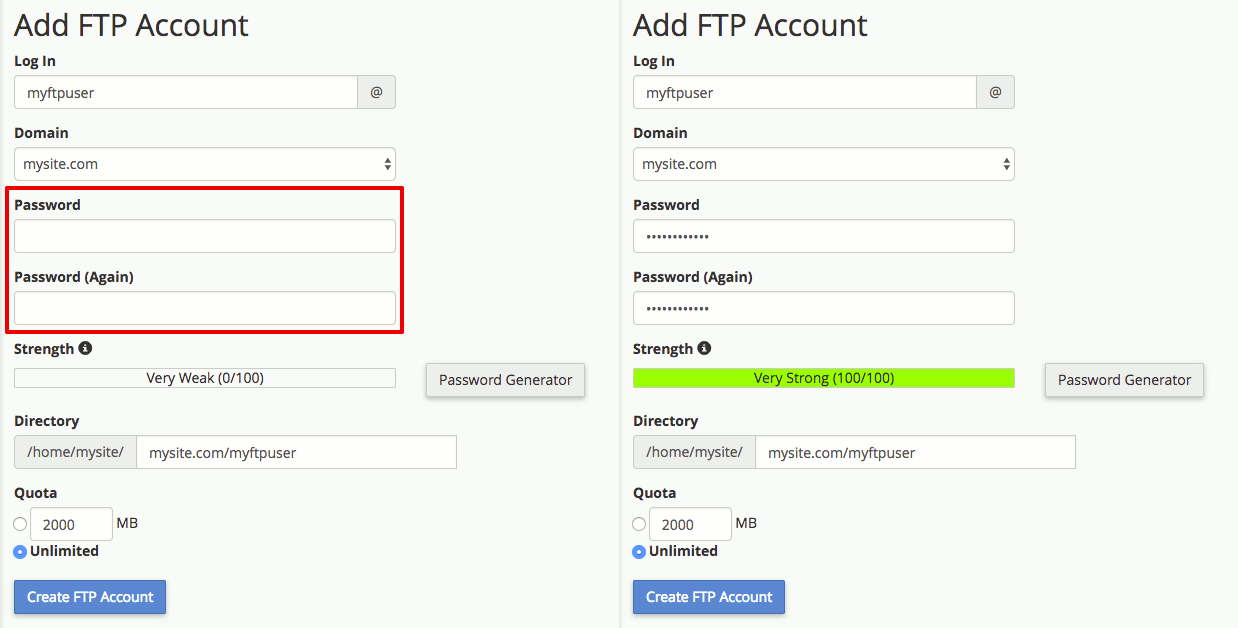
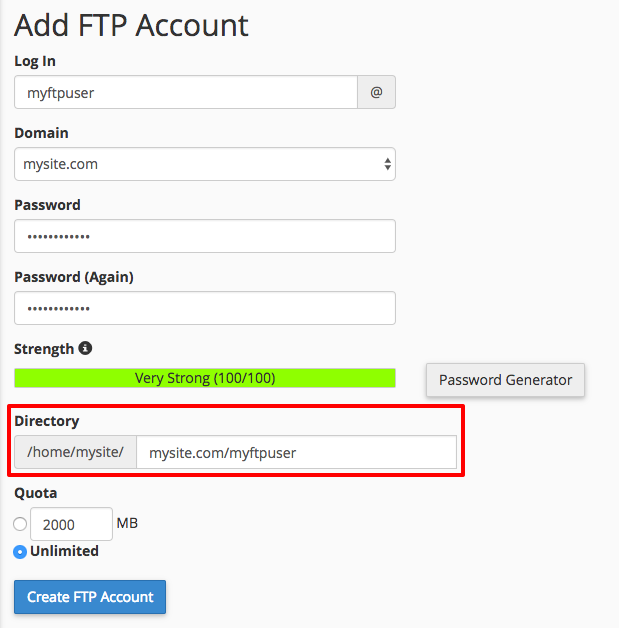
Once you’ve created your user, you can follow the instructions in Uploading Files Using FTP in cPanel to access your server with the new user. Additional FTP users cannot use SFTP because they are not SSH users. However, you can use FTPS (which is recommended for security).
Creating FTP Users in InterWorx Web Panel
- Login to your InterWorx (SiteWorx) Server using the domain user credentials. For help with logging in, see Logging into InterWorx Web Panel).
- Click on Hosting Features in the left navigation bar, then click on FTP, then click Accounts.
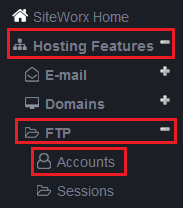
- On this screen, you’ll see all current FTP user accounts for the domain (the domain user is also an FTP user). You can change an account password, delete an account, or create a new FTP account. To make changes to an existing account, click Edit. To delete an existing account, click Delete.

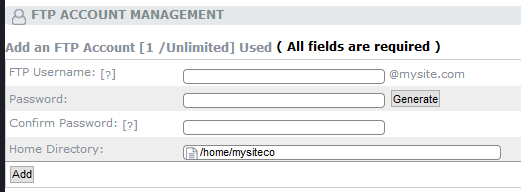
- To create a new account, enter a name for the FTP account in the FTP Username box. Select a password for the account and confirm it in the second box (InterWorx can recommend a strong password using a random generator. You can use this password by clicking the Generate button). Select the home directory for the user (the user will only have access to that directory and its sub-directories). Click Add to create the account.
Creating FTP Users in Plesk
- Log into Plesk.
- In Power User view, find your domain in the Websites & Domains tab. In Service Provider view, click on Domains in the left navigation menu and select the domain you need.
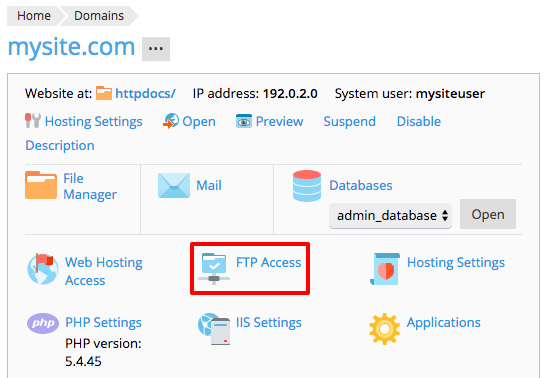
- Click on FTP Access.

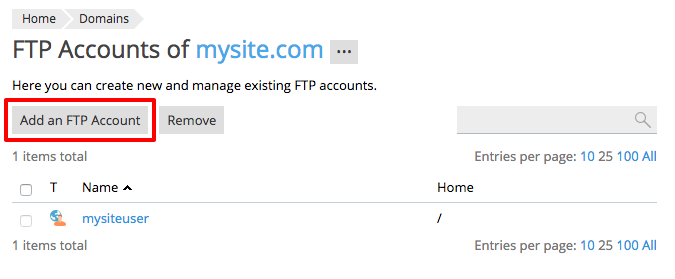
- Click Add an FTP Account.

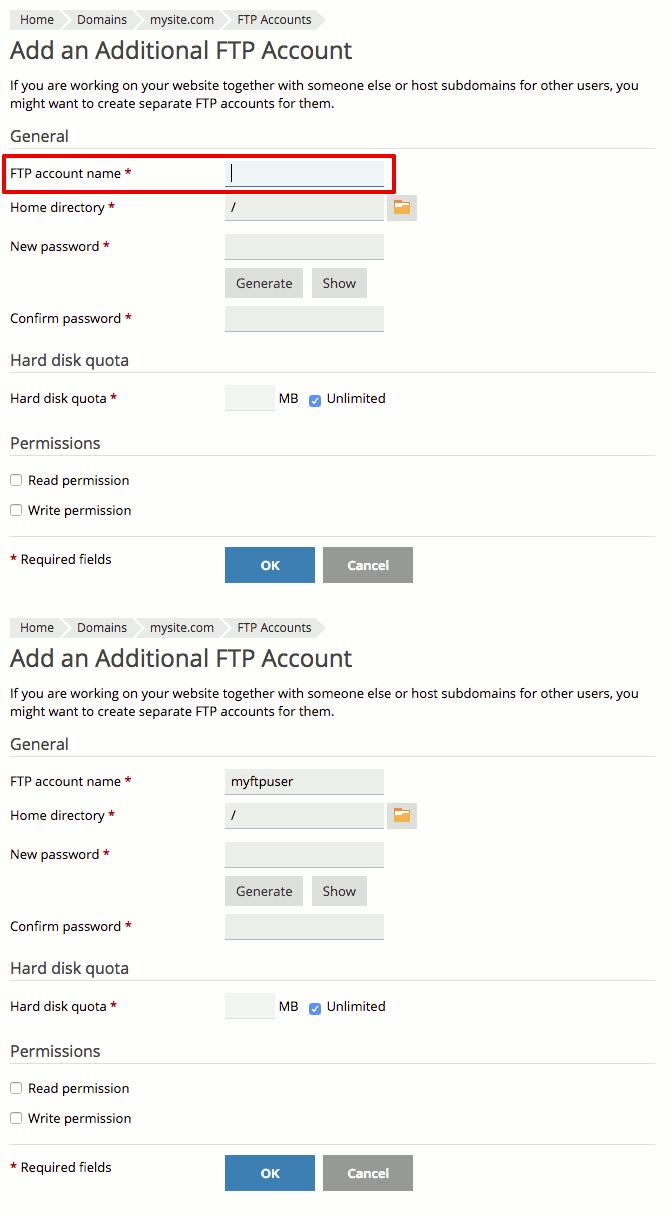
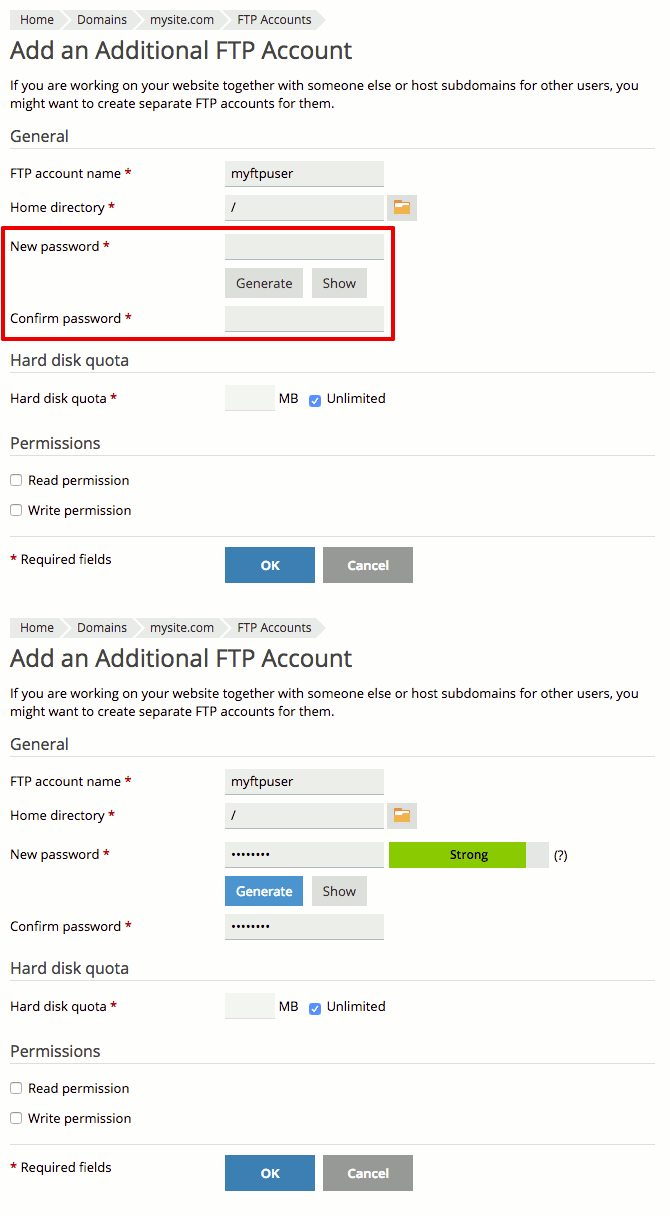
- Enter a FTP account name.

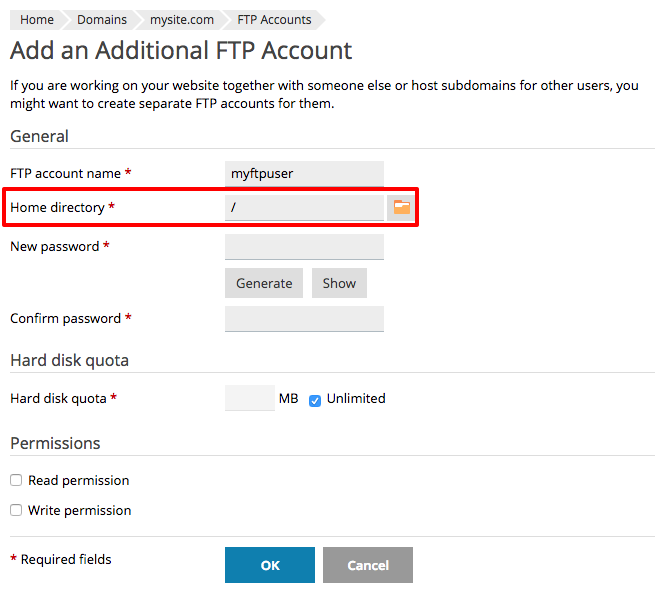
- Choose the root directory for this user. You can click the file folder icon to see a visual representation of all your folders.
- Choose and confirm a strong password.
- If you want to limit the amount of content the user can upload, enter a number in the Hard disk quota field. Otherwise, you can leave the Unlimited box checked.
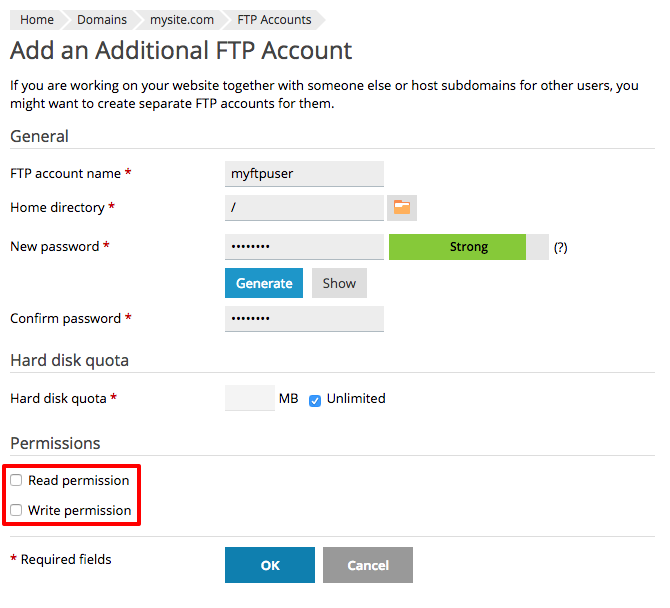
- Now you’ll select the permissions this user will have. Read permission means the user can see the contents of the directory you choose and all directories within that chosen directory. Write permission means the user can add content to the directory and sub-directories.
- Click OK to create your FTP user.
Once you’ve created your user, you can follow the instructions in Uploading Files Using FTP in Plesk to access your server with the new user.
Creating FTP Users in Cloud Sites
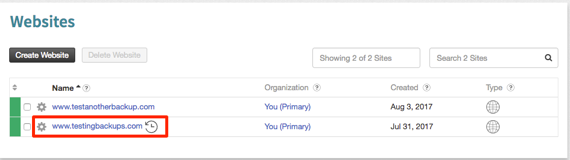
- Log into your Cloud Sites control panel. Click on the website you want to create an FTP user for from the list.

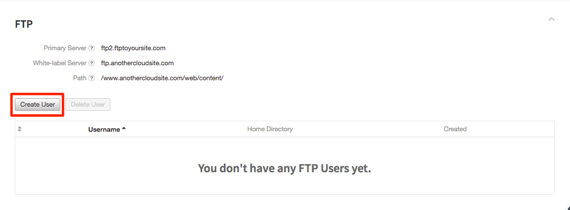
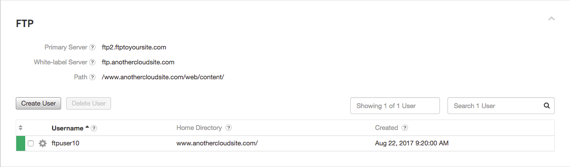
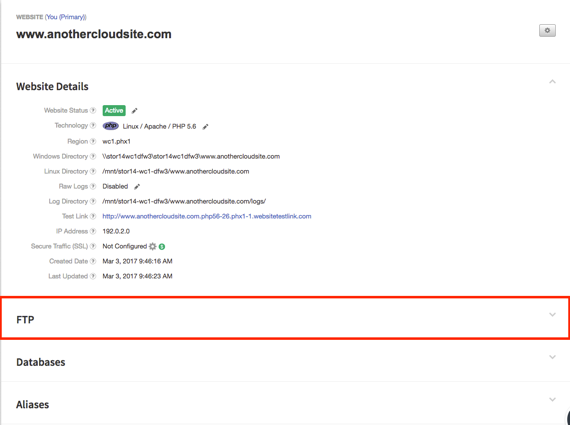
- Scroll down to the FTP section of the site management page. Click the section to open it.
 aa
aa - Click Create User to begin adding an FTP user.

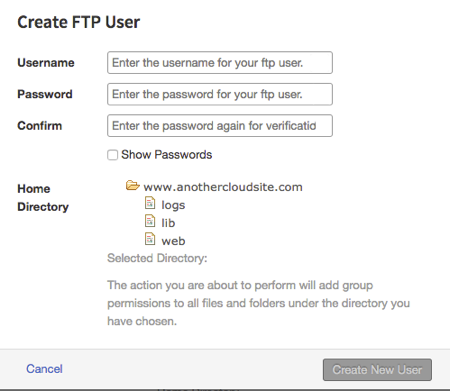
- A pop-up will appear, enter your FTP user credentials. Make sure to use a strong password. For helpful tips on creating a secure password, see our article Best Practice: Creating a Secure Password.

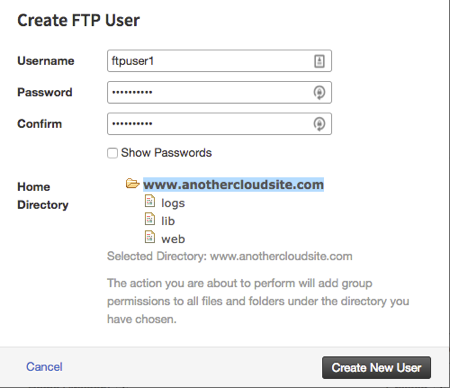
- Once you enter the credentials, select the directory and files the user will have access to. Most commonly, you will select the entire site so the user has access to both the site and all files associated with it.
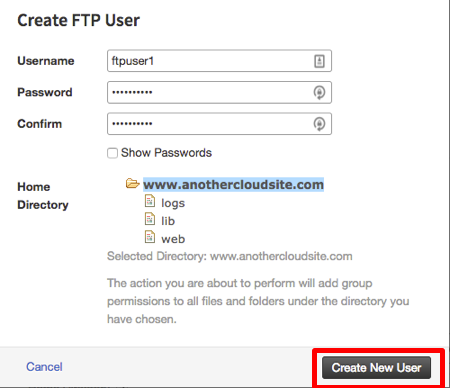
- Once you’ve entered the user information and selected the access, click Create New User to finish the process.
- The user will create and will show in the list in the FTP section of your site manager.

 aa
aa