

Use Let’s Encrypt for SSL Encryption with Plesk
Let’s Encrypt is a free, automated, and open certificate authority from the Internet Security Research Group (ISRG). It enables anyone to install a free trusted SSL Certificate on their website and benefit from the enhanced security an encrypted connection provides.
Unlike a self-signed SSL certificate, which also is free and secure (but not verified), a Let’s Encrypt certificate is recognized as fully verified and will display the padlock icon in the address bar of modern browsers.
Certificates issued by Let’s Encrypt automatically renew when they expire. By design, these certificates expire and are renewed much more often than regular paid certificates. If someone compromises your certificate, the shorter certificate lifetime can limit the damage.
Let’s Encrypt on Plesk Servers
Let’s Encrypt is supported on Plesk version 12.5 and above. It can be downloaded as an extension directly in the Plesk control panel.
- Log into your Plesk control panel. If you’re just starting out in Plesk, read Getting Started with Plesk first.
- Click on the domain or subscription where you want to install an SSL.
- Click on the Dashboard, then scroll down to the Security section.
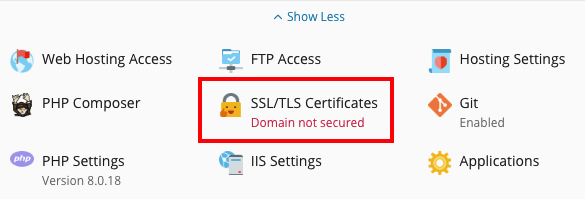
- Click SSL/TLS Certificates.
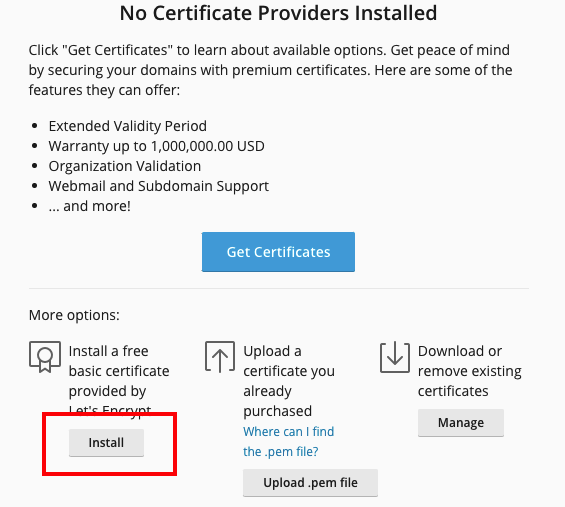
- Assuming this is the first SSL certificate you are installing for the domain, you should see a message like the one below. Choose to install a free basic certificate provided by Let’s Encrypt.
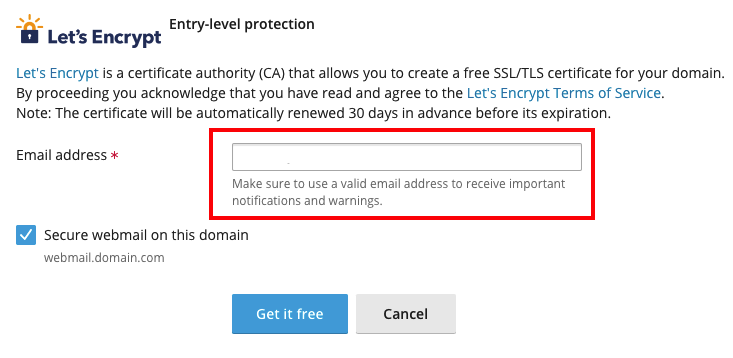
- Enter a valid email address where you can receive important updates and information about the SSL Certificate (Check the box if you’d also like to secure the webmail site for the domain). Click Get It Free to order and install the certificate.
- Your certificate will be generated and installed! This will make all the necessary changes and you’ll be able to see the certificate listed in the domain list within Let’s Encrypt. NOTE: This automation requires that your Plesk server handles DNS for the domain. If your DNS is hosted elsewhere, you’ll need to update the DNS records in order for the certificate to be issued. For more information about DNS records, see Where Is My DNS Hosted?