

Troubleshooting: SSL Errors
SSL certificates are an important part of any business on the Internet (to learn more about SSL’s, see What Is an SSL Certificate?). But what happens if you’ve installed your SSL and your site still shows an Insecure Status or other error? Most issues with SSL’s fall into a few basic categories and we can help your figure out what is going wrong and how to correct it.
Mixed Content Errors
One of the most common errors you might encounter after securing your site with an SSL certificate is a Mixed Content Warning. Most of the time, this means that there are links to unsecured resources on your secured page. Links to external sites or images are generally to blame. You can troubleshoot this error by using your web-browser’s built in developer tools to identify the problem links (you can launch the developer tools in Chrome or Firefox by pressing the F12 Key). You can normally find mixed content error information in the Elements tab or the Console tab.

Fixing this error is often just a matter of identifying the http link and changing it to https (first check to make sure the content is available via https. If it isn’t, you may want to contact the provider or find a different source for your content).
Another possible Mixed Content error can come from loading a script over http. Loading an insecure script will basically defeat the purpose of using an SSL encrypted site and most browsers will not load the content at all. If your site is attempting to load such a script, you will need to contact your developer to resolve this issue.
Expired SSL Error
SSL certificates are issued for a limited time (typically one year) and must be renewed with the Certificate Authority and the renewed certificate must be installed on the server (for more information on renewing an SSL certificate, see Renewing an SSL Certificate). If your domain’s SSL certificate expires, the address bar will show that the site is insecure and clicking on the Not Secure warning in the toolbar will show that the certificate is expired.

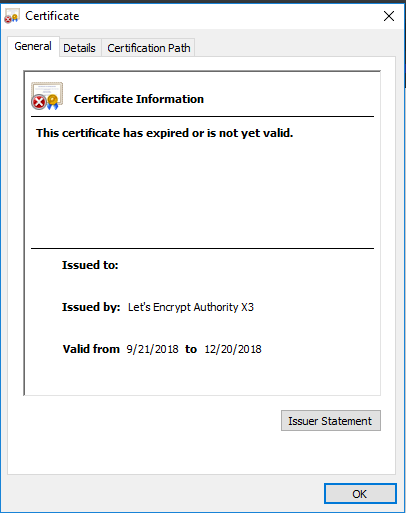
You can resolve this error by renewing your SSL certificate and installing the new certificate for your domain. You can check your SSL using Liquid Web’s SSL Verification Tool.
Self-Signed SSL Error
If your website or control panel is using a Self-Signed SSL Certificate, the browser address bar will show an Insecure Site Warning and a splash screen that warns you that the server may not be safe.
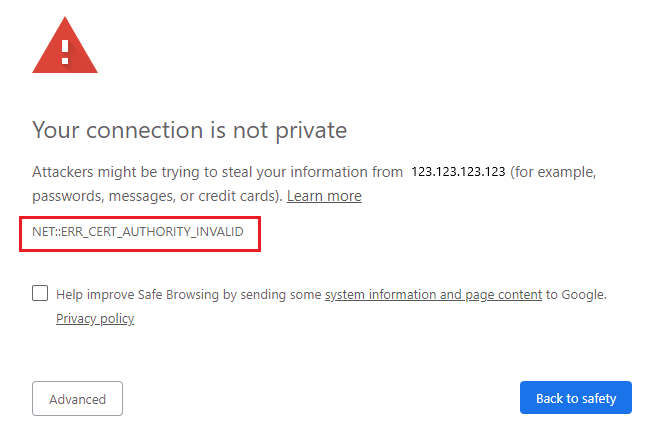
This warning does not mean that the site is not secure, it just means that because the certificate is self-signed rather than issued by a Certificate Authority, the browser cannot verify that the site is legitimate. If you see this server when you go to the IP address of your server that you know is correct, you can safely click the Advanced button and allow the connection. If you see this warning when trying to browse your bank’s website, you should be concerned and find another way to contact the company. For more information about this kind of error, see Troubleshooting: Your Connection Is Not Private/Secure/Trusted.
Mismatched Domain Names
Another common error encountered when using SSL certificates is a mismatched domain name error. Standard SSL certificates are only issued for a single domain. Generally the certificate will cover both www.domain.com and domain.com. Any other subdomains will either require a separate SSL certificate or a wildcard certificate which covers the domain and all the first level subdomains. To correct the error, you’ll need to order the correct type of SSL for the subdomain and install it on the server. For more information about the various types of SSL Certificates, see SSL Certificates.
Further Troubleshooting
If the information above didn’t help you identify the errors you are seeing with your SSL certificate, please reach out to our Support team we’ll do our best to help get your issues resolved as quickly as possible.