

How existing customers order SSL certificates in the Nexcess Client Portal
Are you an existing customer of a Nexcess web hosting product? If so, are you looking to order Secure Sockets Layer (SSL) certificates through the Nexcess Client Portal? Check out this step-by-step guide to help you with the installation process after ordering an SSL certificate for your website hosted with Nexcess.
Types of SSL certificates available from Nexcess
Secure Sockets Layer (SSL) certificates are available in several different varieties, and the method of acquiring each varies. The types available from a Certificate Authority (CA) are listed below:
- Standard SSL Certificate: The basic level of validation.
- Wildcard SSL Certificate: Validates one domain and an unlimited number of subdomains.
- Multi-Domain SSL Certificate: As implied, validates multiple domains and subdomains.
- Premium SSL Certificate: Slight upgrade over standard SSL certificates.
- Extended Validation (EV) SSL Certificate: No longer recommended.
- Extended Validation (EV) Multi-Doman SSL Certificate: As above but validates multiple domains and subdomains.
Ordering SSL certificates in the Nexcess Client Portal
Ordering SSL certificates in the Nexcess Client Portal is a straightforward process. First, you’ll need your my.nexcess.net login credentials in order proceed. If you cannot locate them, click the Forgot Password? link on the login page.
Step 1. Access the Nexcess Order SSL Certificate page within the Nexcess Client Portal
Here is how to access the Nexcess Order SSL Certificate page within the Nexcess Client Portal:
1a. Attention! If you have already acquired an SSL certificate, either from Nexcess or elsewhere, instead follow the method in the article entitled, How to import SSL certificates.
1b. Log in to my.nexcess.net.
1c. Click the SSL menu option from the left sidebar:
1d. Click the Order Certificate button on the next screen:
1e. Select your desired certificate using the Order SSL Certificate > Select a Certificate Type field. In many cases, a single domain standard SSL certificate will be adequate. If you are unsure, see What are SSL certificates?
1f. If you do not already have a Private Key and Certificate Signing Request (CSR) go to the Step 2 section below. If you do already have them, go to the Step 3 section below.
Step 2. Obtain your Private Key and Certificate Signing Request (CSR) from Nexcess
Let us provide your Private Key and Certificate Signing Request (CSR). Here is how to obtain your private key and CSR from Nexcess:
2a. Attention! If you already have a Private Key and CSR, skip ahead to the Step 3 section below.
2b. For the Order SSL Certificate > Source field, select in the dropdown menu, the picklist value that reads, “No, I need them…”:
2c. In the Details area, the user interface will automatically fill most fields. Enter your Domain Name, Organization, and Organization Unit along with the other requested details, and then click the Generate CSR button:
2d. Review the Summary, then select your Approver Email Address from the dropdown list. Then, click the Order button when ready:
2e. If successful, your pending SSL certificate will show a status of In Progress, and the Approver Email Address you designated in the step above will receive a confirmation email. Follow the instructions provided in that email, then go to the Step 4 section below regarding the installation of your SSL certificate.
Step 3. Include your known Private Key and Certificate Signing Request (CSR)
If you already had them, here is how to include your known Private Key and Certificate Signing Request (CSR):
3a. For the Order SSL Certificate > Source field, select in the dropdown menu, the picklist value that reads, “Yes, I have them…”:
3b. Cut and paste your Private Key and CSR into the relevant fields:
3c. Review the Summary, then select your Approver Email Address from the dropdown list. Click Order when ready.
3d. If successful, your pending SSL certificate will show a status of In Progress, and the Approver Email Address you designated in the step above will receive a confirmation email. Follow the instructions provided in that email:
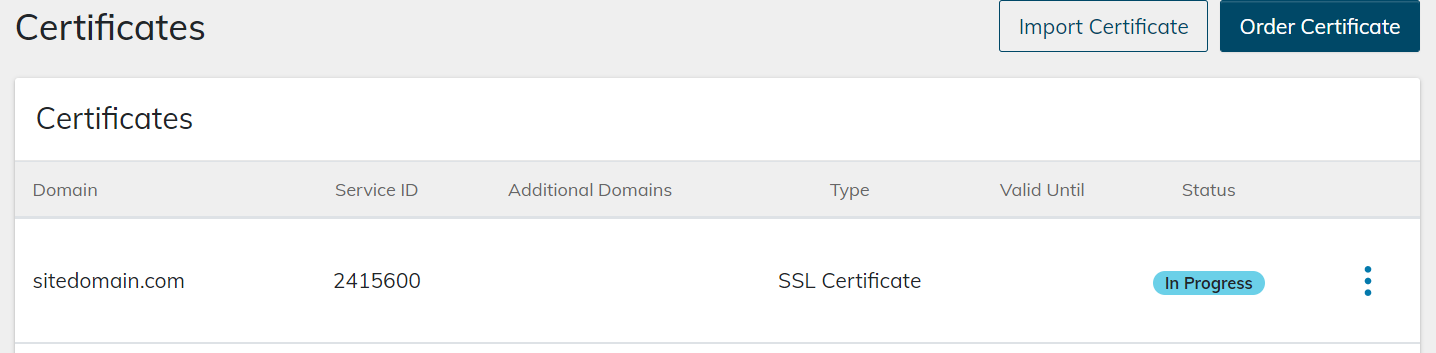
3e. When the status reads Ready to Use go to the Step 4 section below.
Step 4. Install your SSL certificate
Here is how to install your SSL certificate:
4a. If you are a client with an account on a physical (non-cloud) server, see How to install SSL certificates in SiteWorx.
4b. If you are a client with a Nexcess Cloud account, see How to install SSL certificates in your Nexcess Cloud dashboard.
Conclusion
Securing your website with an SSL certificate is a fundamental step in building trust with your visitors and protecting sensitive data. By following the steps outlined in this guide, you can easily navigate the Nexcess Client Portal to order the certificate type that best fits your needs—whether it’s a Standard SSL for a single site or a Wildcard SSL for multiple subdomains.
Once your order is complete and your certificate status is “Ready to Use,” remember that installation is the final critical step. Be sure to follow the specific installation guide for your hosting environment (SiteWorx or Nexcess Cloud) to ensure your green padlock appears correctly. If you encounter any issues during the ordering or installation process, our support team is available 24/7 to assist you.