

What Is the Login Failure Daemon (LFD)?
The Login Failure Daemon (LFD) monitors and blocks brute-force login attempts on your server. WHM allows you to configure and track LFD settings.
Login Failure Daemon or LFD, periodically checks for brute-force login attempts and if found, will block the IP address attempting to attack your server. WHM provides you with control over the LFD settings and provides you with ways to monitor login attempts to help avoid a brute force attack. This tutorial will walk you through the LFD settings in WHM.
LFD Statistics
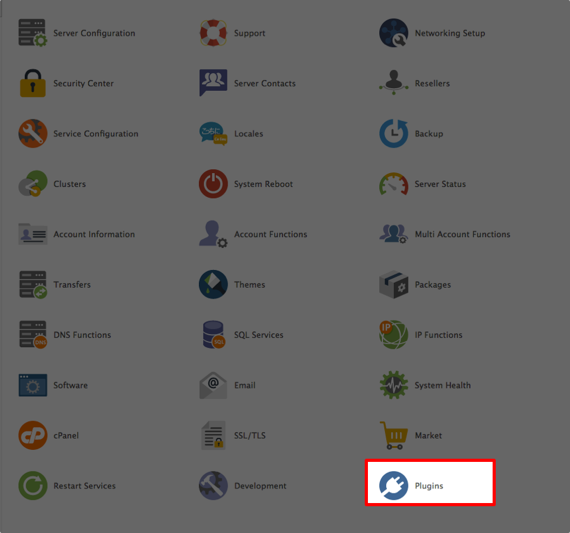
- To locate LFD statistics in WHM, click on the Plugins link on the home page of WHM.

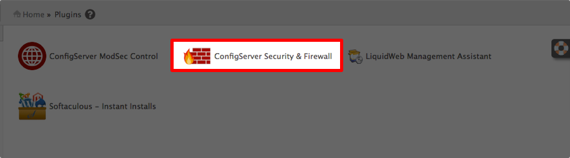
- From here, select ConfigServer Security & Firewall.

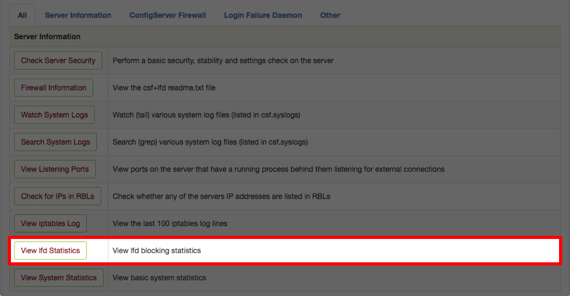
- In the Server Information section, you can view your LFD Statistics.

- This tells you:
- How many IP’s were blocked in the last 24 hours.

- IP Blocks by LFD in the last 30 days.

- Blocks and block triggers in the last 12 months.

- The total top 30 country code blocks by LFD.

- How many IP’s were blocked in the last 24 hours.
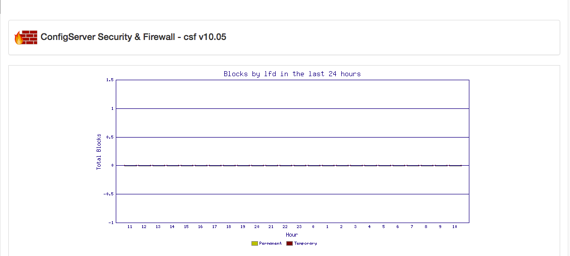
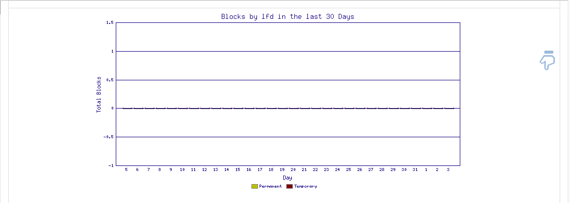
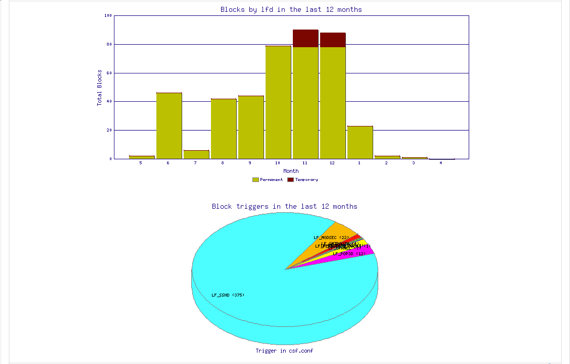
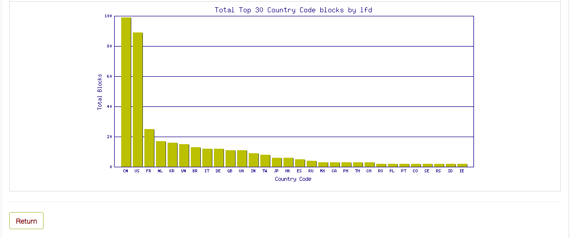
These statistics can help you decide if you want to block IP addresses from specific countries, check your logs to see if you are experiencing a brute-force attack and determine if you need to increase security on your server.
LFD Settings
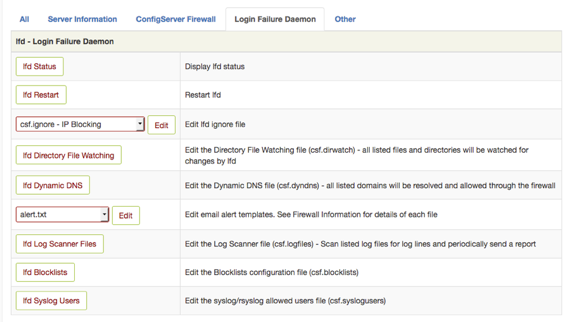
- The LFD – Login Failure Daemon section of CSF allows you to view statuses and edit the configuration.

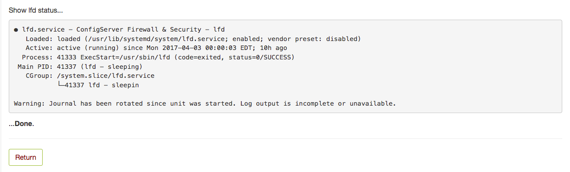
- LFD Status will show you the details of the lfd.service and if it is currently running. You will also see warnings if any part of the service is not working or unresponsive.

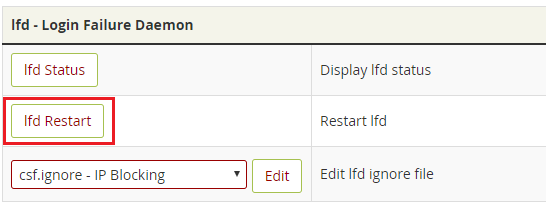
- After changing the configuration of LFD, it is recommended that you restart the service. Click lfd Restart from the lfd section of CSF.

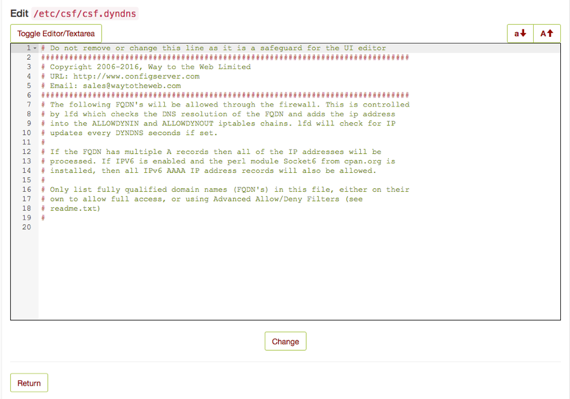
- You can edit the Dynamic DNS file (csf.dyndns) and allow all listed domains to be allowed through the firewall.

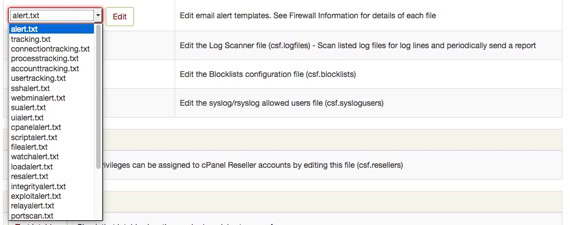
- LFD provides alert emails for alerts and tracking of login attempts and failures. You can edit the email templates to include additional information or have specific information omitted that is not necessary. Click on the drop-down menu to choose the alert text to change.

- The LFD Syslog Users file (/etc/csf/csf.syslogusers) contains usernames allowed to log via syslog/rsyslog. All the users that exist on the server listed here will be added to the system group. You can add accounts that log through syslog that are not listed but you need to have them listed.

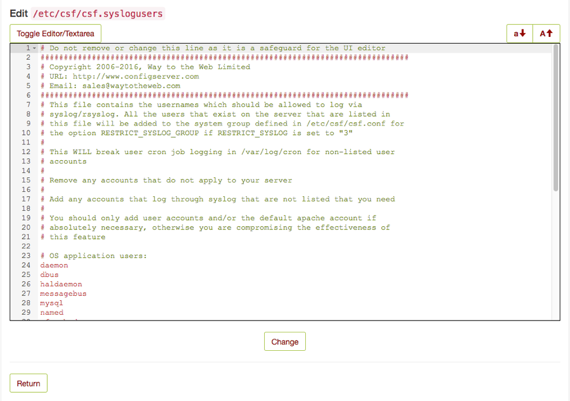
Warning: |
| Only add user accounts and/or the default apache account (nobody) if absolutely necessary, otherwise you will compromise the effectiveness of the csf.syslogusers file. |