Best Practices: Setting a Required Password Strength
It’s vital to use a strong password to secure your server (see Best Practice: Creating a Secure Password). If someone guesses your password, they could delete your entire website and even corrupt any backups on your server. A strong password uses a mix of upper- and lower-case letters, numbers, and special characters. Using words found in the dictionary weakens your password. The longer your password is, the more secure it will be. If you want to ensure every user on your server uses a secure password, you can set a server-wide password policy.
Setting Password Strength on cPanel Servers
- Log into WHM.
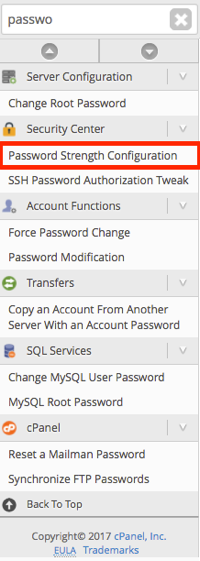
- In the search bar, search for “password.” Then, click on Password Strength Configuration under Security Center.

- Here, you’ll be able to set the Default Required Password Strength. This is the overarching password strength setting. If you don’t make any other changes, all passwords on your server will be required to have this password strength. On a scale of zero to 100, zero is an insecure password and 100 is a very secure password.

- After setting the default strength, you can choose higher or lower values for any specific services. Once you are happy with your settings, click Save.
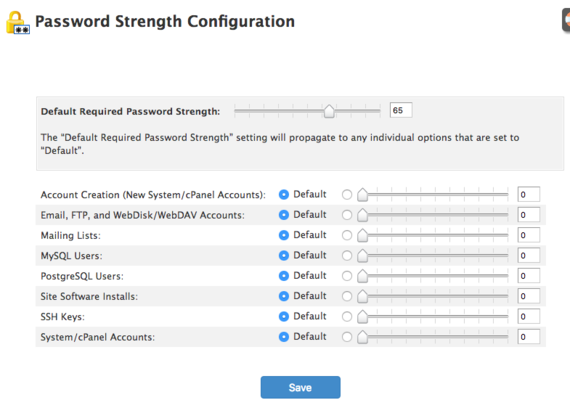
This will set password strength requirements for any new accounts or users on your server. If you want to enforce these requirements for existing accounts, you will need to change your security policy.
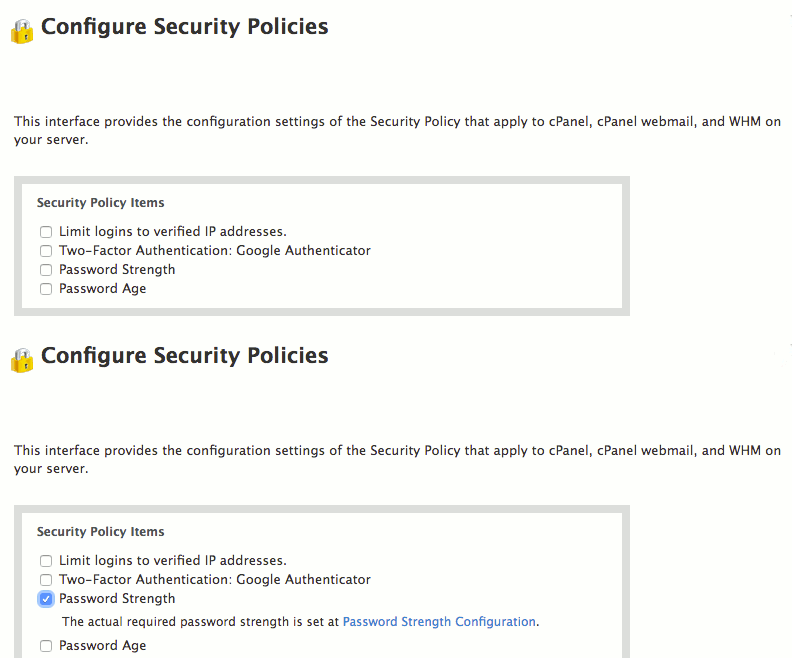
- In WHM, use the search bar to search for “security.” Then, click on Configure Security Policies in the Security Center section.
- Click the checkbox for Password Strength to enforce your settings for current accounts. Then click Save.

Setting Password Strength on Plesk Servers
- Log into Plesk.
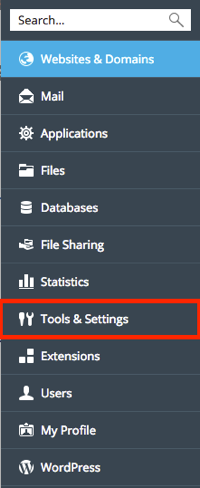
- In the left navigation menu, click on Tools & Settings.

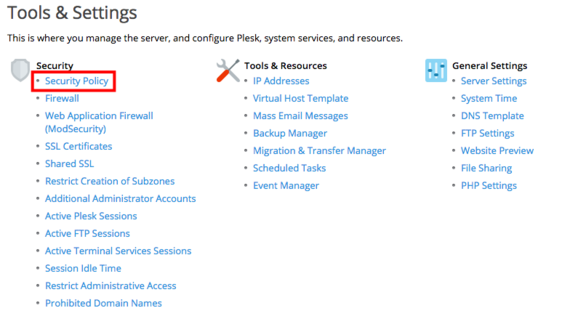
- In the Security section, click on Security Policy.

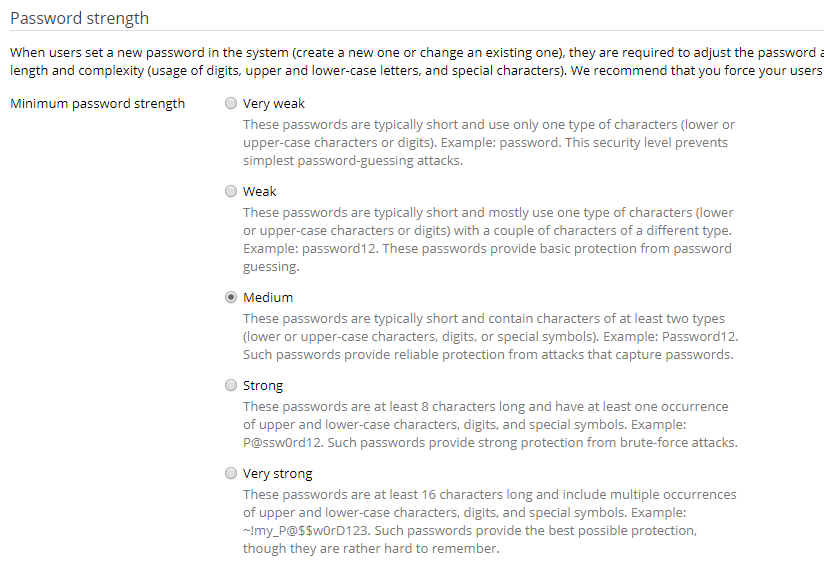
- Under Password Strength, select the radio button next to the password policy you want to enforce.

- Once you’ve chosen a password strength default, click OK to save your settings. This will only require new users to meet these password requirements.