

Scoping Ports in Windows Firewall
Security is one of the primary concerns for anyone using a computer or server in today’s world. Preventing malicious users from accessing your resources and corrupting your website or server is a high priority. While Liquid Web employs numerous technologies to protect our network and your Windows server, one of the best ways to prevent unauthorized access to your server is “scope” the ports on your Windows Firewall to allow traffic from only trusted IP addresses. Some ports on the server need to remain open to everyone (like port 80 for http traffic), but some ports, such as port 3389 for Remote Desktop Access should be restricted to your office’s IP address or range (or perhaps the IP address of a trusted advisor. You can restrict access to those ports by using the Scope tab in your Windows Firewall rule.
NOTE: |
| Scoping firewall ports is most effective when you are using a static IP address at your office location. If using a static IP is not possible, you should consider using the freely available Cloud VPN to connect to the Liquid Web network. You can then scope the firewall rule to only allow access from the Cloud VPN. See our article Setting Up Your Cloud VPN. If you need help finding your local IP address, just open a browser and go to our IP address checker. |
- Log in to your server via Remote Desktop Connection (see Using Remote Desktop Protocol (RDP) to Log into Your Windows Server).
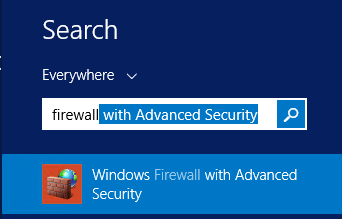
- Click the Windows icon and type “firewall” into the search bar. Then click on Windows Firewall with Advanced Security. Alternatively, you can click the Windows icon, then click Administrative Tools, then double-click Windows Firewall with Advanced Security.
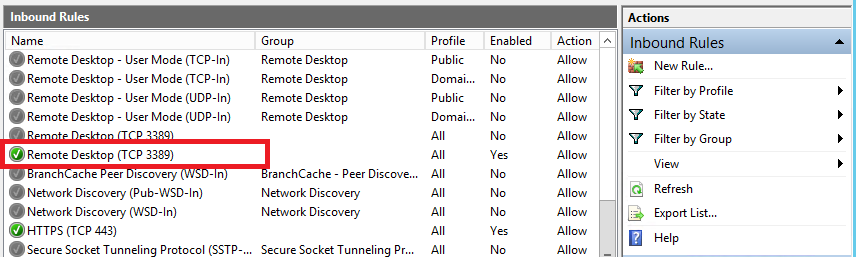
- Click Inbound Rules, then scroll down till you find the rule you would like to scope. Note: active rules have a green check-box at the beginning of the line. Double-click the name of the rule to open the Rule Properties dialog box (In this example, we’re scoping the Remote Desktop Rule).
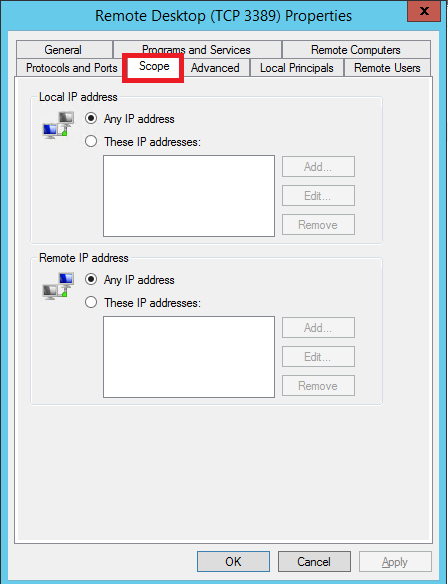
- In the Rule Properties box, click on the Scope tab.
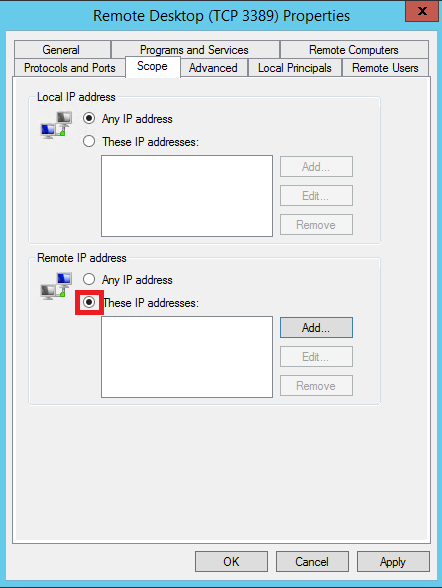
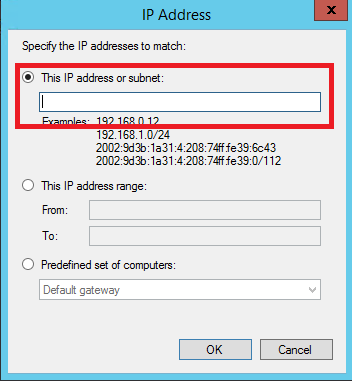
- Under Remote IP addresses, click the radio button next to These IP Addresses. Click Add and enter your local IP address. Click OK to save the changes.
- Changes to your firewall rules are applied immediately.