Restoring Your Cloud VPS From a Backup
Restore your server from a backup to recover lost data and functionality, reverting to a previous stable state.
You’ve learned about the importance of backups and how to Create a Backup of your Cloud server, next see how to restore from a backup. Restoring your VPS cloud server from a backup will preserve data and functionality from the date you choose.
Restore using Acronis Backups
Restore using Cloud Backups (Liquid Web Backups)
Warning: |
| Restoring from a backup or an image you created is different than restoring from a pre-made image provided by Liquid Web. Restoring from a pre-made image provided by Liquid Web will clear all the data and start your server from scratch with no information saved. If you feel you need to re-image your server, see our article on Restoring a Cloud VPS from an Image. |
Using Acronis Backups
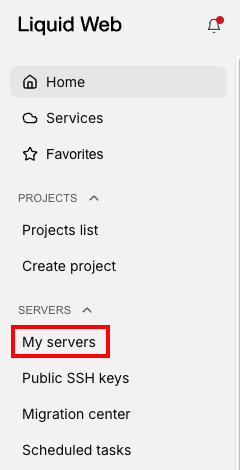
- In your Liquid Web account, click on My Servers, then select the server you want to create the backup for by clicking on the server name. This will open your server details page.

- To use Acronis Backups as your Cloud VPS backup solution, you may need to switch from Cloud Backups to Acronis Backups. For help in switching to Acronis Backups, see Acronis Backups for Cloud VPS.
- On the server details page, click the Backups & Images tab.

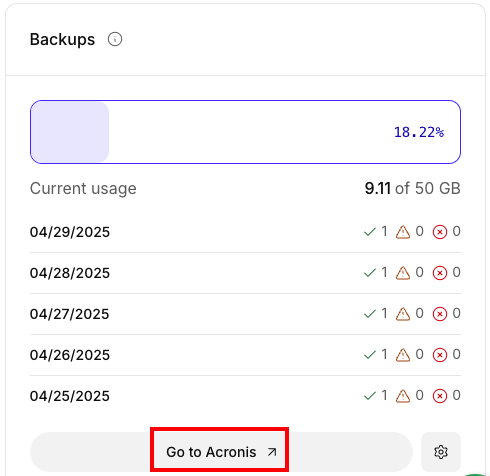
- Click Go to Acronis to launch the Acronis Backup Portal.

- Find the server for which you want to recover files/folders in the Acronis Backup Portal. For help accessing your Acronis Backups, see Accessing Acronis Backups.
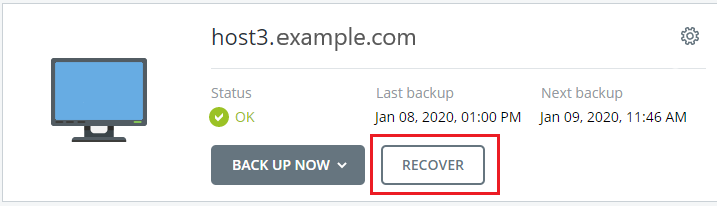
- Click Recover.

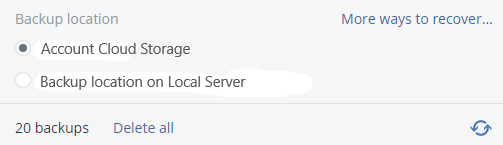
- Select the backup location if you have more than one in use.
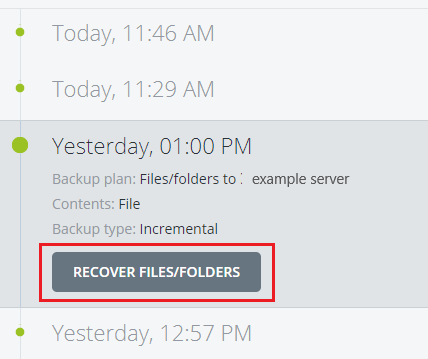
- Select the date/time of the backup from which you wish to recover files and click Recover Files/Folders.
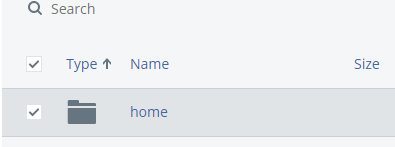
- Select the files/folders/volumes/entire machine that you want to recover.
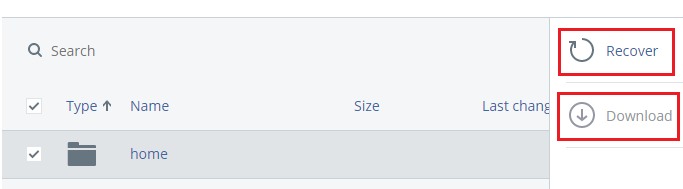
- Click Recover to begin restoring the files to their original location. If the selected files are less than 100 MB, you can also choose to download the files to your local workstation.
Using Cloud Backups (Liquid Web Backups)
- In your Liquid Web account, click on My Servers, then select the server you want to create the backup for by clicking on the server name. This will open your server dashboard page.
- On the server details page, click the Backups & Images tab.
- The Backups and Images page displays your backup settings, most recent backups, and links to modify your backup settings or create images (for more information on VPS Images, see Creating a Cloud VPS Image). Scroll down for a listing of all the backups that are currently saved for the server.

- To restore your server from a backup, select the backup your wish to restore and click the Restore icon to begin.
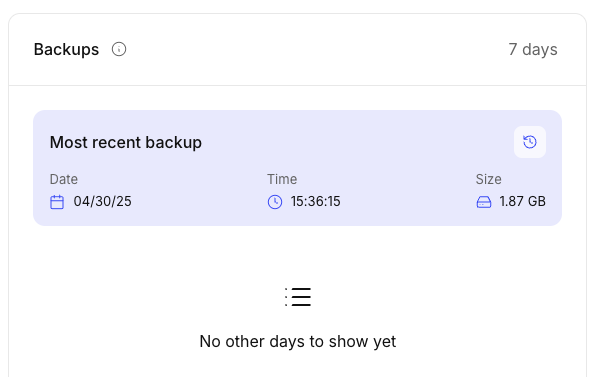
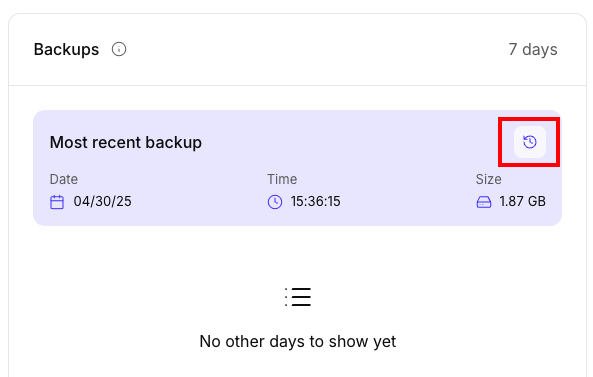
- In the Slide out panel, you’ll see details describing the current backup, including date, time, and size of the backup.
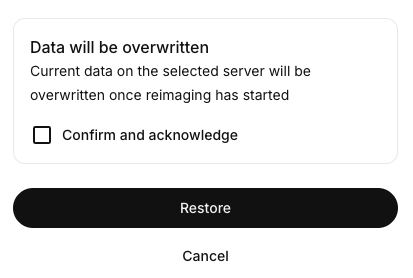
- At the bottom of the panel is a warning that all data will be overwritten. Click on the checkbox to Confirm and acknowledge this data loss.

- Finally, click Restore to restore to your from this backup.