

Resetting Your MySQL Root Password
You may need to reset your MySQL root password due to possible malicious attack or server breach. While we hope this never happens, it is best to change your password just to be safe. It is a good idea to change your passwords every 90 days to help keep your server secure. You can learn more about password best practices in our article Best Practice: Creating a Secure Password.
You can change your MySQL root password in multiple ways, click on one of the links below to be directed to the section of this article with your instructions.
Reset using WHM
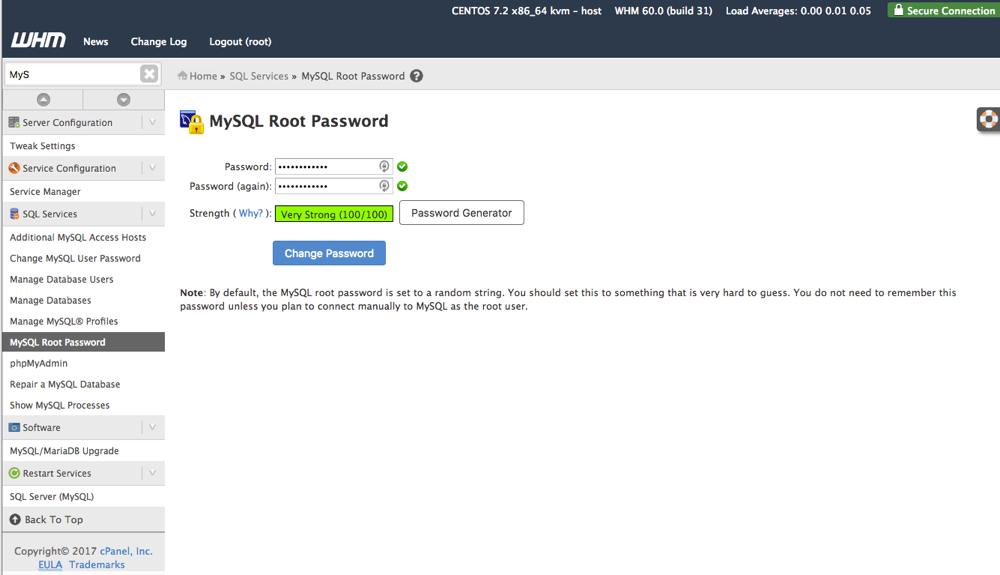
You can easily reset your MySQL root password in WHM with just a few clicks. This tutorial will walk you through these steps. It is already assumed that you are logged in as root to WHM. For instructions on how to log into WHM, see our article Getting Started with WHM.
- Once logged into WHM, navigate to the search bar on the left-hand side of the page. Begin typing MySQL, the predictive text will allow options to appear below.
- Select MySQL Root Password from the menu. This will open a page for you to change the root password.

- Enter the password you want to update to, or use the Password Generator button to have one created for you. If you need information on password best practices, see our article Best Practice: Creating a Secure Password.

- Once you’ve updated the password and confirmed it, click Change Password to save your changes.
- WHM will restart MySQL and confirm that your password has been successfully changed.



Reset using Command Line
If you need to change the root password for MySQL on a Linux server and do not have WHM, it can be easily done via command line. This tutorial assumes you are logged in via SSH, if you are need help logging in via SSH, see our article Logging into Your Server via Secure Shell (SSH).
Note: |
| For Plesk on Linux servers, MySQL uses systemctl, insert into the commands below and follow the remainder of the steps to change the MySQL root password. |
- The first step to resetting your root MySQL password on a Linux server is to stop MySQL. If you have a monitoring service for MySQL that will restart the service if it is down, make sure that service is also stopped for the time being, such as checkservd and cPanel.
systemctl stop mysqld.service
- Next, start MySQL in Single User Mode and enter without a password.
Warning:
Restarting MySQL this way will allow anyone access to every database. To avoid this, stop eth0 and fuser -k any logged in user and touch /etc/nologin. mysqld_safe --skip-grant-tables & mysql
Note:
Make sure to add & or the command prompt will not show. - Enter the following commands in the MySQL prompt. The password below is only an example, replace 123456ABCDEF with the password of your choice. Our article Best Practice: Creating a Secure Password provides you with information on secure password best practices.
UPDATE mysql.user SET password=password("123456ABCDEF") WHERE user='root'; FLUSH PRIVILEGES; exit; - Stop MySQL safe and start MySQL and all other services that kept it from restarting like checkservd and cPanel normally.
systemctl stop mysqld.service
systemctl start mysqld.service
- Test your change by doing a test login, to log into MySQL, type it into the command line.
mysql
- You will be prompted to enter your password. Enter the new password, if you are logged in then you have successfully reset the MySQL root password.
Note: |
If the MySQL user has been deleted, run the following query to recreate it:INSERT INTO `mysql`.`user` ( `Host` , `User` , `Password`
, `Select_priv` ,`Insert_priv` , `Update_priv` ,`Delete_priv`
, `Create_priv` , `Drop_priv` , `Reload_priv` , `Shutdown_priv`
, `Process_priv` , `File_priv` , `Grant_priv` , `References_priv`
, `Index_priv` , `Alter_priv` , `Show_db_priv` , `Super_priv`
,`Create_tmp_table_priv` , `Lock_tables_priv` , `Execute_priv`
, `Repl_slave_priv`, `Repl_client_priv` , `Create_view_priv`
, `Show_view_priv` , `Create_routine_priv` , `Alter_routine_priv`
, `Create_user_priv` , `max_questions` , `max_updates`
, `max_connections` , `max_user_connections` ) VALUES ( 'localhost'
, 'root',PASSWORD('password1234'), 'Y', 'Y', 'Y', 'Y', 'Y', 'Y', 'Y'
, 'Y', 'Y', 'Y', 'Y', 'Y', 'Y', 'Y', 'Y', 'Y', 'Y','Y', 'Y', 'Y', 'Y'
, 'Y', 'Y', 'Y', 'Y', 'Y', '0', '0', '0', '0' ); |
Troubleshooting
You may encounter an error when trying to change the root password that looks like the example below:
mysql> show warnings; +---------+------+-----------------------------------------------+
| Level | Code | Message | +---------+------+-----------------------------------------------+
| Warning | 1265 | Data truncated for column 'Password' at row 1 |
| Warning | 1265 | Data truncated for column 'Password' at row 2 |
+---------+------+-----------------------------------------------+
If MySQL is giving you warnings when changing the password, type the following:
mysql>prompt
Then leave MySQL and run:
/usr/bin/mysql_fix_privilege_tables
Once this is complete, try to set the password again. If you have further issues, please contact our Support team and we will be happy to assist you!
Reset on Plesk with Windows OS
Changing the MySQL root password for your Windows server
- Edit the “%plesk_dir%DatabasesMySQLDatamy.ini” file and ADD the skip_grant_tables into the [MySQLD] section.
- Restart the MySQL service:
net stop MySQL56
net start MySQL56
- Then execute the following command to change the password of the MySQL user to the one found in the first step:
plesk db "update mysql.user set authentication_string=password('new_password') where user='admin'"
- Edit the “%plesk-dir%DatabasesMySQLDatamy.ini” file and REMOVE skip_grant_tables from the [MySQLD] section.
- Restart the MySQL service:
net stop MySQL56
net start MySQL56