Resetting Passwords in ADAAS
With changes to Microsoft’s licensing structure, more customers than ever before are using Active Directory as a Service (ADAAS) to manage their users. Whether or not you have used Active Directory before to manage Windows Server users, using ADAAS is often a different experience. Because it isn’t a fully implemented Active Directory structure for you to administer, some of the tasks have to be completed in different ways. For instance, you may be used to contacting Liquid Web support to reset or unlock user accounts.
You can now reset and unlock user accounts from any server that is a part of the ADAAS structure for your domain. Once you’ve contacted the Support team and had the capability added to your administrative account, you’ll be able to unlock users and reset passwords directly from your server, saving you valuable time.
NOTE: |
| To manage users, your account must be given those permissions in the ADAAS environment. Please contact our Support Team to be given access to manage user accounts. |
Resetting Passwords
You can follow the steps below to reset the password for any user in your ADAAS controlled domain.
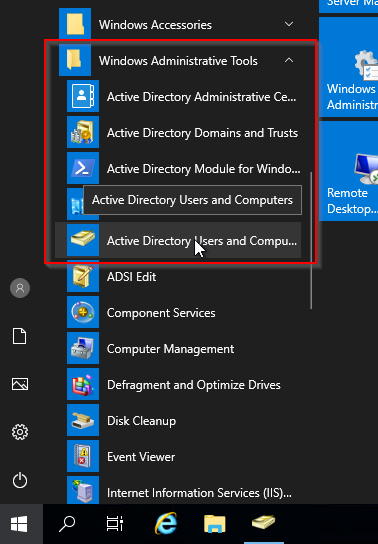
- On your server, click the Windows Start menu and go to Windows Administrative Tools and open Active Directory Users and Computers.

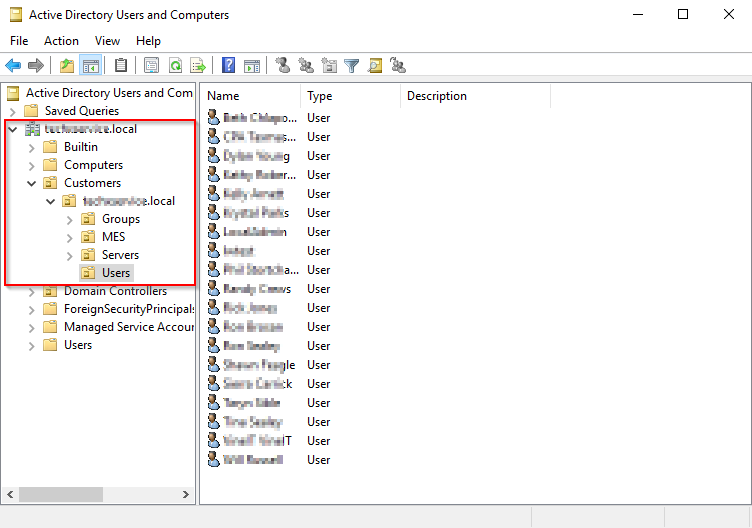
- Expand your AD domain, then expand Customers, then the AD domain again, and click Users. You will now see a list of the users.

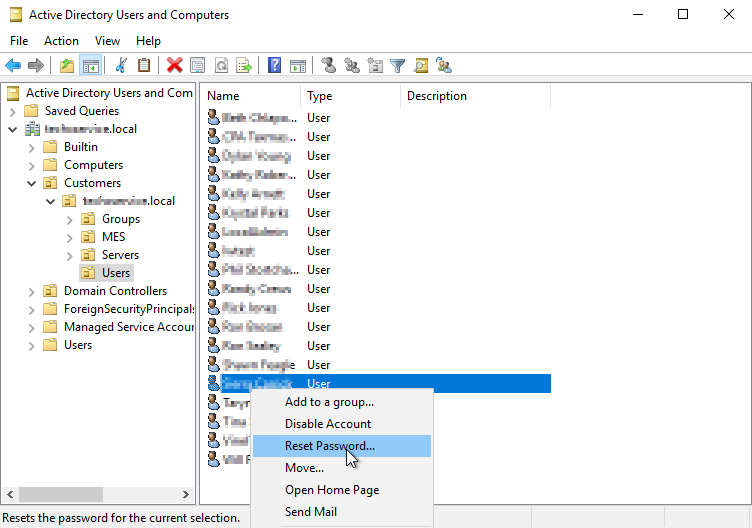
- To reset a password for a user, right-click the user and choose Reset Password...
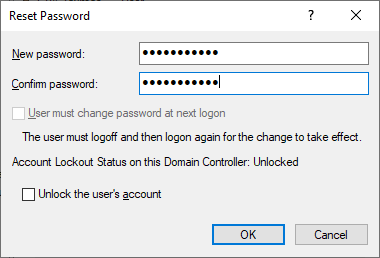
- In the box that comes up, specify the new password, confirm it, and click OK to set the password. You can also unlock their account if necessary at the same time.

Unlocking a User Account
You can unlock a user account using the same basic steps and resetting the password. You don’t have to reset their password to unlock the account.
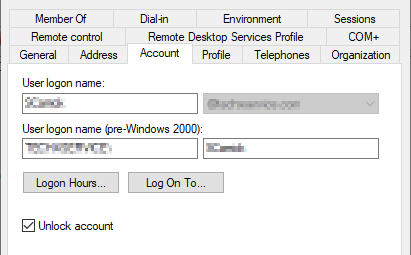
To unlock an account, right-click the user and then choose Properties. From the Account tab, you can check the box to unlock the account. Click OK to apply the changes.