View and Respond to Support Cases
View and respond to your active cases (formally tickets) via my.liquidweb.com.
After opening a Support case (formally known as a ticket), you’ll receive updates in the my.liquidweb.com Support Center in addition to the email address you have on file in your Liquid Web account. View all of your current and past cases, and respond to any open (active) cases from your Support Center.
- Log into my.liquidweb.com.
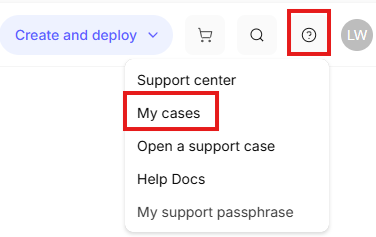
- Click on the Support Center tab (?) on the top right corner.

- Click on the My Cases link in the Support Center tab to see your currently open cases.

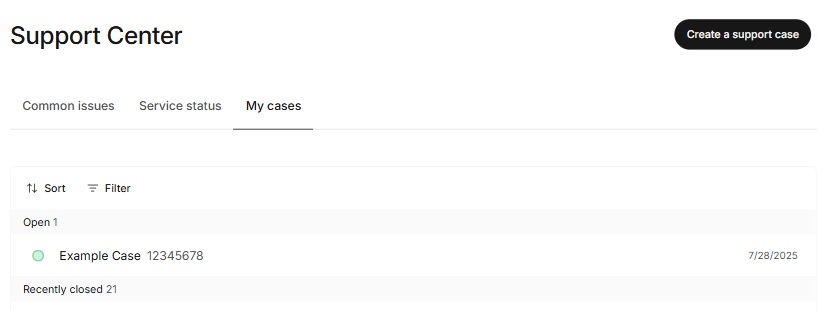
- All of your cases are displayed in your Cases page. By default, all cases are displayed with open cases shown at the top.

- You can sort by “Name”, “Last Reply”, “Newest to oldest”, and “Oldest to Newest.”
- You can filter by “Needs attention”, “Open”, and “Closed.”
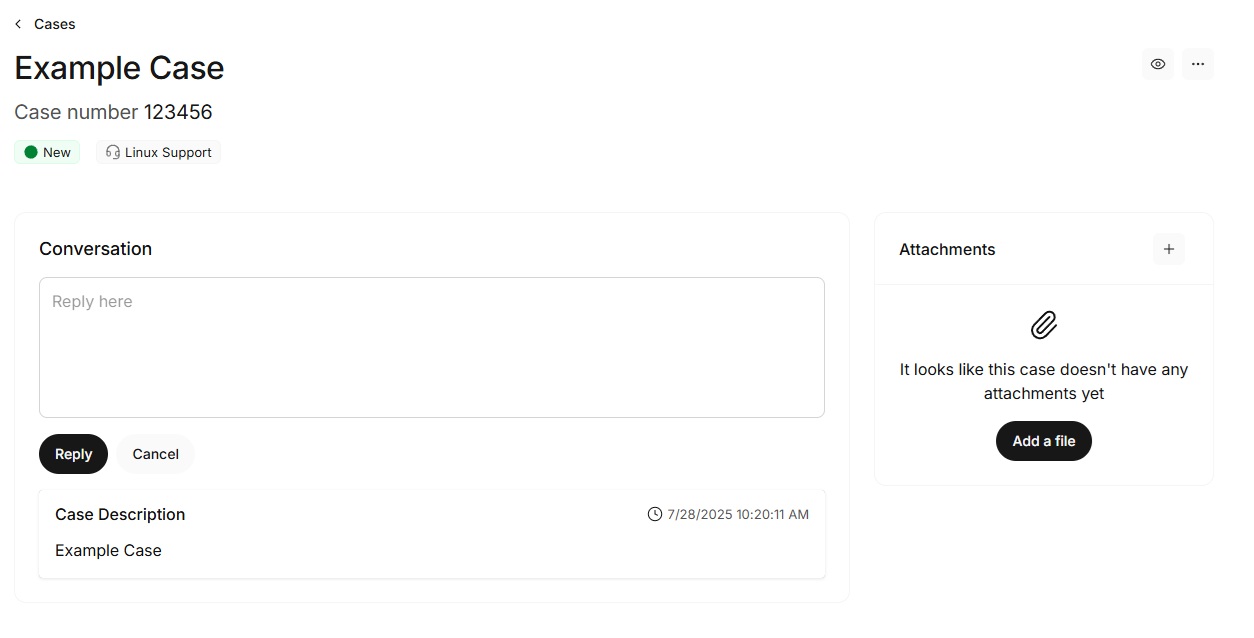
- Click on a case in order to view it, respond back to support, add watchers, attach files, or change the status.