Changing Your Server Monitoring Settings
Our monitoring team is always watching to make sure your server is running as intended. Usually, they can fix any issues before you even notice that anything is wrong. Or, they’ll notify you right away.
While our monitoring team is vigilant about monitoring your server, there may be times you want services to be unmonitored.
For example, your database administrator may want to take MySQL offline to do testing or make changes. Or, your developer may want to take systems offline to make changes. If this happens and you have monitoring enabled, we might contact you about your server when there isn’t actually a problem.
If you’re going to be taking certain services offline, you may want to disable monitoring for that service. This article will show you how to do that!
- Log into your Liquid Web account.
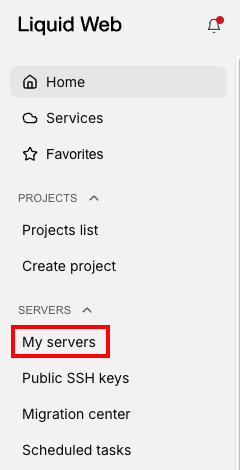
- In the left hand menu, click My Servers to view a list of your servers.

- Click the name of the server that you want to work with.
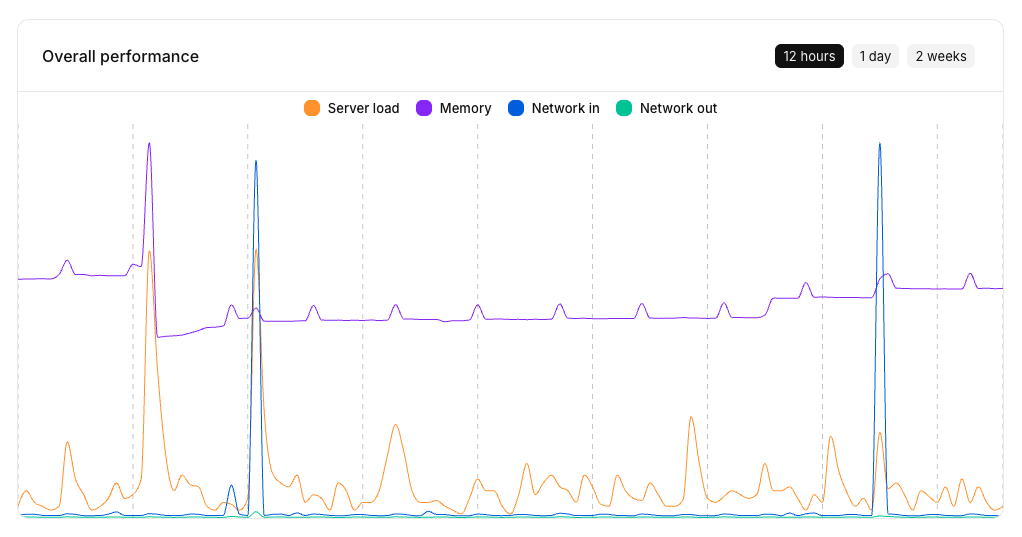
- When the server details open, click the Monitoring tab to see server performance graphs and to adjust your monitoring settings.

- You can view various performance graphs (like overall performance, memory, server load, and network traffic) and adjust those graphs by time elapsed.

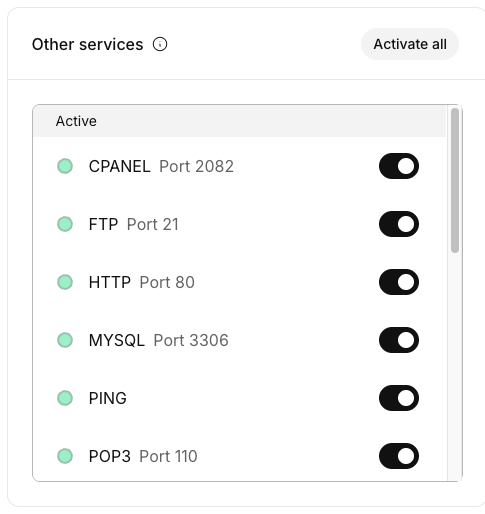
- If you have service monitoring enabled, you can choose which services are monitored in the Other Services section. Simply check the toggle next to the service or activate or deactivate monitoring for that service port. You can also activate monitoring on all available ports by clicking Activate all.