Update Your Account Information
This guide shows how to update your account owner name, business details, and contact information in your Liquid Web account.
Introduction
Occasionally, details about your account with Liquid Web may change. We’ve made it easy to view and modify all of the account details we have on file.
Step by step instructions
- Log in to your Liquid Web Account.
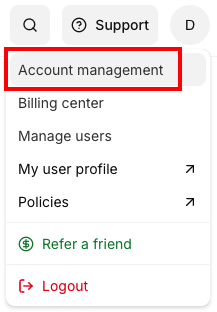
- Click on the Account menu at the top right corner of the portal. Then click on Account Management.

- In the details section of the Account page, you will find separate sections containing all of your account information. Enter any updates as needed in each section and click Save Changes to update the information in that section.
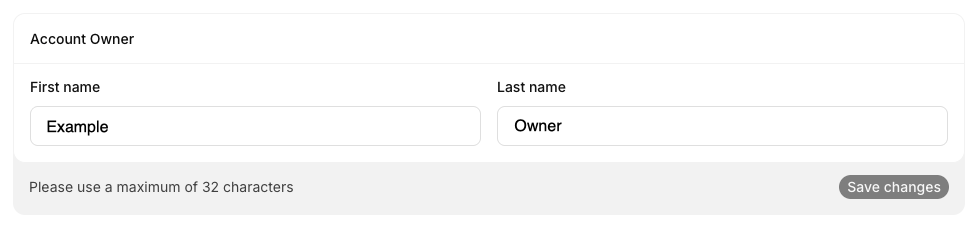
- The first section is the Account Owner section. Enter an updated account owner name and click Save Changes to save.

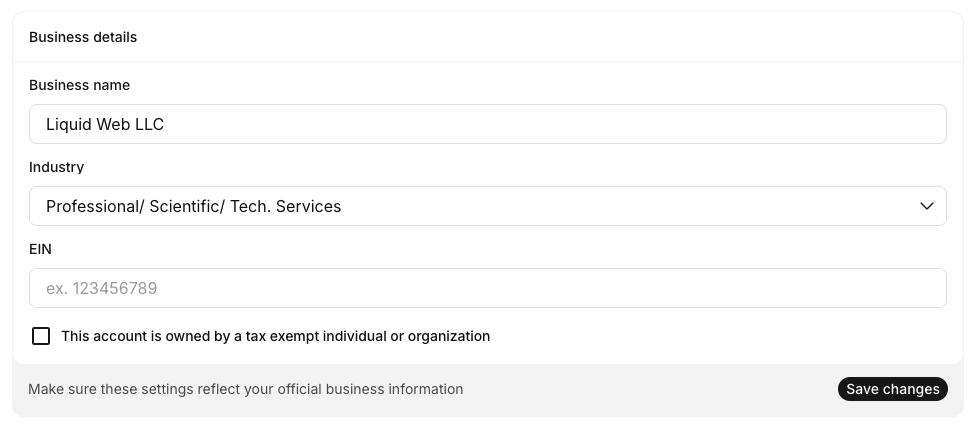
- The Business Details section of the page includes the Business name, business type (this helps us make sure we are providing you with the best recommendations for your business), and Tax information. Make any updates and click Save Changes to save information in this section.

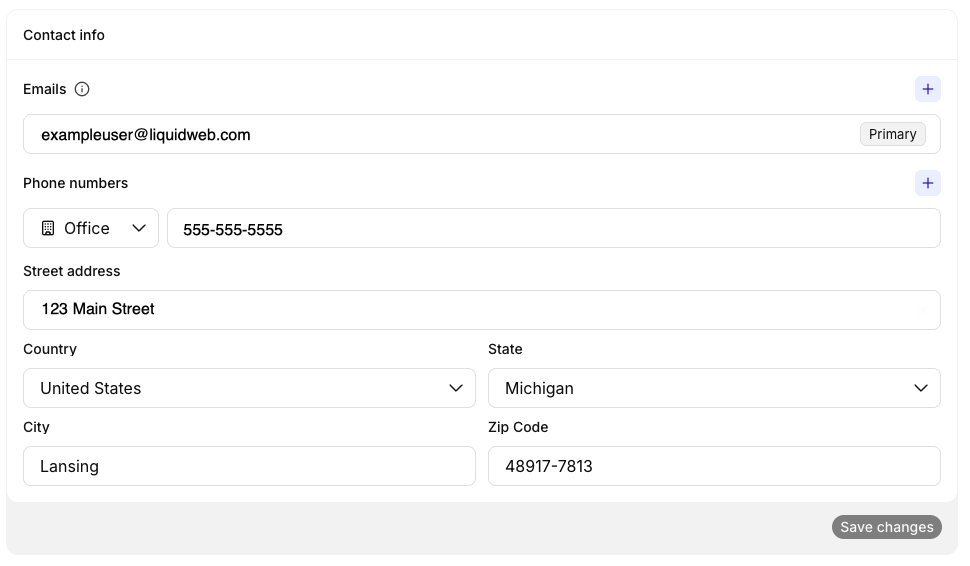
- The final section is the Contact Info section. Here you can update, add, or remove phone numbers and email addresses, as well as update the business address. Make any updates and click Save Changes to save information in this section.