Scheduling Tasks in your Liquid Web Account
Schedule server tasks conveniently from your Liquid Web account to avoid downtime. No need to stay up or seek assistance; manage changes when traffic is low.
You’ve used your Liquid Web account to control your cloud servers, run backups, and even make changes to the servers themselves (like resizes and reboots). However, sometimes those changes require downtime as the changes are applied or the server is rebooted. If you wanted the changes to occur when server traffic was low, you either had to stay up all night or ask the Support team to take care of it for you. While we’re always happy to assist, you can now schedule some of these tasks right from your account!
- Log into your Liquid Web account.
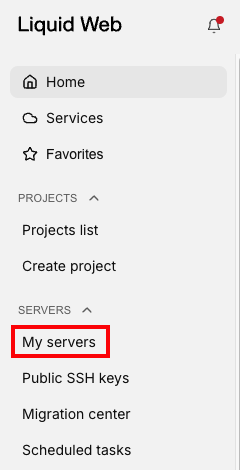
- Click My Servers from the menu at the left of the screen.

- To schedule a reboot of your server, click the server’s name from the list of servers.
- On the server detail screen, click Reboot.

- When you click the Reboot button, you’ll be presented with some additional choices.
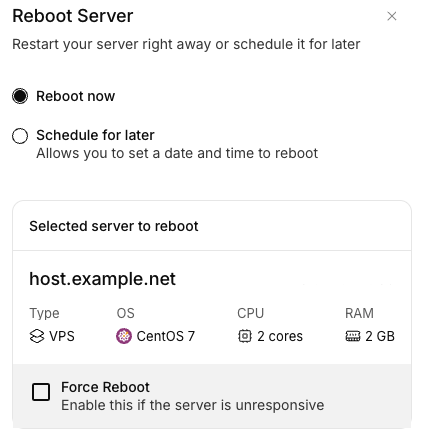
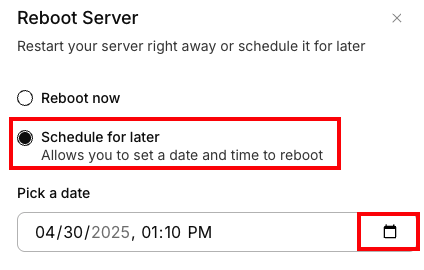
- Click on Schedule for later to schedule the reboot for a more convenient time/day. Click on the calendar icon to specify the date and time for the reboot.
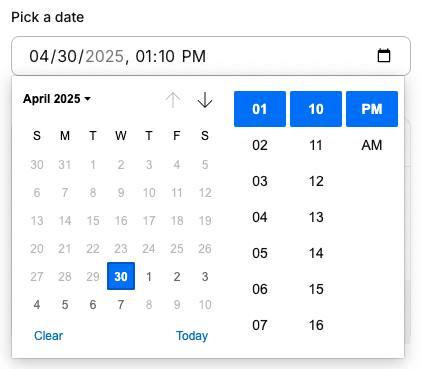
- This will open the Task Scheduler dialogue. Click on the date or the time to adjust as needed.
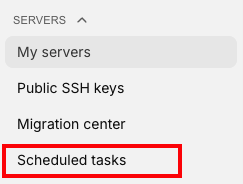
- You can see and manage your scheduled tasks by clicking Scheduled Tasks in the Servers menu.
- You can also choose to enable the Force Reboot option if the server is unresponsive. This is the equivalent of powering off the server and is not recommended unless the server is unresponsive.