

Editing User Authorization in Your Account
Once you've added an authorized user and enabled two-factor authentication in your Liquid Web account, managing user information or deactivation is straightforward.
Now that you know how to add an authorized user and enable Two-Factor Authentication for Users in your Liquid Web account, what happens if you need to change their information or deactivate their authorization? Editing and changing user authorization is easy in your account via either my.liquidweb.com or manage.liquidweb.com.
Edit User
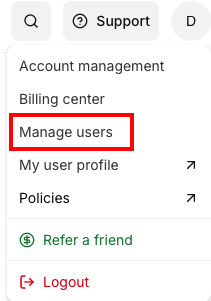
- Login to your Liquid Web account, click the Account tab, then click Manage Users.

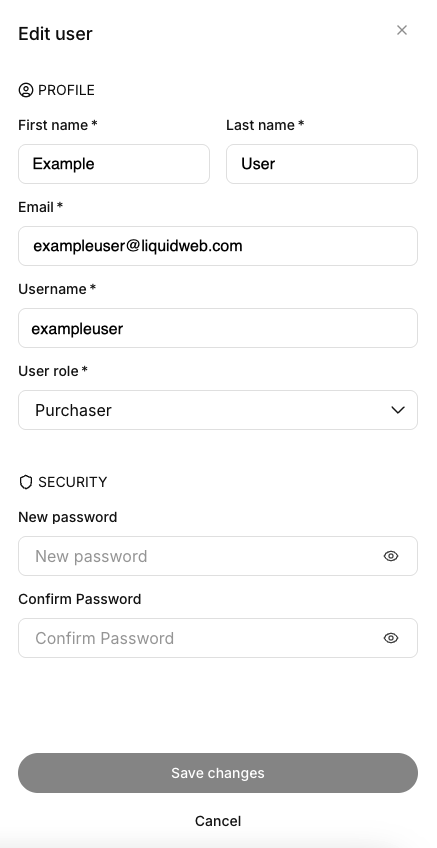
- Click on the User name that you want to modify to bring up the user profile.
- Change any of the user details, including role, name, email, and password. Click Save Changes to save any changes.

- To enable/disable Two-Factor Authentication or to Deactivate the user, click the three dot menu next to the username in the list and follow the prompts. For more information, see Enabling Two-Factor Authentication for Users.
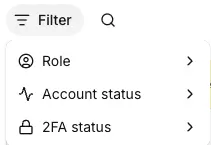
- Use the filter to sort the list by role, account status, or 2FA status.

Learn more about changing information in our article Setting Your Account Preferences.