

Troubleshooting: AWStats
AWStats is a tool within cPanel meant to troubleshoot bandwidth issues and detect if someone is hot-linking images or document files. AWStats provides visitor information as well as site searches and downloads. It is best when used to understand visitor numbers from both humans and robots and the amount of bandwidth being used.
If you encounter issues where AWStats is not updating in cPanel or is not showing any data, there are a few steps you can take to fix the issue:
- Check cPanel Logs
- Allow Manual Updates with cPanel
- Error: Cannot Update
- Reporting Higher Bandwidth than Other Tools
- AWStats Does Not Exist
- Error Fixes
AWStats vs Google Analytics |
| It is important to note that AWStats does not work the same way as Google Analytics. While much of the information in AWStats is similar to Google Analytics, the data displayed is gathered differently. If someone views a page they looked at on a previous day or week, the session will not be measured. The reason for this is that AWStats defines visits based solely on IP address and user agent. However, some bots will also visit with an IP address and user agent, so actual visits may be inflated. |
Check cPanel Logs
The first step is to check the cPanel stats_log to make sure that AWStats didn’t process and look for specific errors. You can use a few different commands to view the stats_log, for the purposes of this article, I am using tail and a number of lines. If you want to see the log file in its entirety, you can use the less command.
tail -20 /usr/local/cpanel/logs/stats_log
This will show the last 20 log records.
[2017-03-27 09:48:23 -0400] Checking Logs
[2017-03-27 09:48:23 -0400] I/O: unknown: prio 0
[2017-03-27 09:48:23 -0400] [sepxferlog]
[2017-03-27 09:48:23 -0400] [sepxferlog] complete
[2017-03-27 09:48:23 -0400] Done Checking Logs
[2017-03-27 09:56:43 -0400] Checking Bandwidth
[2017-03-27 09:56:43 -0400] I/O: unknown: prio 4
[2017-03-27 09:56:43 -0400] Processing bandwidth.
[2017-03-27 09:56:43 -0400] Done Checking Bandwidth
==> Retention days: 10
[2017-03-27 10:05:03 -0400] Checking Logs
[2017-03-27 10:05:03 -0400] I/O: unknown: prio 0
[2017-03-27 10:05:03 -0400] [sepxferlog]
[2017-03-27 10:05:03 -0400] [sepxferlog] complete
[2017-03-27 10:05:03 -0400] Done Checking Logs
[2017-03-27 10:13:24 -0400] Checking Bandwidth
[2017-03-27 10:13:24 -0400] I/O: unknown: prio 4
[2017-03-27 10:13:24 -0400] Processing bandwidth.
[2017-03-27 10:13:24 -0400] Done Checking Bandwidth
==> Retention days: 10
The next log to look at is the CustomLog and make sure the entries exist in the Apache config. This log should exist on the Virtual Host. Below is an example of locating the CustomLog, your specific server configuration may have a different file path.
CustomLog /etc/apache2/logs/domlogs/host.samplesite.com
And the output should look similar to the following:
<VirtualHost 192.0.2.0:80>
 ServerName host.samplesite.com
 ServerAlias www.samplesite.com samplesite.com www.sample.samplesite.com mail.samplesite.com
 DocumentRoot /home/samplesite/public_html/samplesite.com
 CustomLog /etc/apache2/logs/domlogs/host.samplesite.com combined
 <IfModule log_config_module>
   <IfModule logio_module>
     CustomLog /etc/apache2/logs/domlogs/host.samplesite.com-bytes_log "%{%s}t %I .n%{%s}t %O ."
   </IfModule>
 </IfModule>
 ## User sampleuser # Needed for Cpanel::ApacheConf
If the CustomLog is missing, you will likely need to run EasyApache so that cPanel rebuilds the Apache config and the log is put back in place. If you have any additional issues with a CustomLog missing, please contact our Support team.
Allow Manual Updates with cPanel
You can enable manual updates in cPanel, this will sometimes solve the problem of AWStats not updating in a specific user account.
- Log into WHM.
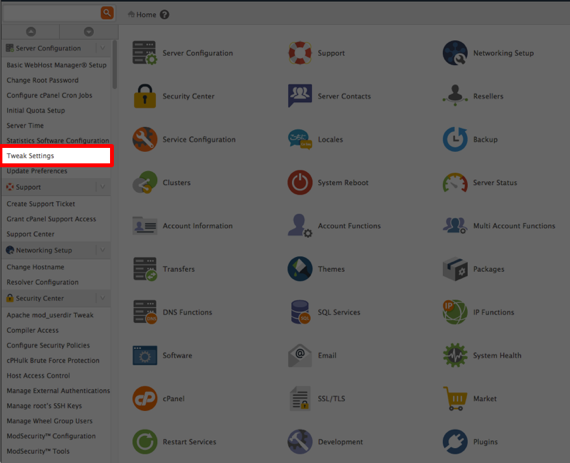
- Select Tweak Settings from the menu on the left-hand side of the page.

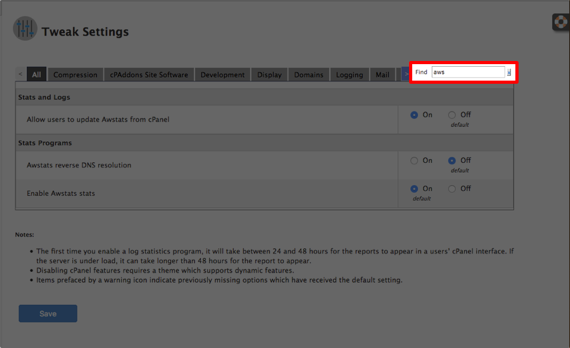
- Begin typing aws into the Find box on the right-hand side of the settings page.

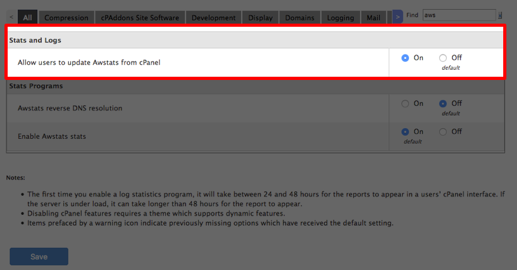
- Click Allow users to update Awstats from cPanel and save.

Now when a user logs into their cPanel, they can navigate to AWStats and manually update.
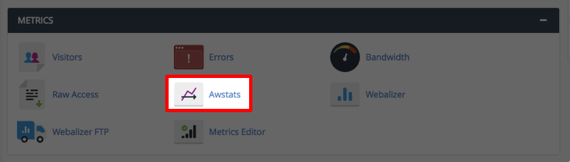
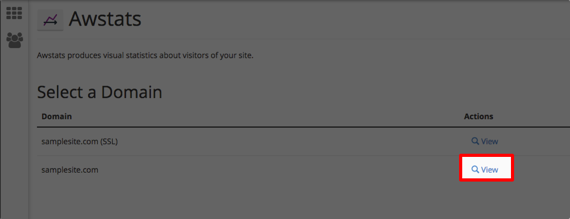
- Just click on the AWStats link from the cPanel home page.

- Click the site to update for.

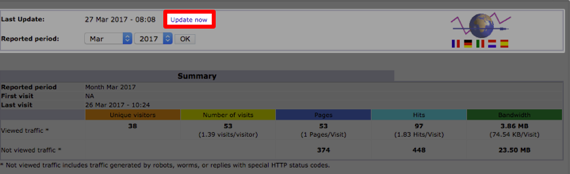
- Click Update now at the top of the page.

cPanel Time To Update
It takes 24 hours for cPanel to update and the Update now button to show. If it does not appear, you may need to manually run the stats using: ?/scripts/runweblogs $USER
Error: Cannot Update
If you try to manually update AWStats from cPanel, you may get the error:
Error: Log is currently being processed in the background. Cannot update.
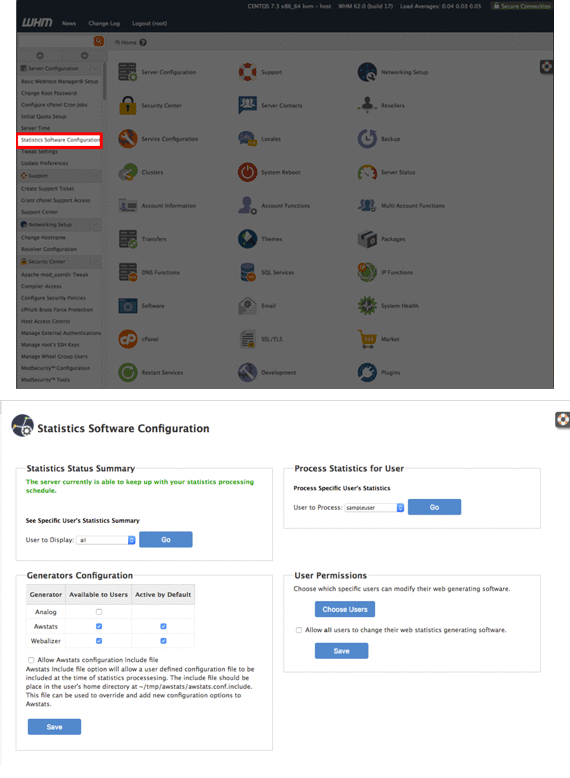
First, verify that cpanellogd isn’t actually processing the logs by logging into WHM and checking the Statistics Software Configuration for errors.
If cpanellogd is sleeping for logs, then search /usr/local/apache/domlogs for a file called $DOMAIN.com.bkup (where $DOMAIN is the domain you need AWStats to update for). Do not delete this file. Run the following command for the cPanel user:
/scripts/runweblogs $USER
Script Fails to Run |
If the script fails to run, you can force a stats run for the entire server. However, this can be a server intensive process and can take a long time to run, depending on the number of sites are on the server. If you are certain you want to run the script, use the following command:/scripts/runlogsnow |
Reporting Higher Bandwidth than Other Tools
This issue is related to how log processing programs like Webalizer and AWStats measure bandwidth. They show the size of the data that is requested, not what is actually transferred. Likely, there are large requests, but they are being cancelled. Apache logs the request, but does not log or track what actually transferred prior to the cancellation.
AWStats Does Not Exist
If there is an error stating that AWStats does not exist, you can check to see if the perl script has the proper permissions. The file is /usr/local/cpanel/3rdparty/bin/awstats.pl and permissions should be set at 755.
Error Fixes
If you come across this error:
Error: Couldn't open config file "awstats.solrobots.com.conf" nor "awstats.conf" after searching in path ".,/home/t1000/tmp/awstats/,/etc/opt/awstats,/etc/awstats,/etc,/usr/local/etc/awstats": No such file or directory
Run the runweblogs script:
run /scritps/runweblogs
This should resolve the error, but if it doesn’t, you will need to do a Create/Update database for the domain the error is registering for.
mkdir /usr/local/etc/awstats
cp /home/$USER/tmp/awstats/awstats.$DOMAIN.TLD.conf /usr/local/etc/awstats/
/usr/local/cpanel/3rdparty/bin/awstats.pl -config=$DOMAIN.TLD