

What is Memory Usage?
Memory usage on your server is like reading a book and then answering questions about it later. After you’ve read the story, you need to retain the information in your head to use later and answer questions about it. PHP scripts work in the same way, certain information is retained in memory for later use. This works well if the right information is being stored in memory.
By storing only important bits of information, PHP is able to call up those bits that are important and not waste time going through all of them. Just like if you were to memorize the book word for word, and only answer one question about the color of a car in the story. If your PHP scripts are storing information that is not being used, it can cause excessive memory usage. This will then alert your server, and cPanel will email you to notify you of the excessive memory usage.
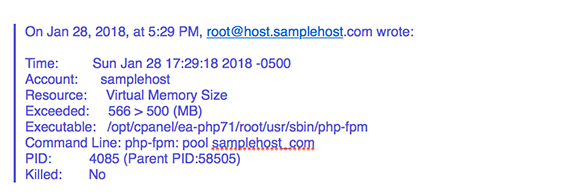
So, how do you check your usage and make sure your PHP scripts are running efficiently? There are a couple of basic commands to view the memory usage on your server in Linux. Let’s take a look at the commands you can use.
Using the free command
The first command is the free command. This will tell you about used and unused memory as well as your swap space. Your physical memory is the Random Access Storage provided by RAM modules in your motherboard.
Swap is a portion of space on your hard drive used as an extension of the physical memory. While swap will help keep your server from running out of memory (OOM) and crashing, it is not something that you should plan on having your server use. Because the hard drive is slow to write to in comparison to RAM, using swap can slow down your server quite a bit if it needs to be used.
Run the command:
rootuser$ free -m
This displays the information in terms of megabytes rather than the default kilobytes. The output should look something like this:
              total       used       free     shared    buffers     cached
Mem:          2026       1922        103          0        491       1109
Looking at these numbers, you can see that the system has about 2 GB of RAM, and about 95% of it is used. Next, looking at the Swap, that space is unused. The system has 4 GB of swap, twice the size of the physical memory. It is a rule of thumb to double the physical space in the swap space.
The -/+ buffers/cache is the trickiest part of understanding the free command’s output. This line shows how much of the physical memory is being used by the buffer cache, meaning it shows how much memory is being used (borrowed) for disk caching. Disk caching makes your system run much faster by holding certain things in short-term memory to be called up later when a visitor comes to your site.
So, while looking at the physical memory alone, it looks like the system is running short on memory, it is actually making good use of memory that’s not currently needed for something else. The key number to look at is the 103. This is the amount of memory available for your applications should they need it.
There are a couple of flags you can add to the free -m command that will help you drill down further on the memory usage and get a more complete picture of what is using which memory and how. Let’s look at how these additional flags can help.
Adding the -t flag
Adding -t to the free command gives you a line of totals at the bottom. Notice that the -/+ buffers/cache figures are not considered in the totals line.
rootuser$ free -tm
             total       used       free     shared    buffers     cached
Mem:          2026       1922        103          0        491       1109
-/+ buffers/cache:        322       1704
Swap:         4094          0       4094
Total:        6121       1922       4198
Adding the -s flag
You can add the -s flag with the free command and watch how the memory is changing, every “x” seconds, where “x” is the number of seconds you place at the end of your command. Let’s take a look at this in action.
rootuser$ free -ms 10
             total       used       free     shared    buffers     cached
Mem:          2026       1922        103          0        491       1109
-/+ buffers/cache:        322       1704
Swap:         4094          0       4094

 total       used       free     shared    buffers     cached
Mem:          2026       1922        103          0        491       1109
-/+ buffers/cache:        321       1704
Swap:         4094          0       4094

total       used       free     shared    buffers     cached
Mem:          2026       1922        104          0        491       1109
-/+ buffers/cache:        321       1704
Swap:         4094          0       4094
Terminate this command with ^C, command + C.
Using the watch command
Another option to watch your memory usage is the watch free command. Enter the command:
rootuser$ watch free
The output will look like this:
Every 2.0s: free                             Sun Jun 10 10:54:55 2012

             total       used       free     shared    buffers     cached
Mem:       2074952    1966704     108248          0     486960    1156036
-/+ buffers/cache:     323708    1751244
Swap:      4192956        128    4192828
You can change the interval used by the watch command by providing a -n # option where # is replaced by a number of seconds (e.g., -n 10).
Using the top command
The top command will not only show you a list of the top running processes, it gives you a memory use preview at the top of the command output. Even with the memory statistics at the top of the command output, you need to do a little bit of interpretation to get an understanding of the numbers. The first number on the Mem: and Swap: lines are the totals for RAM and swap space. They should be consistent with the numbers found when running the free command. Where the top output gets a little confusing is in the buffers and cached sections. With top, the Mem: and Swap: statistics are actually referring to two RAM statistics and are describing aspects of the physical memory.
rootuser$ top
The output should look like:
top - 18:54:11 up 38 days, 19:58,  7 users,  load average: 0.02, 0.01, 0.00
Tasks: 181 total,   1 running, 179 sleeping,   1 stopped,   0 zombie
Cpu(s):  0.0%us,  0.0%sy,  0.0%ni, 99.8%id,  0.1%wa,  0.0%hi,  0.0%si,  0.0%st
Mem:   2074952k total,  1967968k used,   106984k free,   503416k buffers
Swap:  4192956k total,      128k used,  4192828k free,  1135640k cached

  PID USER      PR  NI  VIRT  RES  SHR S %CPU %MEM    TIME+  COMMAND
18751 shs       15   0  2424  980  724 R  2.0  0.0   0:00.01 top
    1 root      15   0  2160  592  516 S  0.0  0.0   0:01.07 init
    2 root      RT  -5     0    0    0 S  0.0  0.0   0:00.07 migration/0
    3 root      34  19     0    0    0 S  0.0  0.0   0:00.00 ksoftirqd/0
    4 root      RT  -5     0    0    0 S  0.0  0.0   0:00.00 watchdog/0
    5 root      RT  -5     0    0    0 S  0.0  0.0   0:00.77 migration/1
    6 root      34  19     0    0    0 S  0.0  0.0   0:00.00 ksoftirqd/1
    7 root      RT  -5     0    0    0 S  0.0  0.0   0:00.00 watchdog/1
    8 root      RT  -5     0    0    0 S  0.0  0.0   0:00.14 migration/2
    9 root      39  19     0    0    0 S  0.0  0.0   0:00.02 ksoftirqd/2
   10 root      RT  -5     0    0    0 S  0.0  0.0   0:00.00 watchdog/2
   11 root      RT  -5     0    0    0 S  0.0  0.0   0:00.32 migration/3
   12 root      39  19     0    0    0 S  0.0  0.0   0:00.04 ksoftirqd/3
   13 root      RT  -5     0    0    0 S  0.0  0.0   0:00.00 watchdog/3
   14 root      10  -5     0    0    0 S  0.0  0.0   0:00.02 events/0
   15 root      10  -5     0    0    0 S  0.0  0.0   0:00.00 events/1
   16 root      10  -5     0    0    0 S  0.0  0.0   0:00.00 events/2
The buffers section represents memory blocks being accessed by the kernel accessing the disk. The cached section tells us how much RAM is being used to cache the content of recently read files. When the file system layer is bypassed, the cache will grow as the file system is being used. Both grow as read operations increase.
Using the vmstat command
When you run the vmstat command, you will see some of the same numbers, but in different places. The swpd figure shows the used swap space, while free shows the free memory. The buffer and cache figures are the same figures as the buffer and cached sections in the free and top commands. The numbers for overall memory size and the -/+ buffers/cache section is missing, so the sections that give you an idea of how much flexibility your memory system can muster is not visible.
Run the command:
rootuser$ vmstat
The output will look like this:
procs -----------memory---------- ---swap-- -----io---- --system-- -----cpu------
 r  b   swpd   free   buff  cache   si   so    bi    bo   in   cs us sy id wa st
 0  0    128 106612 503380 1135668    0    0     2     2    3    2  0  0 100  0  0
To get a quick and accurate view of memory use on your Linux server, use the free command, but if you want to drill down and see more statistics, the other commands will give you a different view of your memory use. This will help you troubleshoot and understand that you may not be using as much memory as you think based on a quick look.