Ordering and Managing Acronis Backup Plans
Liquid Web now offers backups from Acronis as part of an effective backup strategy for your dedicated and virtual servers. To learn more about a good backup strategy, see Best Practices: Developing a Backup Plan. You can order and manage Acronis backups from your portal.liquidweb.com account. NOTE: Pricing has been removed from the screen shots in this article. See your portal or contact our Sales team for up to date pricing.
Ordering an Acronis Backup Plan
- Login to portal.liquidweb.com. For more information, see Exploring Your My Liquid Web Account.
- Click My Servers from the navigation bar at the left of the screen.
- Select the server for which you’d like to add Acronis Backups.
- Click the Backups and Images tab.

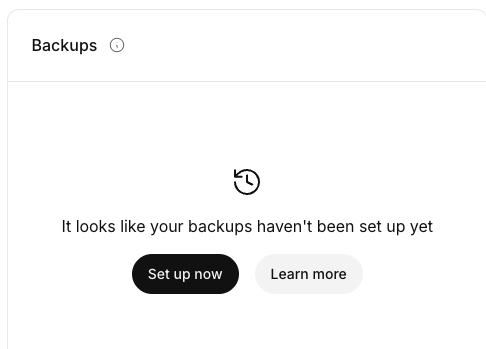
- In the Backups block, click Set up now to add Acronis backups to your server.

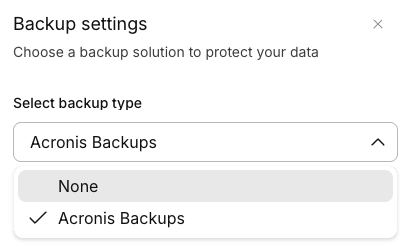
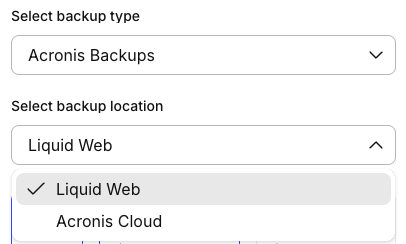
- Choose Acronis Backups from the Backup settings drop down menu.

- Choose the location for the backups (either Liquid Web or Acronis Cloud).

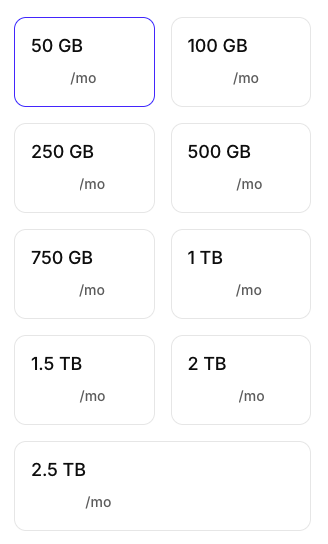
- Select the plan size based on the capacity of storage space you need. Depending on the backup schedule you select and other factors, we recommend at least twice as much storage as the initial size of the data you want to backup.

- Once you’ve selected the right plan, click Buy now.
- You’ll be presented with your shopping cart with the details of the plan you’ve selected.
- Confirm your payment method and click the checkbox to agree to terms.

- Click Place your order to confirm your choice.

That’s all you need to do to order Acronis Backups! Our setups team will process your order, configure your Acronis account, set up the backup agent on your server, and start a default backup plan to protect your data. You’ll get a confirmation email when you place the order and an activation email once everything is set up and you have access to your Acronis backups. For more information about accessing your backups, see Accessing Acronis Backups.
Managing Your Acronis Backup Plan
Now that you have Acronis backups for your server, you may find that you need to adjust the size of the backup plan to allow for more storage or perhaps reduce a plan that you are not utilizing fully. You can adjust the size of your Acronis Backup Plan in your portal.liquidweb.com account.
- Login to portal.liquidweb.com. For more information, see Exploring Your My Liquid Web Account.
- Click My Servers from the navigation bar at the left of the screen.
- Select the server for which you’d like to modify Acronis Backups.
- Click the Backups and Images tab.
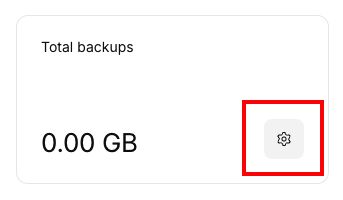
- Click the Backup Settings gear in the Total backups block.

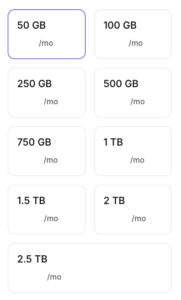
- Select the new storage plan you would like to use, then click Upgrade or Downgrade, as appropriate.

- You’ll receive a notification that the change was successful. You can always make additional changes if needed.
Removing Acronis Backups
If you no longer require Acronis Backups for your server, you can remove the Acronis Backup Plan completely in your portal.liquidweb.com account.
- Login to portal.liquidweb.com. For more information, see Exploring Your My Liquid Web Account.
- Click My Servers from the navigation bar at the left of the screen.
- Select the server for which you’d like to remove Acronis Backups.
- Click the Backups and Images tab.
- Click the Backup Settings icon in the Total backups block.
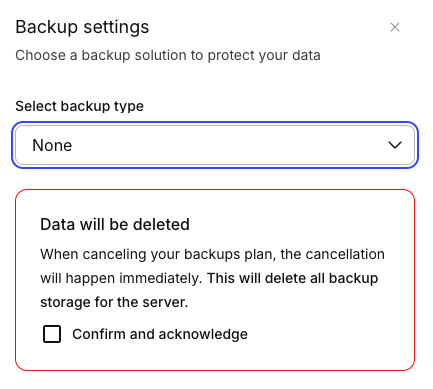
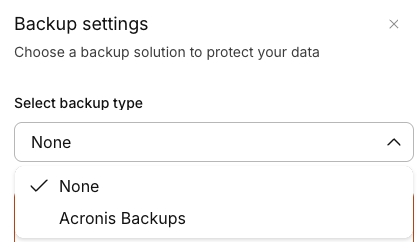
- Under Backup type, select None.

- You’ll see a pop-up warning you that removing Acronis Backups will remove both the plan and all of your current Acronis Backups. This cannot be undone! Please be sure you have reliable copies of any data in the backups before removing Acronis Backups from the server. Click the checkbox next to Confirm and acknowledge. Finally, click Remove backups to remove Acronis backups from your server.